 WhatsApp +44 7367 063273
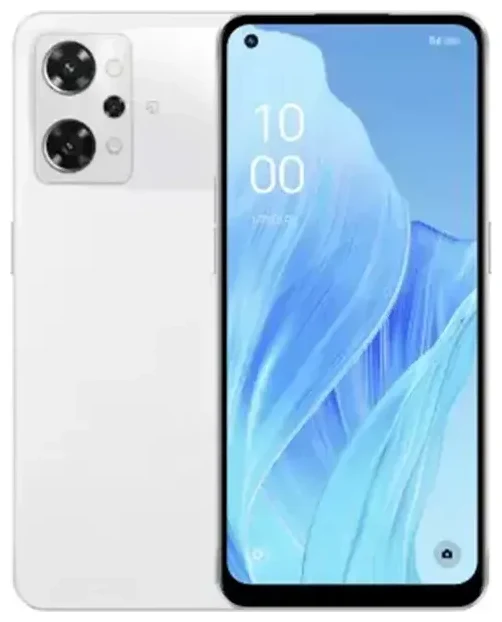
Does the OPPO Reno9 a support eSIM?
OPPO Reno9 a eSIM compatibility
The OPPO Reno9 a supports eSIM, but only in the Japan Y!mobile variant. The standard retail model sold directly by OPPO in Japan and other regional versions do not include eSIM functionality. If you purchased your OPPO Reno9 a through Y!mobile (ワイモバイル), your device can use eSIM alongside a physical nano-SIM for dual SIM capability.
The Y!mobile OPPO Reno9 a allows you to run one eSIM profile and one physical nano-SIM simultaneously, giving you flexibility to separate work and personal lines or add a local data plan when traveling. You cannot use two eSIMs at once on this device—it's limited to one eSIM plus one physical SIM card.
Which model do you have?
Check your device packaging or the "About phone" section in Settings to confirm your model number. The Y!mobile version is typically marked with carrier branding and sold through Y!mobile retail channels or their online store. If you bought an unlocked OPPO Reno9 a from OPPO directly or another retailer in Japan, it likely does not support eSIM. When in doubt, confirm with your seller or check OPPO's official specification sheet for your exact model before attempting to activate an eSIM.
How to set up an eSIM on the OPPO Reno9 a
Set up an eSIM in Settings
Setting up an eSIM on your Y!mobile OPPO Reno9 a takes about 60 seconds once you have your activation QR code from your carrier or eSIM provider. Make sure you're connected to Wi-Fi before you begin, as the process requires an internet connection to download your eSIM profile.
- Open Settings and tap Mobile Network (or SIM cards & mobile networks, depending on your ColorOS version).
- Tap Add SIM or Add eSIM.
- Select Scan QR code and point your camera at the QR code provided by your carrier or eSIM provider.
- Tap Add or Download to install the eSIM profile. This typically takes 30–60 seconds.
- Once installed, give your eSIM line a label (like "Travel" or "Work") to distinguish it from your physical SIM.
- Choose which line to use for mobile data, calls, and SMS in the SIM settings menu.
OPPO eSIM 追加 and switching lines
After activation, you can switch between your eSIM and physical SIM for data by going to Settings > Mobile Network and selecting your preferred line under Mobile data. Both lines remain active for calls and texts unless you disable one manually. This dual SIM setup is helpful if you want to keep your home number reachable while using a local data eSIM abroad.
Using a travel eSIM on the OPPO Reno9 a
Get data abroad without roaming charges
A travel eSIM lets you connect to local networks when you travel without paying international roaming fees on your home carrier. You keep your primary SIM active for calls and texts, while the eSIM handles data. Install your travel eSIM before you leave—most providers email the QR code instantly, and you can add the profile while still at home on Wi-Fi.
Once you land, turn on data roaming for your eSIM line (but leave it off for your home SIM to avoid charges), and you'll have local data rates immediately. You can browse eSIM plans for your destination and compare coverage and data allowances to find the right fit for your trip.
Oppo reno9 a 海外 SIM flexibility
The OPPO Reno9 a dual SIM setup means you don't need to remove your home SIM card when traveling. Your contacts can still reach you on your regular number for calls and two-factor authentication codes, while the travel eSIM keeps you online for maps, messaging, and web browsing. This setup works particularly well for frequent travelers who need both connectivity and reliability.
Tips & troubleshooting
Turn on data roaming for the eSIM line
Your eSIM won't connect to mobile data abroad unless data roaming is enabled for that specific line. Go to Settings > Mobile Network, select your eSIM, and toggle Data roaming on. At the same time, double-check that data roaming is off for your home SIM to prevent unexpected charges. You can also set your eSIM as the default data line so your phone automatically routes all internet traffic through it.
Fix an eSIM that won't activate
If your QR code won't scan, check that your camera lens is clean and you have good lighting. You can also enter the activation code manually: tap Enter activation code manually (or similar wording) on the eSIM setup screen and type in the SM-DP+ address and activation code provided by your carrier. If the eSIM downloads but won't connect, restart your phone and confirm you've selected the correct line for mobile data. For persistent issues, eSIM setup help is available, or contact your eSIM provider to confirm the profile is active on their end.
How can I tell if my device is eSIM compatible?
The quickest way to check OPPO Reno9 a eSIM compatibility is to open Settings > Mobile Network and look for an Add eSIM or Add SIM option. If you see it, your device supports eSIM. You can also dial *#06# to display your device's IMEI numbers—if you see an EID (eSIM Identifier, a 32-digit number), your phone has eSIM capability. If you're still unsure, check another device's eSIM compatibility or consult your carrier.








