 WhatsApp +44 7367 063273
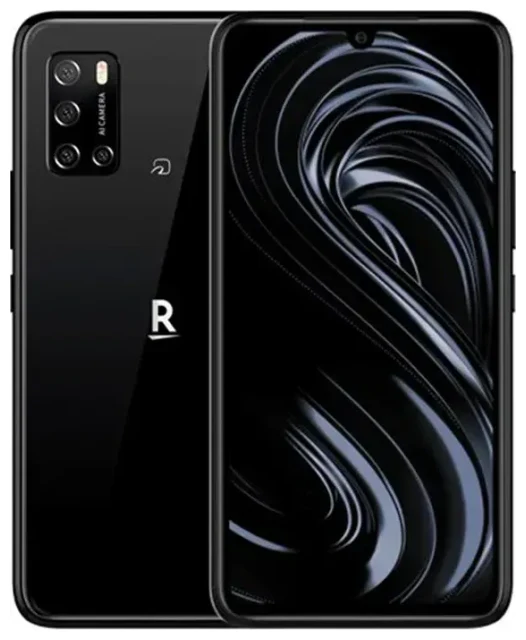
Does the Rakuten Big support eSIM?
Yes, the Rakuten Big supports eSIM. This Android smartphone was released exclusively in Japan by Rakuten Mobile in 2020 and includes built-in eSIM capability across all units. The device does not have a physical SIM card slot—it's eSIM-only, which means you must use an eSIM profile to connect to any mobile network.
Rakuten Big eSIM compatibility
All Rakuten Big models support eSIM because the phone was designed specifically for Rakuten Mobile's eSIM network in Japan. The device can store multiple eSIM profiles, though only one can be active at a time since there's no physical SIM slot for dual-SIM operation. This makes it straightforward for international travelers: you can download a travel eSIM profile while keeping your home Rakuten Mobile profile on the device, then switch between them as needed.
eSIM-only design
Because the Rakuten Big has no physical SIM tray, you cannot use traditional nano-SIM cards. Every connection—whether for your home network or a travel data plan—must be delivered as an eSIM. This eSIM-only architecture keeps the device slim but requires you to ensure any carrier or travel provider you choose offers eSIM support.
How to set up an eSIM on the Rakuten Big
Installing an eSIM profile on the Rakuten Big is quick and takes about 60 seconds once you have your QR code. You'll receive the QR code from your eSIM provider—either by email or in their app—and scan it directly in your phone's settings.
Set up an eSIM in Settings
- Connect your Rakuten Big to Wi-Fi so the eSIM profile can download.
- Open Settings, then tap Network & internet.
- Tap the + icon next to Mobile network or select Add carrier.
- Choose Download a SIM instead? or Use QR code.
- Scan the QR code provided by your eSIM carrier using your camera.
- Confirm the download and wait for the profile to install—usually 10–60 seconds.
- Label the new line with a recognizable name, such as "Travel Data" or the country you're visiting.
- Turn on the eSIM profile and enable mobile data for that line if prompted.
Once the installation completes, the eSIM will appear in your network settings. You can manage, rename, or delete profiles anytime from the same menu.
Using a travel eSIM on the Rakuten Big
A travel eSIM is the easiest way to get mobile data abroad without paying roaming fees on your home plan. Instead of hunting for a physical SIM card at the airport or dealing with unexpected charges, you download a prepaid data plan directly to your Rakuten Big before you depart. Because the device supports multiple stored eSIM profiles, you can keep your Rakuten Mobile eSIM installed and simply switch to the travel eSIM when you land.
Install before you fly
Download your travel eSIM while you're still at home and connected to Wi-Fi. Most travel eSIMs activate only when you arrive in the destination country and connect to a local network, so installing early won't trigger the plan. You can browse eSIM plans by region or country to find coverage that fits your trip. Once installed, label the travel eSIM clearly so you know which profile to enable when you're abroad, then toggle it on in your network settings after you land.
Tips & troubleshooting
Most eSIM installations on the Rakuten Big work on the first try, but a few settings adjustments can save you trouble if activation stalls or data won't connect.
Turn on data roaming for the eSIM line
Travel eSIMs require data roaming to be enabled because they connect to partner networks in other countries. Go to Settings > Network & internet > Mobile network, select your travel eSIM, and toggle Roaming on. This won't cost you extra—the data is already prepaid in your eSIM plan.
Keep your home eSIM for calls and texts
Since the Rakuten Big can only run one eSIM at a time, you'll need to switch profiles if you want to receive SMS for two-factor authentication on your home number. You can disable the travel eSIM temporarily, enable your Rakuten Mobile eSIM to get the text, then switch back. Alternatively, use app-based authentication or Wi-Fi calling where possible.
Fix an eSIM that won't activate
If your QR code won't scan, check that your camera lens is clean and the code is displayed at full brightness on another screen. You can also enter the activation details manually: tap Enter activation code and type in the SM-DP+ address and activation code your provider sent. Restart your Rakuten Big after installation to refresh the network connection, and confirm you've turned on the correct eSIM profile in mobile-network settings. If problems persist, eSIM setup help is available, or contact your eSIM provider to confirm the QR code is valid and hasn't already been used. You can also check another device's eSIM compatibility if you're considering a backup phone for travel.








