 WhatsApp +44 7367 063273
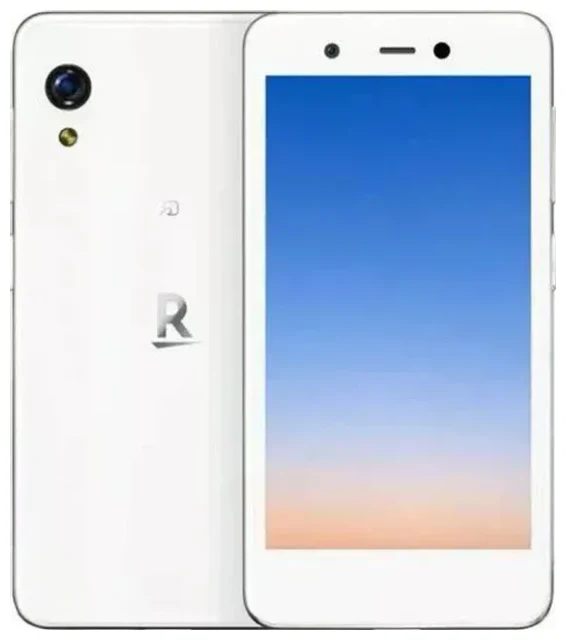
Does the Rakuten Mini support eSIM?
Rakuten Mini eSIM compatibility
Yes, the Rakuten Mini supports eSIM exclusively. This compact Android smartphone from Rakuten Mobile was designed as an eSIM-only device with no physical SIM card slot. All Rakuten Mini models rely entirely on eSIM technology, making it one of the earliest mainstream phones to skip the traditional SIM tray.
Dual SIM and physical SIM slot
The Rakuten Mini does not support dual SIM. Because it lacks a physical SIM slot, you can only use a single eSIM profile at a time. You can store multiple eSIM profiles on the device and switch between them in Settings, but only one can be active for calls, texts, and data. This eSIM-only design keeps the phone ultra-compact but limits flexibility compared to dual-SIM devices.
How to set up an eSIM on the Rakuten Mini
Install your eSIM profile in Settings
Setting up a Rakuten Mini eSIM takes about one minute once you receive your QR code from your carrier or eSIM provider. Make sure you have a stable Wi-Fi connection before you begin, as the device needs internet access to download and activate the profile.
- Open Settings on your Rakuten Mini.
- Tap Network & internet, then Mobile network.
- Select Advanced and tap Carrier.
- Tap Add carrier or the "+" icon to add a new eSIM profile.
- Choose Scan QR code and point your camera at the QR code provided by your carrier or travel eSIM provider.
- Confirm the download and wait while the eSIM profile installs (usually 30–60 seconds).
- Once installed, tap Done. The new eSIM will appear in your mobile network settings.
- If you have multiple profiles, label each one (e.g. "Home," "Travel") so you can identify and switch between them easily.
Manual entry if the QR code won't scan
If your camera has trouble reading the QR code, most providers supply an activation code (SM-DP+ address and activation code). In step 5 above, tap Enter activation code manually and paste the details your provider sent you.
Using a travel eSIM on the Rakuten Mini
The Rakuten Mini eSIM design makes international travel straightforward. Instead of hunting for a local SIM card at the airport, you can browse eSIM plans for your destination, purchase one before you leave, and install the profile while you're still connected to Wi-Fi at home or in your hotel.
Install your travel eSIM before departure
Download and install your travel eSIM profile a day or two before your flight. The profile stays dormant until you land and enable it in Settings. This way you have data the moment you switch on your phone overseas, with no roaming charges from your home carrier. Because the Rakuten Mini only supports one active eSIM at a time, you'll need to switch from your home profile to the travel profile manually when you arrive, then switch back when you return home.
Tips & troubleshooting
Turn on data roaming for the eSIM line
Even though you're using a local travel eSIM, the Rakuten Mini may still require the Data roaming toggle to be enabled for the eSIM to connect. Go to Settings > Network & internet > Mobile network, select your travel eSIM, and make sure Roaming is turned on. This allows the profile to connect to the local network. You won't incur roaming fees because the eSIM itself is a local plan.
Keep your home eSIM for calls and two-factor authentication
Because the Rakuten Mini can only run one eSIM profile at a time, you'll lose access to your home number for calls and texts while the travel eSIM is active. If you need to receive two-factor authentication codes or calls on your home number, you'll have to switch profiles temporarily in Settings or rely on app-based authentication and Wi-Fi calling where available.
What to do if the QR code won't scan
Make sure your screen brightness is high and the QR code is displayed clearly without glare. If the Rakuten Mini camera still won't read it, request the manual activation code from your provider and enter it using the Enter activation code manually option. Poor lighting or a damaged QR code image can prevent scanning. If problems persist, restart your device and try again, or check eSIM setup help for additional guidance.
Check device compatibility for other phones
If you're considering a different device or want to confirm eSIM support on a secondary phone, you can check another device's eSIM compatibility to compare features and dual-SIM options before you buy.








