 WhatsApp +44 7367 063273
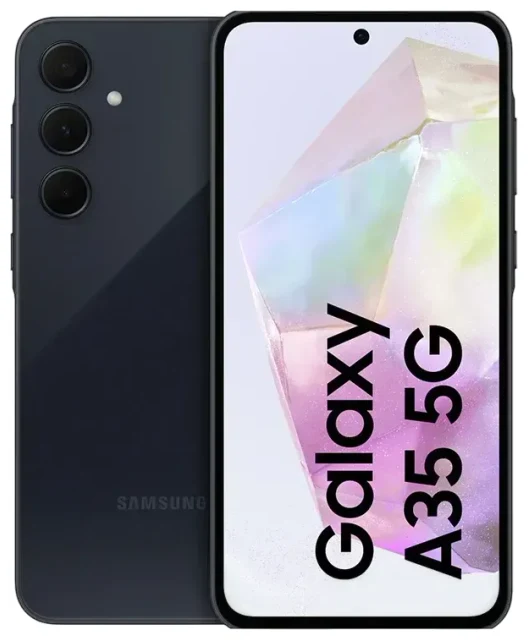
Does the Samsung Galaxy A35 5G support eSIM?
Samsung Galaxy A35 5G eSIM compatibility
Yes, the Samsung Galaxy A35 5G supports eSIM, but only in specific regional variants. Not all versions of this device ship with eSIM capability, so you need to verify your exact model number before purchasing an eSIM plan.
The SM-A356E is the primary model that offers eSIM support in certain markets, particularly in Europe and Asia. The SM-A356E/DS variant typically includes dual SIM functionality with one physical nano-SIM slot and eSIM capability, allowing you to run two lines simultaneously. However, the exact configuration depends on your region and carrier.
Regional differences and dual SIM configuration
Some markets receive models without eSIM (physical dual-SIM trays instead), so check your device's specifications in Settings > About phone > Model number. If you purchased your Samsung Galaxy A35 5G in North America, your variant may only support physical SIM cards. The dual SIM feature, when eSIM is present, lets you combine one physical nano-SIM with one eSIM profile—ideal for separating work and personal lines or adding a travel data plan while keeping your home number active.
If you're uncertain whether your specific Samsung Galaxy A35 5G model supports eSIM, check Samsung's official spec sheet for your region or contact your carrier before committing to an eSIM plan. The SM-A356E/DS eSIM availability varies by country of purchase.
How to set up an eSIM on the Samsung Galaxy A35 5G
Step-by-step eSIM activation
Once you've confirmed your Samsung Galaxy A35 5G has eSIM capability and purchased a compatible plan, activation takes about 60 seconds. You'll receive a QR code from your eSIM provider via email—keep your device connected to Wi-Fi throughout the process.
- Open Settings on your Samsung Galaxy A35 5G.
- Tap Connections, then select SIM manager (or SIM card manager depending on your software version).
- Choose Add mobile plan or Add eSIM.
- Select Scan QR code and point your camera at the QR code provided by your carrier or eSIM provider.
- Tap Add when prompted to confirm the download.
- Wait for the eSIM profile to install—this usually takes 30–60 seconds.
- Once installed, label your eSIM line (e.g., "Travel" or "Work") to distinguish it from your physical SIM.
- Set your preferred line for mobile data, calls, and texts in the SIM manager settings.
Labeling and managing your lines
After setup, you can customize which line handles data, calls, and messages. Go back to Settings > Connections > SIM manager to choose your default mobile data SIM and calling preferences. This flexibility makes the Samsung Galaxy A35 5G dual SIM configuration particularly useful when traveling or managing multiple numbers.
Using a travel eSIM on the Samsung Galaxy A35 5G
Stay connected abroad without roaming charges
Travel eSIMs offer an efficient way to get mobile data when you're abroad, without paying international roaming fees from your home carrier. You can browse eSIM plans covering over 190 countries, purchase a data package for your destination, and install the profile on your Samsung Galaxy A35 5G before you depart.
Install your travel eSIM while you're still at home and connected to Wi-Fi. The profile sits dormant until you land and turn it on. Once you arrive, enable the travel eSIM line for mobile data in SIM manager, and keep your home physical SIM active for incoming calls and text messages (including two-factor authentication codes). This dual-line setup means you stay reachable on your regular number while using affordable local data rates through the eSIM.
Activating your travel eSIM on arrival
When your plane lands, go to Settings > Connections > SIM manager and toggle on your travel eSIM. Select it as your mobile data line, and ensure data roaming is enabled for that specific eSIM profile. Your home SIM can remain active for calls and SMS without triggering expensive data roaming charges, as long as mobile data is assigned exclusively to the travel eSIM.
Tips & troubleshooting
Enable data roaming for your eSIM line
A common issue: your Samsung Galaxy A35 5G eSIM won't connect to a network abroad because data roaming is disabled. Go to Settings > Connections > Mobile networks, select your eSIM line, and toggle Data roaming on. This is safe when you're on a prepaid travel eSIM with a fixed data allowance—you can't rack up surprise charges. Keep data roaming off for your home physical SIM to avoid accidental roaming fees.
QR code won't scan or eSIM not showing
If the camera struggles to read your QR code, try increasing screen brightness on the device displaying the code, or enter the activation details manually. In SIM manager, choose Enter activation code instead of scanning, then type in the SM-DP+ address and activation code provided by your eSIM carrier.
If the eSIM option doesn't appear in your Samsung A35 SIM card slot settings at all, your model variant likely doesn't support eSIM. Double-check your model number (SM-A356E variants are most likely to have eSIM). Some users on Samsung A35 5G eSIM Reddit threads report that certain carrier-locked devices have eSIM features disabled—unlocking your phone may restore access.
Keep your home SIM active for calls and 2FA
Don't remove or disable your home physical SIM when traveling. Leave it active so you can receive calls, texts, and two-factor authentication codes. Just ensure mobile data is routed through your travel eSIM to avoid roaming data charges. You can manage which SIM handles data, calls, and messages independently in SIM manager.
If you need help with eSIM activation or want to check another device's eSIM compatibility, you'll find detailed setup guides and device-specific instructions available. For persistent issues, contact your eSIM provider's support team—they can resend QR codes or walk you through manual activation.








