 WhatsApp +44 7367 063273
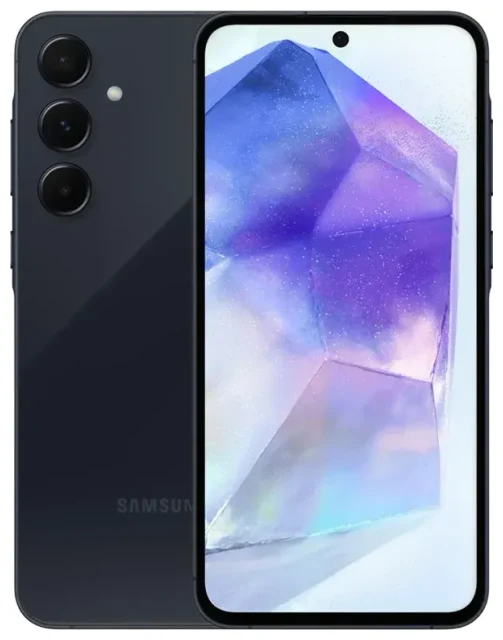
Does the Samsung Galaxy A55 5G support eSIM?
Samsung Galaxy A55 5G eSIM compatibility
Yes, the Samsung Galaxy A55 5G supports eSIM in most global markets. Samsung launched the Galaxy A55 5G with eSIM functionality built into the majority of regional variants, making it a solid mid-range option if you want flexible connectivity without swapping physical SIM cards.
However, eSIM availability depends on your specific model and where you purchased it. Some variants sold in certain markets—particularly in regions where carriers haven't widely adopted eSIM technology—may ship with dual physical SIM slots instead. Before you rely on eSIM for travel or a secondary line, confirm your exact model supports it by checking Settings > Connections > SIM manager. If you see an "Add eSIM" or "Add mobile plan" option, your Galaxy A55 5G has eSIM capability.
Dual SIM capability: eSIM plus physical SIM
The Samsung Galaxy A55 5G offers dual SIM functionality: one physical nano-SIM slot plus one eSIM. You can use both simultaneously, which means you can keep your primary number on a physical SIM and add a travel eSIM for data when you're abroad, or run two separate lines—one for work, one for personal use. The device does not support dual eSIM configurations; you're limited to one eSIM profile active at a time alongside the physical card.
If your variant lacks eSIM support, you'll have a hybrid or dedicated dual physical SIM tray instead. Check your phone's documentation or the Samsung website for your region to verify the exact configuration.
How to set up an eSIM on the Samsung Galaxy A55 5G
eSIM activation steps in Settings
Setting up an eSIM on the Samsung Galaxy A55 5G is straightforward. Most eSIM providers send you a QR code by email after purchase. The entire process takes about a minute once you have that code ready. Make sure you're connected to Wi-Fi before you start, because the phone needs to download your eSIM profile.
- Open Settings and tap Connections.
- Tap SIM manager (or SIM card manager, depending on your software version).
- Select Add eSIM or Add mobile plan.
- Tap Scan QR code and point your camera at the QR code your provider sent.
- Confirm the plan details and tap Add. The Galaxy A55 5G will download and install the eSIM profile.
- Once installed, label the line—for example, "Travel" or "Work"—so you can easily identify it.
- Choose which SIM to use for mobile data, calls, and messages in SIM manager. You can switch these at any time.
Manual activation if the QR code won't scan
If your camera won't read the QR code—maybe the lighting is poor or the image is blurry—tap Enter activation code manually instead. Your eSIM provider will include an SM-DP+ address and activation code in the same email. Copy and paste those details into the fields, then tap Add. The rest of the setup is identical.
Using a travel eSIM on the Samsung Galaxy A55 5G
A travel eSIM is the simplest way to get mobile data abroad without paying roaming fees or hunting for a local SIM card at the airport. You buy a data plan online, install the eSIM before you leave, and activate it when you land. Your home number stays active on the physical SIM, so you can still receive calls and text messages for two-factor authentication while the eSIM handles your data.
Install your travel eSIM while you're still at home and connected to Wi-Fi. Don't wait until you're at the airport or already abroad—you need a stable connection to download the profile. Once installed, you can toggle the eSIM on or off in SIM manager whenever you need it. When you arrive at your destination, turn on the eSIM line, enable data roaming for it, and you're connected.
You'll find data plans for more than 200 countries and regions when you browse eSIM plans. Compare coverage, validity periods, and data allowances to match your trip. Many travelers keep a travel eSIM installed between trips and simply top it up or buy a new regional plan as needed.
Tips and troubleshooting
Turn on data roaming for your eSIM line
After you activate a travel eSIM, you must enable data roaming for that specific line. Go to Settings > Connections > SIM manager, tap your eSIM, then tap Mobile data and switch on Data roaming. This is not the same as your carrier's international roaming—you're using the local network your eSIM connects to, so there's no surprise bill. If you forget this step, your eSIM won't connect even though it's installed.
Keep your home SIM active for calls and texts
Set your physical SIM as the default for calls and SMS in SIM manager, and assign mobile data to your travel eSIM. That way, your primary number stays reachable for voice calls and two-factor authentication codes, while your data traffic runs through the cheaper local eSIM plan. You can adjust these settings any time without reinstalling anything.
What to do if the QR code won't scan
If the Samsung Galaxy A55 5G won't read your QR code, try increasing screen brightness on the device displaying the code, or print it on paper. Make sure your camera lens is clean. If scanning still fails, switch to manual entry: your eSIM provider's email will list the SM-DP+ address and activation code you need. If the eSIM won't activate at all—showing an error or failing silently—restart your phone and try again. You can also check another device's eSIM compatibility if you have a backup phone, or reach out for eSIM setup help if the issue persists.
Managing multiple eSIM profiles
The Samsung Galaxy A55 5G can store multiple eSIM profiles, but only one can be active at a time alongside your physical SIM. If you travel frequently to different regions, install eSIMs for each destination and switch between them in SIM manager. To remove an old eSIM you no longer need, go to SIM manager, tap the eSIM, and select Remove. This frees up space without affecting your active lines.








