 WhatsApp +44 7367 063273
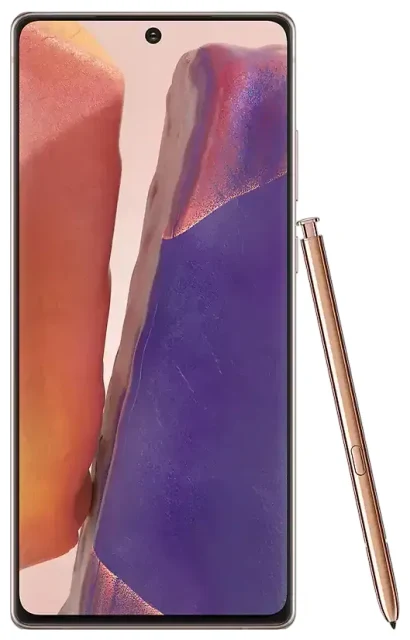
Does the Samsung Galaxy Note 20 support eSIM?
Samsung Galaxy Note 20 eSIM compatibility
The answer depends on which Samsung Galaxy Note 20 model you own. Not all Samsung Galaxy Note 20 variants support eSIM. eSIM functionality is available on select regional models, primarily those sold in certain markets including the United States, Germany, and the United Kingdom. Many other regional variants—especially those sold in Asia, the Middle East, and other markets—support only physical dual-SIM configurations and do not include eSIM capability.
If your Samsung Galaxy Note 20 does support eSIM, it offers dual-SIM functionality: one physical nano-SIM slot plus one eSIM. You cannot use two eSIMs simultaneously on this device—it's limited to one eSIM and one physical SIM at a time.
How to verify your model supports eSIM
To confirm whether your specific Samsung Galaxy Note 20 has eSIM support, check your device settings. Go to Settings > Connections > SIM card manager. If you see an option to "Add mobile plan" or "Add eSIM," your device supports it. If this option doesn't appear, your regional variant likely doesn't include eSIM hardware. You can also verify compatibility by checking the original retail packaging or the manufacturer's official specification sheet for your model number, which you'll find under Settings > About phone > Model number.
How to set up an eSIM on the Samsung Galaxy Note 20
Set up an eSIM in Settings
If you've confirmed your Samsung Galaxy Note 20 supports eSIM, activating a new eSIM profile takes about sixty seconds. You'll receive a QR code from your carrier or eSIM provider—keep it ready before you start.
- Connect to Wi-Fi to ensure a stable connection during activation.
- Open Settings and tap Connections.
- Tap SIM card manager.
- Select Add mobile plan or Add eSIM.
- Tap Scan carrier QR code and point your camera at the QR code provided by your eSIM provider.
- Confirm the plan details and tap Add.
- Wait while your Samsung Galaxy Note 20 downloads and installs the eSIM profile (usually 30–90 seconds).
- Once installed, label your eSIM line with a recognizable name like "Travel" or "Work" to distinguish it from your physical SIM.
- Choose which line to use for mobile data, calls, and messages in SIM card manager.
Samsung Note 20 eSIM activation tips
Your eSIM activates immediately after installation in most cases. If the QR code won't scan properly, check that your camera lens is clean and the code is well-lit. Most providers also offer manual activation: you'll enter an activation code and server address found on your eSIM confirmation email. This method works identically and takes just a few extra seconds.
Using a travel eSIM on the Samsung Galaxy Note 20
A travel eSIM is the practical way to get mobile data abroad without paying roaming fees on your home plan. Instead of hunting for a physical SIM card when you land, you install a data-only eSIM before you leave home. Once you arrive, your Samsung Galaxy Note 20 connects to a local network automatically.
Purchase your travel eSIM plan while you're still at home—ideally a day or two before departure. You'll receive the QR code by email, and you can install it following the steps above. The eSIM won't activate or start using data until you reach your destination country and turn on that line in your SIM card manager. You can browse eSIM plans covering over 200 countries and regions, with data packages ranging from short trips to extended stays.
Keep your home SIM active for calls and texts
Your physical SIM stays in the phone and remains active for calls and SMS, including two-factor authentication codes. Set your travel eSIM as the data line and your home SIM for calls. This setup means you stay reachable on your regular number while avoiding data roaming charges. Just make sure to disable mobile data on your home SIM line in SIM card manager to prevent accidental roaming.
Tips & troubleshooting
Turn on data roaming for your eSIM line
Even though you're using a local eSIM, you still need to enable data roaming for that line. Go to Settings > Connections > Mobile networks, select your eSIM line, and toggle Data roaming on. This allows your Samsung Galaxy Note 20 to connect to the eSIM provider's partner networks in your destination country.
Fix an eSIM that won't activate
If your eSIM profile installed but shows "No service" or won't connect, restart your phone first. If that doesn't work, check that the eSIM line is enabled and set as your data line in SIM card manager. Confirm you've turned on data roaming for the eSIM. If you still can't connect, remove the eSIM profile and reinstall it using the original QR code—you can delete it under SIM card manager by tapping the eSIM line and selecting Remove.
How to know if your Samsung has eSIM
The fastest way to verify eSIM support on any Samsung device is to open Settings > Connections > SIM card manager. If you see "Add mobile plan" or similar language, your phone supports eSIM. If that option is missing, your model doesn't include eSIM hardware. You can also check another device's eSIM compatibility if you're considering upgrading or purchasing a different Samsung model. Keep in mind that Samsung's eSIM support varies significantly by model and market—even within the same phone family, some regional variants include eSIM while others don't.
Note 20 Ultra eSIM not showing
If you own a Samsung Galaxy Note 20 Ultra and don't see eSIM options in settings, the same regional limitations apply. The Note 20 Ultra shares the same eSIM compatibility pattern as the standard Note 20: only certain market-specific models include eSIM support. Check your model number and confirm your variant was sold in a region that received eSIM-enabled hardware. For further help with eSIM setup on any compatible Samsung phone, visit eSIM setup help.








