 WhatsApp +44 7367 063273
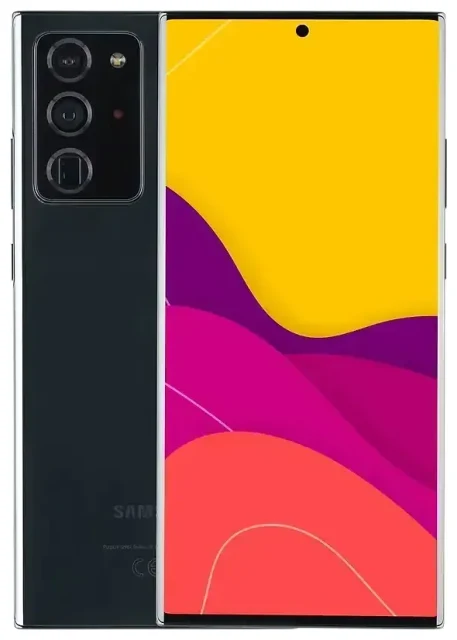
Does the Samsung Galaxy Note 20 Ultra 5G support eSIM?
Yes, the Samsung Galaxy Note 20 Ultra 5G supports eSIM, but only in specific regional variants. The unlocked US model (SM-N986U1) includes eSIM functionality, as do devices sold through select US carriers once unlocked. International models, including those sold in Europe, Asia, and many other regions, typically do not support eSIM—they rely on dual physical nano-SIM slots instead.
Samsung Galaxy Note 20 Ultra 5G eSIM compatibility by model
If you purchased your Note 20 Ultra 5G outside the United States or through certain carrier-locked channels, your device likely does not have eSIM capability. To confirm, check your model number under Settings > About phone > Model number. The SM-N986U1 (US unlocked) and carrier-unlocked SM-N986U variants are your best bet for eSIM support.
When eSIM is available, the Samsung Galaxy Note 20 Ultra 5G supports dual SIM: one physical nano-SIM and one eSIM active simultaneously. This makes it convenient for separating work and personal lines or using a local data plan while keeping your home number active. The device does not support multiple eSIMs loaded at once; you can store one eSIM profile and use it alongside the physical SIM.
How to set up an eSIM on the Samsung Galaxy Note 20 Ultra 5G
If your Samsung Galaxy Note 20 Ultra 5G model supports eSIM, activation takes about a minute. You'll receive a QR code from your eSIM provider—either by email or in your account dashboard—and scan it directly in your phone's settings.
Set up an eSIM in Settings
- Connect to Wi-Fi and open Settings.
- Tap Connections, then SIM card manager.
- Select Add mobile plan.
- Tap Scan carrier QR code and point your camera at the QR code provided by your eSIM carrier.
- Follow the on-screen prompts to download and activate the eSIM profile. This usually takes 30–60 seconds.
- Once activated, label your SIM lines—for example, "Home" for your physical SIM and "Travel" or the country name for your eSIM—so you can easily choose which line to use for calls, texts, and data.
- Go back to SIM card manager and set your preferred SIM for mobile data, calls, and messages.
If you don't see "Add mobile plan" or the QR scan option, your specific model variant does not support eSIM. Double-check your model number or check another device's eSIM compatibility if you're considering a different phone.
Labelling and managing dual SIM lines
After setup, you control which SIM handles data, calls, and texts in SIM card manager. You can switch your mobile data line on the fly—handy when you want to use a travel eSIM for internet but keep your home SIM available for incoming calls and two-factor authentication codes.
Using a travel eSIM on the Samsung Galaxy Note 20 Ultra 5G
A travel eSIM lets you get local data rates abroad without swapping your physical SIM or paying roaming fees. You buy a data plan for your destination, install the eSIM profile before you fly, and activate it when you land. Your home SIM stays in the tray, so you still receive calls and texts on your usual number.
Install your travel eSIM before departure
Download and install your travel eSIM while you're still at home and connected to Wi-Fi. This avoids any connectivity hiccups at the airport. When you arrive, turn on your phone, select the travel eSIM as your data line in SIM card manager, and you're online. Keep your home SIM enabled for voice and SMS so friends, family, and services can reach you. Browse eSIM plans by destination to find prepaid data that fits your trip length and usage.
Because the Samsung Galaxy Note 20 Ultra 5G supports only one eSIM at a time, you'll need to remove the old eSIM profile if you want to install a new one for a different country. Do this under SIM card manager by tapping the eSIM line and selecting Remove.
Tips and troubleshooting
Most eSIM activations on the Note 20 Ultra 5G are straightforward, but a few settings tweaks can save you trouble.
Turn on data roaming for your eSIM line
Even though you're using a local or regional eSIM, you may still need to enable data roaming for that line. Go to Settings > Connections > Mobile networks, select your eSIM, and toggle Data roaming on. This is normal and won't trigger surprise charges—you're roaming on the eSIM carrier's network, not your home carrier.
Fix an eSIM that won't activate
If the QR code won't scan, check that your camera lens is clean and the lighting is good. You can also enter the activation code manually: in the Add mobile plan menu, tap Enter activation code manually and type the code your provider sent. If "Add mobile plan" doesn't appear at all, your model variant does not support eSIM—confirm your model number and regional origin.
If your eSIM installs but won't connect, restart your phone, confirm the eSIM is selected for mobile data in SIM card manager, and check that your APN settings are correct (usually auto-configured). For persistent issues, contact your eSIM provider or visit eSIM setup help for step-by-step guidance.
Keep your home SIM for calls and two-factor authentication
Leave your physical home SIM in the tray and set it as your default line for calls and SMS. This way, you receive verification codes and phone calls while your eSIM handles data. In SIM card manager, assign "Calls" and "Messages" to your home SIM and "Mobile data" to your travel eSIM.








