 WhatsApp +44 7367 063273
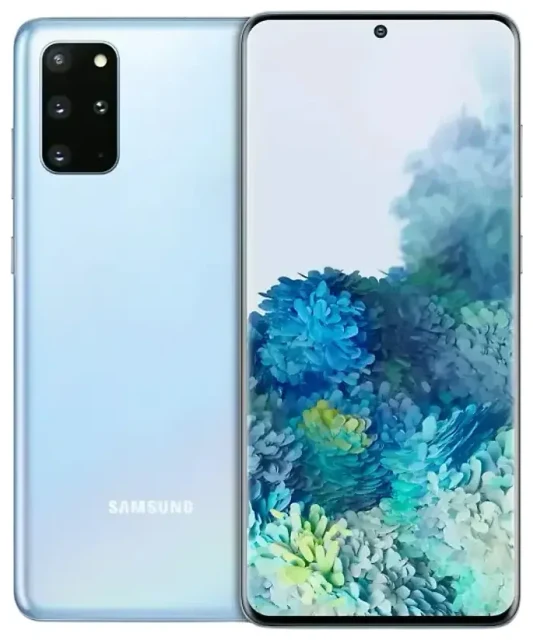
Does the Samsung Galaxy S20 5G support eSIM?
Samsung Galaxy S20 5G eSIM compatibility
Yes, the Samsung Galaxy S20 5G supports eSIM, but compatibility depends on your specific model and region. Most international versions of the Galaxy S20 5G include eSIM functionality, while US carrier-branded models typically do not. If you purchased an unlocked international Galaxy S20 5G (model SM-G981B/DS or SM-G981U1), eSIM is generally supported. US carrier versions (SM-G981U) sold by Verizon, AT&T, and T-Mobile were launched without eSIM enabled, though some received eSIM support through later firmware updates—but not all.
The Galaxy S20 5G offers dual SIM capability: one physical nano-SIM slot plus one eSIM. You can use both simultaneously, which makes it convenient for separating work and personal numbers or using a local data plan while keeping your home number active for calls and texts. You cannot use two eSIMs at once; it's always one physical SIM plus one eSIM.
Which Galaxy S20 5G models have eSIM
To verify Samsung Galaxy S20 5G eSIM support on your device, check your model number in Settings > About phone > Model number. If you own an obscure regional variant or a carrier-locked model and the information below doesn't match, confirm eSIM capability on Samsung's official specification page or contact your carrier—don't assume based solely on the device name. Reddit threads about Galaxy S20 5G eSIM often highlight the confusion around US models, so double-check your exact variant before purchasing an eSIM plan.
How to set up an eSIM on the Samsung Galaxy S20 5G
Samsung S20 eSIM setup steps
Setting up an eSIM on your Samsung Galaxy S20 5G takes about 60 seconds once you have your QR code or activation details from your eSIM provider. Make sure you're connected to Wi-Fi before you begin, and have your QR code ready—either printed or displayed on another device.
- Open Settings on your Galaxy S20 5G.
- Tap Connections, then tap SIM card manager.
- Tap Add mobile plan (or Add eSIM depending on your software version).
- Tap Scan carrier QR code and point your camera at the QR code provided by your eSIM carrier.
- Review the plan details and tap Add to confirm installation.
- Wait while the eSIM profile downloads and activates—this usually takes 30–60 seconds.
- Once installed, label your eSIM line (e.g., "Travel" or "Work") so you can easily identify it in SIM card manager.
- Choose which SIM to use for mobile data, calls, and messages in the SIM card manager settings.
Enable eSIM on Samsung S20 settings
After installation, your eSIM appears alongside your physical SIM in the SIM card manager. You can toggle each line on or off, set a default for data, and assign specific contacts to ring on a particular line. If you're installing a travel eSIM, set it as your default mobile data line while keeping your home SIM active for incoming calls and two-factor authentication codes.
Using a travel eSIM on the Samsung Galaxy S20 5G
Travel eSIMs let you get mobile data abroad without paying roaming fees or hunting for a local SIM card shop. You install the eSIM before you leave home, then activate it when you land. Your Galaxy S20 5G's dual SIM capability means your home number stays active for calls and texts while the travel eSIM handles data—no need to swap physical SIM cards or lose access to your usual number.
Install your travel eSIM a day or two before your trip while you're on Wi-Fi. Most travel eSIM plans activate automatically when you connect to a network in your destination country, though some require you to turn on the eSIM line manually in SIM card manager. You can browse eSIM plans for your destination and compare coverage and data allowances across multiple carriers.
Once you arrive, enable data roaming for your eSIM line (covered in the troubleshooting section below), and disable mobile data on your home SIM to avoid accidental roaming charges. Your Galaxy S20 5G will use the travel eSIM for internet while keeping your home SIM available for incoming calls and SMS, including those important two-factor authentication codes from your bank.
Tips and troubleshooting
Turn on data roaming for the eSIM line
Many travelers install an eSIM and wonder why they have no data. The most common reason: data roaming is turned off. Go to Settings > Connections > Mobile networks, select your eSIM line, and toggle Data roaming on. This isn't "roaming" in the expensive sense—it just allows your eSIM to connect to local networks abroad. If you're still not getting data, restart your Galaxy S20 5G and make sure the eSIM is set as your default mobile data line in SIM card manager.
Fix an eSIM that won't activate
If your QR code won't scan, check that your camera lens is clean and you have good lighting. Alternatively, tap Enter activation code manually during setup and type in the SM-DP+ address and activation code provided by your carrier. If the eSIM downloads but doesn't connect, confirm you're in a coverage area and that your account is active—some plans require you to top up or activate the plan in your carrier's app before the eSIM will work.
Keep your home physical SIM installed for calls and two-factor authentication, especially while traveling. Many banking apps and services send verification codes via SMS, and you'll want access to those even when using a travel eSIM for data. You can check another device's eSIM compatibility if you're considering an upgrade or want to confirm support on a different Samsung model, like the Galaxy S20 FE or Galaxy A54 5G. For additional setup assistance across Samsung devices, visit our eSIM setup help page.
Samsung eSIM phone list and alternatives
If your Galaxy S20 5G variant doesn't support eSIM, other Samsung models do. The Galaxy S20 FE, Galaxy S21 series and newer flagships, and select A-series devices like the Galaxy A54 5G include eSIM in many markets. Activating eSIM on Samsung phones follows the same general process: Settings > Connections > SIM card manager > Add mobile plan. The exact menu labels vary slightly by software version, but the path is consistent across Samsung's eSIM-capable lineup.








