 WhatsApp +44 7367 063273
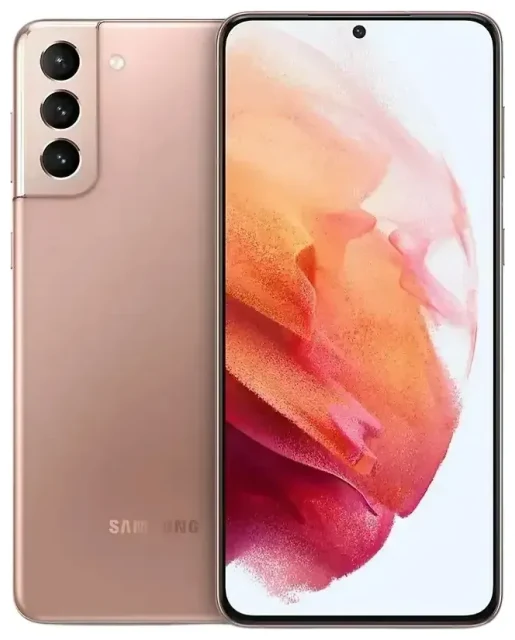
Does the Samsung Galaxy S21 5G support eSIM?
Samsung Galaxy S21 5G eSIM compatibility
Yes, the Samsung Galaxy S21 5G supports eSIM in most markets, though availability depends on your region and carrier. Samsung enabled eSIM functionality on the Galaxy S21 5G for carriers that support it, but this feature may be disabled or unavailable in certain countries or on specific carrier-locked models.
The Samsung Galaxy S21 5G offers dual SIM capability: you can use one eSIM and one physical nano-SIM simultaneously. This means you can keep your home number on the physical SIM while adding a travel eSIM for data, or run two active lines at once. The device does not support dual eSIM—only one eSIM profile can be active at a time, alongside the physical SIM.
Regional and carrier variations
In the United States, major carriers including T-Mobile, AT&T, and Verizon support eSIM on the Galaxy S21 5G, though some carrier-locked models may require you to unlock the device first. In Europe, Australia, and many Asian markets, eSIM support is generally enabled. However, if you purchased your Galaxy S21 5G in a region where eSIM is less common—or if your device is carrier-locked—the eSIM function may not be accessible until you unlock it or confirm support with your carrier.
If you're researching Galaxy S21 5G eSIM support on Reddit or forums, you'll find that experiences vary by market. Before purchasing a travel eSIM, confirm your specific model supports eSIM by checking Settings > Connections > SIM card manager. If you see an "Add mobile plan" or "Add eSIM" option, your device is eSIM-ready.
How to set up an eSIM on the Samsung Galaxy S21 5G
Activate eSIM on Samsung Galaxy S21 5G
Setting up an eSIM on your Samsung Galaxy S21 5G takes about 60 seconds once you have your QR code from your carrier or eSIM provider. You'll need a stable Wi-Fi connection to download the eSIM profile.
- Open Settings and tap Connections.
- Tap SIM card manager (or SIM manager on some builds).
- Select Add mobile plan or Add eSIM.
- Tap Scan carrier QR code and point your camera at the QR code provided by your eSIM provider.
- Confirm the plan details and tap Add.
- Wait while the eSIM profile downloads and activates—this usually takes 30–60 seconds.
- Label your eSIM line (e.g., "Travel" or "Work") so you can easily identify it in SIM manager.
- Choose which SIM to use for mobile data, calls, and texts in SIM card manager.
Set up an eSIM in Settings
If the QR code won't scan, most providers offer a manual entry option. Tap Enter activation code manually and input the SM-DP+ address and activation code from your eSIM provider. This method works identically to QR scanning and is useful if your camera struggles with screen glare or print quality.
Once your eSIM is installed, you can switch between your physical SIM and eSIM for data or calls anytime in Settings > Connections > SIM card manager. Both lines remain active, so you can receive calls and texts on both numbers simultaneously.
Using a travel eSIM on the Samsung Galaxy S21 5G
A travel eSIM is the simplest way to get mobile data abroad on your Samsung Galaxy S21 5G without paying roaming fees or hunting for a local SIM card. You install the eSIM before you fly, and it activates automatically when you land in your destination country. Your home number stays active on the physical SIM for calls and two-factor authentication, while the eSIM handles data.
To get started, browse eSIM plans for your destination and purchase a data plan that fits your trip length. You'll receive a QR code by email—install it following the steps above while you're still at home and connected to Wi-Fi. The eSIM won't consume data or incur charges until you enable it and arrive in the coverage area.
When you reach your destination, go to Settings > Connections > SIM card manager, turn on your travel eSIM, and set it as your Mobile data SIM. Enable Data roaming for the eSIM line (roaming must be on for eSIMs to work, even though you're not technically roaming). Your Galaxy S21 5G will use the eSIM for internet while keeping your home SIM available for calls and texts.
This dual-SIM setup means you won't miss important messages or verification codes, and you'll avoid the surprise of a roaming bill when you return home. Many travelers on Reddit and travel forums recommend installing the eSIM a day before departure to troubleshoot any issues while you still have reliable internet access.
Tips and troubleshooting
Turn on data roaming for the eSIM line
One of the most common Galaxy S21 5G eSIM issues is forgetting to enable data roaming for the eSIM. Even though you're using a local or regional eSIM plan, Android requires the roaming toggle to be on for eSIM data to flow. Go to Settings > Connections > Mobile networks, select your eSIM, and turn on Data roaming. This will not trigger roaming charges on a prepaid travel eSIM.
Keep your home physical SIM active for calls and two-factor authentication. In SIM card manager, set your home SIM for Calls and Text messages, and your travel eSIM for Mobile data. This way, you stay reachable on your usual number while enjoying local data rates.
Fix an eSIM that won't activate
If your Samsung Galaxy S21 5G eSIM isn't working after installation, restart your device first—this often resolves activation glitches. If the eSIM still won't connect, confirm you've selected it as the active data SIM and that data roaming is enabled. Check that your eSIM plan is valid and hasn't expired, and ensure you're in the coverage area specified by your provider.
For persistent problems, remove and reinstall the eSIM profile. In SIM card manager, tap your eSIM and select Remove, then scan the QR code again. If you continue to experience issues, eSIM setup help is available, or contact your eSIM provider's support team.
Carrier-locked Galaxy S21 5G devices may have eSIM disabled until unlocked. If you purchased your phone through T-Mobile, AT&T, Verizon, or another carrier, confirm the device is unlocked before purchasing a travel eSIM. You can usually request an unlock online once your contract or payment plan is complete. If you're uncertain about your specific model's eSIM support, check another device's eSIM compatibility or consult Samsung's official spec sheet for your region.








