 WhatsApp +44 7367 063273
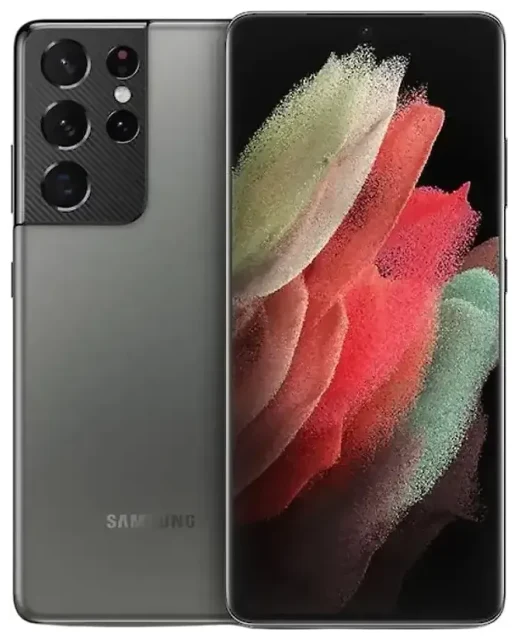
Does the Samsung Galaxy S21 Ultra 5G support eSIM?
Yes, the Samsung Galaxy S21 Ultra 5G supports eSIM on most models sold globally. Samsung enabled eSIM functionality across the Galaxy S21 Ultra 5G lineup in markets including the United States, Europe, Australia, and many other regions.
Samsung Galaxy S21 Ultra 5G eSIM compatibility by region
The eSIM feature is available on unlocked models and most carrier versions in North America, Europe, and Asia-Pacific markets. However, some region-specific variants—particularly certain models sold in mainland China and a few other markets—may not support eSIM. If you purchased your Galaxy S21 Ultra 5G from a less common market, verify eSIM support by checking Settings > Connections > SIM card manager. If you see an "Add eSIM" or "Add mobile plan" option, your device supports it.
Dual SIM capability: eSIM plus physical SIM
The Samsung Galaxy S21 Ultra 5G supports dual SIM operation by combining one physical nano-SIM card with one eSIM. You can run both lines simultaneously, choosing which to use for calls, texts, and data. The device does not support dual eSIM operation—you're limited to one eSIM profile active at a time alongside the physical SIM slot.
How to set up an eSIM on the Samsung Galaxy S21 Ultra 5G
Setting up an eSIM on your Samsung Galaxy S21 Ultra 5G takes about a minute once you have your QR code from your carrier or eSIM provider. Make sure you're connected to Wi-Fi before you begin.
Step-by-step eSIM activation process
- Open Settings and tap Connections.
- Tap SIM card manager (or SIM manager on some software versions).
- Tap Add mobile plan or Add eSIM.
- Choose Scan QR code and point your camera at the QR code provided by your carrier or eSIM service.
- Tap Add when prompted to confirm the plan details.
- Wait 30–60 seconds while the eSIM profile downloads and activates.
- Label your new eSIM line (e.g., "Travel" or "Work") to distinguish it from your physical SIM.
- Select which SIM to use for mobile data, calls, and messages in the SIM card manager settings.
Alternative activation methods
If your eSIM provider supplies an activation code instead of a QR code, select Enter activation code in step 4 and type the code manually. Some carriers also offer app-based activation—download the carrier's app and follow the in-app eSIM setup instructions, which will configure the profile automatically.
Using a travel eSIM on the Samsung Galaxy S21 Ultra 5G
A travel eSIM gives you local data rates abroad without paying international roaming fees on your home carrier. You keep your primary SIM active for calls and texts while the eSIM handles data.
Install your travel eSIM before departure
Download and install your travel eSIM while you're still at home on Wi-Fi. Most travel eSIMs activate only when you land in the destination country and connect to the local network, so installing early won't trigger charges. Once you arrive, turn on your Samsung Galaxy S21 Ultra 5G, enable the travel eSIM line in SIM card manager, and select it as your data line. You'll have local data immediately without hunting for SIM card vendors at the airport.
Browse coverage options and browse eSIM plans for your destination before you travel. Compare data allowances and validity periods to match your trip length.
Managing dual SIM while traveling
Set your travel eSIM as the default for mobile data, but leave your home physical SIM enabled for calls and SMS. This setup lets you receive two-factor authentication codes and important calls on your regular number while avoiding roaming data charges. In SIM card manager, tap each SIM to configure which handles calls, texts, and data independently.
Tips and troubleshooting
Most Samsung Galaxy S21 Ultra 5G eSIM setups work smoothly, but a few common issues can interrupt activation or connectivity.
Enable data roaming for your eSIM line
Travel eSIMs require data roaming turned on to connect to foreign networks. Go to Settings > Connections > Mobile networks, select your eSIM line, and toggle Data roaming on. This setting is line-specific—your physical SIM's roaming setting won't affect the eSIM. If you're seeing no data connection after landing, this is the first thing to check.
QR code scanning problems
If your camera won't focus on the QR code or the scan fails, increase your screen brightness if viewing the code on another device, or try the manual activation code entry method instead. Make sure you're on a stable Wi-Fi connection—weak connectivity can interrupt the profile download. Some users on forums like Reddit report success by restarting the phone before attempting the scan again.
eSIM won't activate or shows "not working"
If your Samsung Galaxy S21 Ultra 5G eSIM shows as installed but won't connect, confirm the profile is enabled in SIM card manager—tap the eSIM and toggle it on if needed. Verify you selected the correct SIM for mobile data. If the eSIM still doesn't work, remove and reinstall the profile: tap the eSIM in SIM card manager, select Remove, then scan the QR code again. Contact your eSIM provider if problems persist, as the profile itself may need reissuing.
For persistent issues across devices, you can check another device's eSIM compatibility or reach out for eSIM setup help to diagnose configuration problems specific to your carrier or region.








