 WhatsApp +44 7367 063273
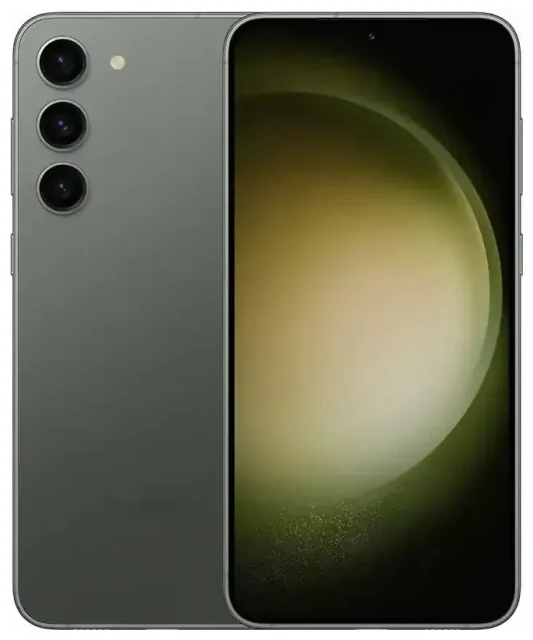
Does the Samsung Galaxy S23 support eSIM?
Yes, the Samsung Galaxy S23 supports eSIM in most markets. Samsung manufactured the Galaxy S23 with eSIM capability for models sold in North America, Europe, and many other regions. However, certain market-specific variants—particularly those sold in mainland China, Hong Kong, and parts of Asia—ship with physical SIM slots only and no eSIM support.
Samsung Galaxy S23 eSIM compatibility by region
The U.S. unlocked and carrier-branded Galaxy S23 models (SM-S911U and SM-S911U1) fully support eSIM. European models (SM-S911B) also include eSIM functionality. If you purchased your Galaxy S23 from a major carrier like T-Mobile, Verizon, AT&T, or an unlocked retailer in North America or Europe, your device almost certainly has eSIM capability.
To verify your specific model supports eSIM, go to Settings > Connections > SIM manager. If you see an option to "Add mobile plan" or "Add eSIM," your Galaxy S23 supports it. If your variant was sold for a market without eSIM support, this menu will only show physical SIM options.
Dual SIM: eSIM and physical SIM together
The Samsung Galaxy S23 offers dual SIM functionality: one nano-SIM card slot and one eSIM. You can use both simultaneously, which makes the S23 ideal for keeping your home number active while adding a travel eSIM for data abroad. The Galaxy S23 does not support dual eSIM—you cannot run two eSIM profiles at the same time. You'll always need to pair the eSIM with the physical SIM tray if you want two active lines.
How to set up an eSIM on the Samsung Galaxy S23
Setting up an eSIM on your Samsung Galaxy S23 takes about a minute once you have your QR code from your carrier or eSIM provider. Samsung's One UI makes the process straightforward, and you can label your eSIM line to distinguish it from your primary physical SIM.
Step-by-step eSIM activation on the Galaxy S23
- Open Settings and tap Connections.
- Tap SIM manager (or SIM card manager depending on your software version).
- Tap Add mobile plan or Add eSIM.
- Choose Scan carrier QR code. Your Galaxy S23 will open the camera.
- Point the camera at the QR code provided by your carrier or eSIM provider. The phone reads the code and begins downloading the eSIM profile.
- Confirm the plan details and tap Add. The eSIM installs in approximately 30–60 seconds.
- Once installed, give your eSIM a label—such as "Travel" or "Work"—so you can easily identify it in SIM manager.
- Choose which SIM to use for mobile data, calls, and texts in the SIM manager settings.
If your eSIM provider sent you an activation code instead of a QR code, select Enter activation code manually in step 4 and type the SM-DP+ address and activation code exactly as provided.
Set up an eSIM in Settings
After activation, you control which line handles data, calls, and messages. Go back to SIM manager and tap Preferred SIM card. Set your primary physical SIM for calls and SMS, and switch mobile data to your travel eSIM when you're abroad. This setup lets you receive two-factor authentication codes and calls on your home number while using the eSIM for data.
Using a travel eSIM on the Samsung Galaxy S23
A travel eSIM is the easiest way to get mobile data abroad without paying international roaming fees. Instead of hunting for a local SIM card at the airport or dealing with your carrier's roaming add-ons, you install an eSIM for your destination before you leave home. Once you land, the eSIM connects to a local network and you have data immediately.
Install your travel eSIM before you fly
Purchase a data plan for your destination and install the eSIM while you're still connected to Wi-Fi. The eSIM profile downloads to your Galaxy S23, but it won't activate or use any data until you arrive and turn on the line. When you reach your destination, go to SIM manager, toggle the travel eSIM on, and set it as your preferred mobile data line. Your home SIM stays active for calls and texts, while the eSIM handles data.
You can browse eSIM plans by country or region, compare data allowances, and install the eSIM in minutes. Many providers offer plans for single countries or multi-country regions, so you stay connected whether you're visiting one place or traveling across Europe or Asia.
Tips & troubleshooting
Most eSIM activations on the Samsung Galaxy S23 work smoothly, but a few settings adjustments solve common issues.
Turn on data roaming for the eSIM line
Even though your travel eSIM is "local" data for the country you're visiting, Samsung still treats it as a second line, so you must enable data roaming for that eSIM. Go to Settings > Connections > Mobile networks, select your eSIM, and toggle Data roaming on. If you don't enable roaming, the eSIM won't connect to the network. Your physical home SIM can stay in airplane mode or have roaming turned off to avoid accidental charges.
Keep your home SIM active for calls and two-factor authentication
Leave your home physical SIM in the tray and set it as the preferred line for calls and SMS in SIM manager. This way, you'll receive verification codes, banking alerts, and calls on your regular number while the eSIM provides data. You won't pay roaming fees for receiving texts or calls in most cases, but confirm with your home carrier.
Fix an eSIM that won't activate
If the QR code won't scan, check that your camera lens is clean and the QR code is well-lit and not pixelated on your screen. You can also enter the activation code manually if scanning fails. If the eSIM downloads but won't connect, restart your Galaxy S23 and make sure the eSIM line is toggled on in SIM manager. Occasionally, an eSIM needs a few minutes after installation before it registers on the network. If you're still stuck, you can get eSIM setup help or contact your eSIM provider to verify the activation code is correct and unused.
If you're researching compatibility for other devices or want to confirm eSIM support for a different phone or tablet, you can check another device's eSIM compatibility in our database.








