 WhatsApp +44 7367 063273
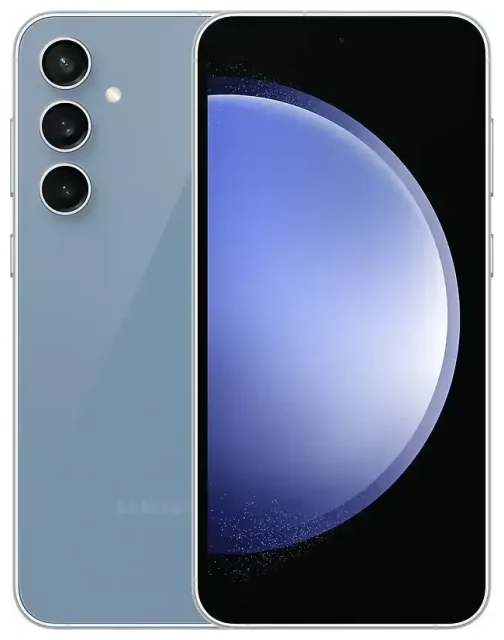
Does the Samsung Galaxy S23 FE support eSIM?
Yes, the Samsung Galaxy S23 FE supports eSIM technology on most models sold globally. This feature gives you the flexibility to use a digital SIM alongside a physical nano-SIM card, making the Samsung Galaxy S23 FE eSIM compatible for dual SIM operation.
Samsung Galaxy S23 FE eSIM compatibility by region
The majority of Samsung Galaxy S23 FE units—including those sold in North America, Europe, and many Asia-Pacific markets—ship with eSIM support enabled. However, some regional variants, particularly certain models sold in specific Asian markets, may ship with dual physical SIM slots instead of eSIM capability. If you purchased your device through a carrier or in a market where dual nano-SIM trays are standard, verify your specific model number against Samsung's official specification sheet to confirm eSIM availability.
Dual SIM capability: eSIM + physical SIM
The Samsung Galaxy S23 FE supports one physical nano-SIM and one eSIM active simultaneously. You can store multiple eSIM profiles on the device, but only one eSIM can be active at a time alongside your physical SIM. This dual SIM setup lets you maintain separate lines for work and personal use, or keep your home number active while using a local data plan abroad.
How to set up an eSIM on the Samsung Galaxy S23 FE
Setting up an eSIM on your Samsung Galaxy S23 FE takes about 60 seconds once you have your QR code or activation details from your carrier or eSIM provider. Make sure you're connected to Wi-Fi before you begin the Samsung Galaxy S23 FE eSIM activation process.
Step-by-step eSIM activation
- Open Settings on your Samsung Galaxy S23 FE.
- Tap Connections, then select SIM manager (or SIM card manager depending on your software version).
- Tap Add eSIM or Add mobile plan.
- Choose Scan carrier QR code and point your camera at the QR code provided by your carrier or eSIM provider. Alternatively, select Enter activation code manually if you received an SM-DP+ address and activation code.
- Wait while the eSIM profile downloads and installs—this typically takes 30–60 seconds.
- Once installed, label your eSIM line (e.g., "Travel" or "Work") so you can easily identify it in your SIM manager.
- Select which line you want to use for mobile data, calls, and messages in the SIM manager settings.
Managing multiple SIM lines
After activation, you can switch between your physical SIM and eSIM for data, choose which line handles calls and texts, or turn individual lines on and off. Access these controls anytime through Settings → Connections → SIM manager.
Using a travel eSIM on the Samsung Galaxy S23 FE
A travel eSIM is the most practical way to get mobile data when you're abroad without paying international roaming charges. You can install an eSIM for your destination before you leave home, then activate it the moment you land.
Why use a travel eSIM
Travel eSIMs give you local data rates in over 190 countries without swapping your physical SIM or hunting for a local store at the airport. Install the eSIM profile a day or two before departure while you're still on Wi-Fi, then simply enable the travel eSIM line and turn on data roaming for that line when you arrive. Your home SIM stays in the phone, so you can still receive calls and text messages for two-factor authentication. Browse available browse eSIM plans for your destination to compare coverage and data allowances.
Install your travel eSIM before you fly
Most eSIM providers email your QR code instantly after purchase. Follow the setup steps above to install the travel eSIM while you're still at home. The eSIM will remain inactive until you enable it and turn on data roaming for that specific line. This way, you avoid fumbling with setup in an unfamiliar airport or relying on public Wi-Fi to download your eSIM profile.
Tips and troubleshooting
A few simple settings adjustments will help you get the most out of your Samsung Galaxy S23 FE's dual SIM capability and avoid common activation issues.
Turn on data roaming for your eSIM line
After you activate a travel eSIM, you must enable data roaming specifically for that line. Go to Settings → Connections → SIM manager, tap your eSIM line, then toggle Data roaming on. This is not the same as your phone's general roaming setting—each SIM line has its own roaming control. Your home line can stay off to prevent accidental charges.
Keep your home SIM active for calls and two-factor authentication
Leave your physical home SIM enabled even when you're using an eSIM for data abroad. You'll still receive SMS messages and calls on your home number, which is essential for banking alerts, verification codes, and staying reachable on your usual number. Just make sure mobile data is assigned to your travel eSIM to avoid roaming data fees.
What to do if the QR code won't scan
If your camera won't focus on the QR code or the scan fails, try increasing your screen brightness and holding the code steady at arm's length. Alternatively, choose the manual entry option in the eSIM setup menu and type in the SM-DP+ address and activation code your provider sent. If the eSIM still won't install, restart your Samsung Galaxy S23 FE and make sure your device software is up to date through Settings → Software update. You can also check another device's eSIM compatibility if you're troubleshooting a secondary phone, or visit our eSIM setup help page for more detailed guidance.
Convert your physical SIM to an eSIM
Many carriers now let you convert your existing physical SIM to an eSIM on Samsung phones. Contact your carrier to request an eSIM QR code for your current number, then follow the activation steps above. Once the eSIM is active, you can remove the physical SIM card and free up the slot, though you won't gain a second active line unless you insert a new physical SIM or install a second eSIM profile.








