 WhatsApp +44 7367 063273
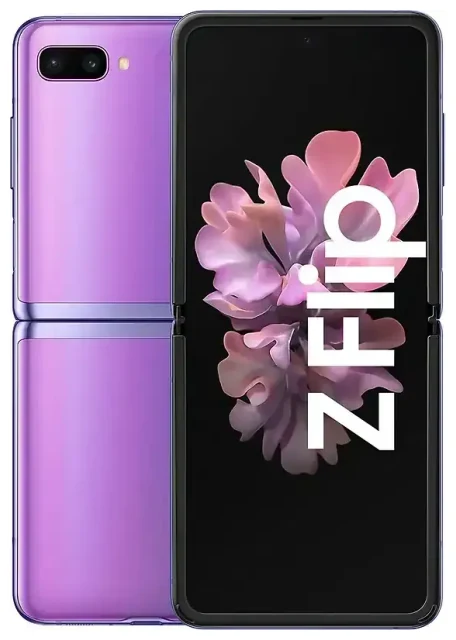
Does the Samsung Galaxy Z Flip support eSIM?
Samsung Galaxy Z Flip eSIM compatibility
The answer depends on which Samsung Galaxy Z Flip model you own. The original Samsung Galaxy Z Flip (released in early 2020, model SM-F700) does not support eSIM—it has a single physical nano-SIM slot only. However, the Samsung Galaxy Z Flip 5G (model SM-F707, released mid-2020) and all subsequent Z Flip generations—Z Flip 3, Z Flip 4, Z Flip 5, Z Flip 6, and Z Flip 7—do support eSIM in most markets.
Regional availability matters. In the United States, unlocked and carrier-branded Z Flip models from the 5G variant onward support eSIM. In Europe, Australia, and many other regions, eSIM is enabled on most Z Flip 5G and newer models. However, some carrier-locked or region-specific variants may have eSIM disabled—particularly units sold in mainland China or through certain carriers that restrict eSIM functionality. If you have an obscure regional variant, confirm on Samsung's official spec sheet or with your carrier before purchasing an eSIM plan.
Dual SIM functionality: eSIM and physical SIM
All eSIM-capable Samsung Galaxy Z Flip models support dual SIM when you pair one eSIM with the physical nano-SIM slot. This means you can keep your home number on the physical SIM and add a travel eSIM for data abroad, or use two lines simultaneously—one for work, one for personal use. Samsung's Z Flip devices do not support dual eSIM (two eSIMs active at once); you must use the physical SIM slot if you want two active numbers.
How to set up an eSIM on the Samsung Galaxy Z Flip
Set up an eSIM in Settings
If you own a Samsung Galaxy Z Flip 5G or later model with eSIM support, activating an eSIM takes about 60 seconds. You'll receive a QR code from your eSIM provider—usually via email—and scan it in your phone's settings. Make sure you're connected to Wi-Fi before you begin.
- Open Settings on your Samsung Galaxy Z Flip.
- Tap Connections, then tap SIM manager (or SIM card manager on some software versions).
- Tap Add mobile plan or Add eSIM.
- Choose Scan carrier QR code.
- Point your camera at the QR code provided by your eSIM carrier. The profile will download and install automatically.
- Once installed, label the eSIM line—for example, "Travel" or "Data"—so you can identify it easily.
- Toggle which SIM to use for mobile data, calls, and SMS in SIM manager. You can set the eSIM as your data line and keep your physical SIM for calls and texts.
Manual activation if the QR code won't scan
If scanning fails due to glare or a damaged code, tap Enter activation code manually in step 4 above. Your eSIM provider will give you an SM-DP+ address and activation code to type in. The installation process is otherwise identical.
Using a travel eSIM on the Samsung Galaxy Z Flip
A travel eSIM is the easiest way to stay connected abroad without paying roaming fees on your home carrier. You buy a data plan for your destination, install the eSIM profile before you fly, and activate it when you land. Your physical SIM stays in place, so you can still receive calls and two-factor authentication codes on your home number.
Install your travel eSIM while you're still at home and connected to Wi-Fi. Most eSIM plans let you download the profile in advance and switch it on only when you're ready to use it. In SIM manager, toggle the travel eSIM as your mobile data line, and make sure mobile data is turned on for that line. Your home SIM remains active for voice and SMS, and you'll use the local eSIM for all data—maps, messaging apps, ride-sharing, and browsing.
You can browse eSIM plans for more than 200 countries and regions, comparing coverage and data allowances to match your trip. Because the Samsung Galaxy Z Flip has a physical SIM slot, you're not locked into eSIM-only connectivity—but eSIM is faster and more convenient than hunting for a local SIM card at the airport.
Tips and troubleshooting
Turn on data roaming for the eSIM line
Even though an eSIM is a local data plan in many cases, your Samsung Galaxy Z Flip treats it as a roaming profile. Go to Settings > Connections > Mobile networks, select your eSIM, and toggle Data roaming on. Without this step, the eSIM won't connect to the network. Your physical SIM's roaming setting is independent, so you can leave roaming off on your home line to avoid surprise charges.
Keep the home SIM active for calls and two-factor authentication
Set your eSIM as the data line and your physical SIM for calls and SMS in SIM manager. This way, you'll receive verification codes and phone calls on your regular number while using the eSIM's affordable data. You won't miss important messages, and you won't trigger roaming data fees on your home carrier.
Fix an eSIM that won't activate
If the eSIM profile downloads but won't activate, restart your Samsung Galaxy Z Flip and check that the eSIM line is toggled on in SIM manager. Confirm you've enabled data roaming for that line. If you still see no signal, remove and reinstall the eSIM profile: tap the eSIM name in SIM manager, choose Remove, then scan the QR code again. (Some carriers let you reinstall the same QR code; others issue a new one—check your provider's policy before deleting.) For persistent issues, eSIM setup help walks through advanced troubleshooting steps.
Check eSIM compatibility before you travel
Not every Samsung Galaxy Z Flip variant sold worldwide has eSIM enabled. If you bought your phone from a carrier or in a region where eSIM is uncommon, verify support by going to Settings > Connections > SIM manager and looking for an Add mobile plan or Add eSIM option. If you don't see it, your device either lacks eSIM hardware or has it disabled by carrier firmware. You can check another device's eSIM compatibility if you're considering an upgrade or a second phone for travel.








