 WhatsApp +44 7367 063273
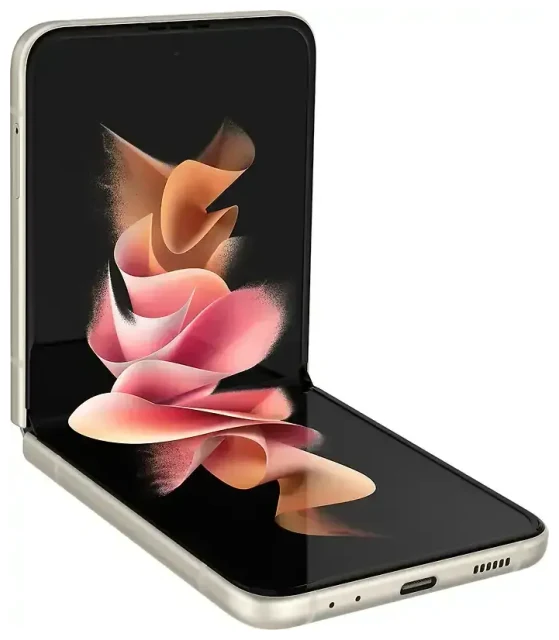
Does the Samsung Galaxy Z Flip 3 5G support eSIM?
Yes, the Samsung Galaxy Z Flip 3 5G supports eSIM on most models sold globally. Samsung built eSIM functionality into this foldable device, giving you the flexibility to use digital mobile plans alongside or instead of a physical SIM card.
Samsung Galaxy Z Flip 3 5G eSIM compatibility by region
The Samsung Galaxy Z Flip 3 5G includes eSIM support in variants sold across North America, Europe, Australia, and many Asian markets. However, eSIM availability depends on two factors: your specific device model and your carrier's support for eSIM provisioning. Models sold in mainland China typically do not include eSIM functionality.
To confirm your device has eSIM capability, open Settings > Connections > SIM card manager. If you see an option to "Add mobile plan" or "Add eSIM," your Samsung Galaxy Z Flip 3 5G supports eSIM.
Dual SIM capability: eSIM plus physical SIM
The Samsung Galaxy Z Flip 3 5G is dual SIM capable, meaning you can use one physical nano-SIM card and one eSIM simultaneously. This setup lets you maintain two active phone numbers—ideal for separating work and personal lines, or keeping your home number active while using a travel data plan abroad. The device does not support dual eSIM; you're limited to one eSIM profile active at a time, though you can store multiple eSIM profiles and switch between them.
How to set up an eSIM on the Samsung Galaxy Z Flip 3 5G
Setting up an eSIM on your Samsung Galaxy Z Flip 3 5G takes about 60 seconds once you have your QR code from your carrier or eSIM provider. You'll need a Wi-Fi connection to complete the installation.
Step-by-step eSIM activation
- Connect your Samsung Galaxy Z Flip 3 5G to Wi-Fi.
- Open Settings and tap Connections.
- Tap SIM card manager.
- Tap Add mobile plan or Add eSIM.
- Choose Scan QR code when prompted.
- Point your camera at the QR code provided by your carrier or eSIM provider. The installation starts automatically.
- Wait for the eSIM profile to download and install—this typically takes 30 to 90 seconds.
- Once installed, label your new line (e.g., "Travel" or "Work") to distinguish it from your physical SIM.
- Choose which line you want to use for mobile data, calls, and texts in the SIM card manager.
If you receive your eSIM details as a manual activation code instead of a QR code, select Enter activation code in step 5 and type in the SM-DP+ address and activation code provided.
Managing multiple SIM profiles
After activation, you can control which line handles data, calls, and messages. Go back to Settings > Connections > SIM card manager to set your preferences. You can switch your active eSIM profile anytime if you've installed multiple travel or secondary plans, though only one eSIM can be active alongside your physical SIM at any time.
Using a travel eSIM on the Samsung Galaxy Z Flip 3 5G
A travel eSIM is the easiest way to get mobile data abroad on your Samsung Galaxy Z Flip 3 5G without paying international roaming fees from your home carrier. Instead of hunting for a local SIM card at the airport or dealing with expensive roaming charges, you install a data-only eSIM before your trip and connect the moment you land.
How travel eSIMs work on the Galaxy Z Flip 3 5G
Install your travel eSIM while you're still at home using the steps above. Once you arrive at your destination, turn on the eSIM line in your SIM card manager and enable mobile data for that line. Your Samsung Galaxy Z Flip 3 5G will connect to local networks automatically, giving you data for maps, messaging, and browsing. Your physical SIM stays in the phone, so you can still receive calls and texts to your regular number.
You can browse eSIM plans for over 200 countries and regions, with options ranging from short weekend trips to month-long data packages. Most travel eSIMs are data-only, which means they don't come with a new phone number—perfect for staying connected without juggling multiple numbers.
Why install your eSIM before departure
Download and install your travel eSIM while you have reliable Wi-Fi at home. The Samsung Galaxy Z Flip 3 5G needs internet connectivity to download the eSIM profile, and airport Wi-Fi can be slow or unreliable. With your eSIM pre-installed, you simply toggle it on when you land and you're immediately connected.
Tips and troubleshooting
Most eSIM installations on the Samsung Galaxy Z Flip 3 5G work smoothly, but here are solutions to common issues and tips for managing dual SIM functionality.
Enable data roaming for your eSIM line
After installing a travel eSIM, you must turn on data roaming for that specific line. Go to Settings > Connections > Mobile networks, select your eSIM line, and toggle Data roaming on. This is required for eSIMs to connect to local networks abroad—it won't trigger roaming charges from your eSIM provider, since you've already purchased a data package.
Keep your home SIM active for calls and texts
When traveling, set your travel eSIM as your data line in SIM card manager, but leave your physical home SIM enabled for calls and SMS. This way you'll receive important two-factor authentication codes and calls to your regular number while using affordable local data through the eSIM. Just be aware that answering calls on your home SIM may incur roaming charges from your home carrier.
What to do if the QR code won't scan
If your Samsung Galaxy Z Flip 3 5G camera won't read the QR code, try these fixes: increase screen brightness if you're scanning from another device, ensure the QR code is fully visible and not cut off, or ask your provider for manual activation details. You can enter the SM-DP+ address and activation code manually by selecting Enter activation code instead of scanning. If your eSIM still won't install, verify your device isn't carrier-locked—locked phones may restrict eSIM functionality even if the hardware supports it.
Confirm eSIM support before purchasing
If you're unsure whether your specific Samsung Galaxy Z Flip 3 5G variant supports eSIM—particularly if you purchased it from a regional carrier or a market with limited eSIM adoption—check your device settings first. You can also check another device's eSIM compatibility if you're considering upgrading or need to verify a different phone model for your household.








