 WhatsApp +44 7367 063273
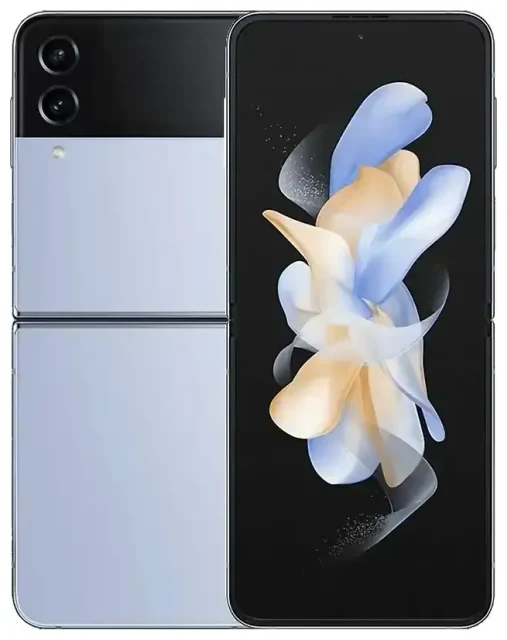
Does the Samsung Galaxy Z Flip 4 support eSIM?
Yes, the Samsung Galaxy Z Flip 4 supports eSIM. All variants of the Z Flip 4 sold globally include eSIM functionality, regardless of region or carrier. You can use eSIM alongside the physical nano-SIM slot for dual-SIM operation, giving you two active phone numbers or data plans on one device.
Samsung Galaxy Z Flip 4 eSIM compatibility
The Z Flip 4 offers flexible dual-SIM configurations. You can run one physical SIM and one eSIM simultaneously, which is the most common setup for travelers who want to keep their home number active while adding a local data plan. The device does not support dual eSIM mode—you cannot use two eSIMs at the same time without removing the physical SIM card.
This eSIM support applies to the SM-F721 model series across all markets, including North America, Europe, Asia, and other regions. Carrier-locked versions (from AT&T, Verizon, T-Mobile, or other operators) also support eSIM, though you may need to unlock your device before activating an eSIM from a different provider.
eSIM vs physical SIM on the Z Flip 4
The physical SIM tray on the Z Flip 4 accepts a single nano-SIM card. When you add an eSIM profile, you gain dual-SIM capability without needing a second physical card. You can switch between lines for calls, texts, and data in the settings, or set one line as your default for each function.
How to set up an eSIM on the Samsung Galaxy Z Flip 4
Samsung Galaxy Z Flip 4 eSIM activation takes about a minute once you have your QR code from your carrier or travel eSIM provider. The process uses Samsung's native settings menu and works the same way whether you're adding a carrier plan or a travel data package.
Set up an eSIM in Settings
- Open Settings and tap Connections.
- Tap SIM manager (or SIM card manager depending on your software version).
- Tap Add mobile plan or Add eSIM.
- Select Scan carrier QR code.
- Point your camera at the QR code provided by your eSIM provider. The Z Flip 4 will read the code and download the profile automatically.
- Wait 30–60 seconds while the eSIM installs. You'll see a confirmation message when it's ready.
- Label your new line with a name like "Travel Data" or "Work" so you can identify it easily.
- Choose which SIM to use for mobile data, calls, and texts in the SIM manager menu.
If your eSIM provider sends an activation code or manual entry details instead of a QR code, select Enter activation code in step 4 and type the information provided.
Install your eSIM before you travel
You can install a travel eSIM on your Z Flip 4 while you're still at home, connected to Wi-Fi. The eSIM profile will sit dormant until you arrive at your destination and turn on data roaming for that line. This lets you land with connectivity already configured—no hunting for SIM card shops at the airport.
Using a travel eSIM on the Samsung Galaxy Z Flip 4
A travel eSIM gives you local data rates abroad without paying your home carrier's roaming fees. You install a data plan for your destination country or region, keep your primary SIM active for incoming calls and texts, and use the eSIM for all your data—maps, messaging apps, web browsing, and social media.
How travel eSIMs work on the Z Flip 4
Purchase a travel eSIM plan for your destination and install it on your Z Flip 4 before departure. When you land, enable data roaming for the eSIM line only (keep it disabled for your home SIM to avoid surprise charges). Your phone will use the travel eSIM for internet while your home number stays reachable for calls and SMS, including two-factor authentication codes.
You can browse eSIM plans by country or region, compare data allowances, and buy the one that fits your trip length. Most plans activate automatically when you connect to a local network, though some require you to turn them on manually in SIM manager.
Keep your home number active
With dual-SIM operation, your home number remains available for voice calls and text messages even while the eSIM handles data. Set your home SIM as the default for calls and SMS, and choose the travel eSIM as the default for mobile data. This configuration lets you receive verification codes and important calls without paying roaming data rates.
Tips & troubleshooting
Most Samsung Galaxy Z Flip 4 eSIM activation issues come down to a few common settings. Check these points if your eSIM won't connect or if you're not seeing data service after installation.
Turn on data roaming for your eSIM line
Your Z Flip 4 treats an eSIM from another carrier as roaming, even if it's a local plan in the country where you're traveling. Go to Settings > Connections > Mobile networks, select your eSIM line, and toggle Data roaming on. Without this setting enabled, the eSIM won't connect to mobile data.
Keep data roaming off for your home SIM to prevent accidental roaming charges on that line.
Fix an eSIM that won't activate
If the QR code won't scan, make sure you're in a well-lit area and holding the phone steady. You can also take a screenshot of the QR code on another device and scan it from your photo gallery—tap the gallery icon in the QR scanner interface. If scanning still fails, choose the manual entry option and type the activation code your provider sent.
Restart your Z Flip 4 after installing the eSIM if it doesn't appear in SIM manager or shows "No service." A reboot refreshes the modem and usually resolves detection issues.
Check your device is unlocked
Carrier-locked Z Flip 4 devices may block eSIM profiles from other carriers. If you bought your phone through a carrier contract, contact them to request an unlock before traveling. Unlocked models purchased directly from Samsung or retailers have no restrictions.
If you're still having trouble, you can get eSIM setup help or check another device's eSIM compatibility if you're comparing phones.








