 WhatsApp +44 7367 063273
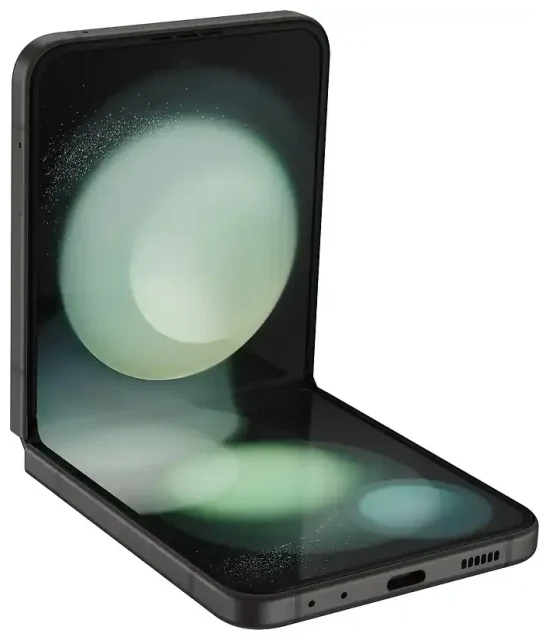
Does the Samsung Galaxy Z Flip 5 support eSIM?
Yes, the Samsung Galaxy Z Flip 5 supports eSIM. All variants of this foldable phone—regardless of region or carrier—include eSIM functionality alongside a physical nano-SIM slot.
Samsung Galaxy Z Flip 5 eSIM compatibility
Every Galaxy Z Flip 5 model ships with dual SIM capability: one physical nano-SIM tray and one eSIM. You can run both simultaneously, which means you can keep your home number active on the physical SIM while adding a travel eSIM for data abroad, or maintain separate personal and work lines on the same device.
The Z Flip 5 supports a single active eSIM at a time, though you can store multiple eSIM profiles on the device and switch between them in Settings. This differs from some newer Samsung flagships that allow two eSIMs to run concurrently without a physical card, but the single eSIM plus physical SIM combination covers most dual-line needs.
Regional and carrier availability
Samsung enabled eSIM across all Galaxy Z Flip 5 units sold in North America, Europe, Asia-Pacific, and the Middle East. Carrier-locked versions from major providers—Verizon, AT&T, T-Mobile in the US; EE, Vodafone, O2 in the UK; and equivalents elsewhere—fully support eSIM activation. Unlocked models bought directly from Samsung or third-party retailers also include eSIM functionality out of the box.
How to set up an eSIM on the Samsung Galaxy Z Flip 5
Setting up an eSIM on your Galaxy Z Flip 5 takes about a minute once you have your QR code from your carrier or eSIM provider. You'll receive this code by email or in your provider's app after purchasing a plan.
Samsung Galaxy Z Flip 5 eSIM activation steps
- Open Settings and tap Connections.
- Tap SIM manager (or SIM card manager on some firmware versions).
- Select Add eSIM or Add mobile plan.
- Tap Scan carrier QR code and point your camera at the QR code provided by your eSIM provider.
- Confirm the plan details when they appear on screen, then tap Add.
- Wait 30–60 seconds while the eSIM profile downloads and activates.
- Label your new line with a recognizable name—"Travel," "Work," or the country name—to distinguish it from your physical SIM.
- Choose which SIM to use for mobile data, calls, and texts in the SIM manager screen.
If your provider supplies an activation code instead of a QR code, tap Enter activation code in step 4 and type the string manually. The Galaxy Z Flip 5 will connect to the network and complete activation automatically.
Set up an eSIM in Settings
After activation, return to Settings > Connections > SIM manager to configure which line handles data and calls. Toggle Mobile data to your preferred SIM—typically your travel eSIM when abroad to avoid roaming charges on your home line. You can leave calls and SMS on your primary physical SIM so you don't miss important messages or two-factor authentication codes.
Using a travel eSIM on the Samsung Galaxy Z Flip 5
A travel eSIM gives you local data rates the moment you land, without hunting for a SIM vendor at the airport or paying your home carrier's roaming fees. You install the eSIM profile while still at home, then switch it on when your plane touches down.
Why a travel eSIM makes sense
Traditional roaming can cost multiple dollars per megabyte; a regional or country-specific eSIM delivers gigabytes of high-speed data for a fraction of that price. Your Galaxy Z Flip 5's dual-SIM setup means you keep your home number reachable for calls and texts on the physical SIM while the eSIM handles all data—maps, ride-share apps, messaging, social media—over the local network.
Install your travel eSIM a day or two before departure. Most eSIM plans activate only when you connect to the destination network, so the countdown won't start until you arrive. You can browse eSIM plans covering single countries, entire regions like Europe or Asia, or global bundles that work across dozens of destinations.
Galaxy Z Flip 5 eSIM for international travel
Once you land, open Settings > Connections > SIM manager, toggle Mobile data to your travel eSIM, and enable Data roaming for that line. Your Z Flip 5 will register on the local carrier within seconds. Keep your home SIM active for incoming calls and SMS; disable data roaming on the home line to prevent surprise charges.
Tips and troubleshooting
Most Galaxy Z Flip 5 eSIM activations complete smoothly, but a handful of settings and common issues can trip you up.
Turn on data roaming for the eSIM line
Even though your travel eSIM is a local plan in the country you're visiting, Android still classifies it as "roaming" because it's not your device's original home network. Go to Settings > Connections > Mobile networks, select your eSIM, and toggle Data roaming on. Without this switch enabled, the eSIM won't connect to mobile data.
Keep your home SIM active for calls and two-factor authentication
Leave your physical SIM turned on in SIM manager so you receive calls, SMS, and authentication codes. Just make sure Mobile data and Data roaming are off for that line to avoid roaming fees. This dual-SIM configuration lets you use cheap local data on the eSIM while staying reachable on your regular number.
Fix an eSIM that won't activate
If the QR code won't scan, check your camera permissions in Settings > Apps > Camera > Permissions and ensure the code is well-lit and in focus. You can also manually enter the activation code by tapping Enter activation code instead of scanning.
When the eSIM downloads but shows "No service," restart the phone and confirm Data roaming is on for the eSIM line. If it still won't connect, remove the eSIM profile in SIM manager and re-scan the QR code; most providers let you reinstall the same profile multiple times. For persistent issues, visit our eSIM setup help page or contact your eSIM provider's support team.
Occasionally a carrier-locked Z Flip 5 will block third-party eSIMs until the phone is unlocked. Check with your carrier if you purchased the device on a contract. Unlocked models and fully paid-off phones accept any compatible eSIM without restriction. You can always check another device's eSIM compatibility if you're planning to upgrade or travel with a secondary phone.








