 WhatsApp +44 7367 063273
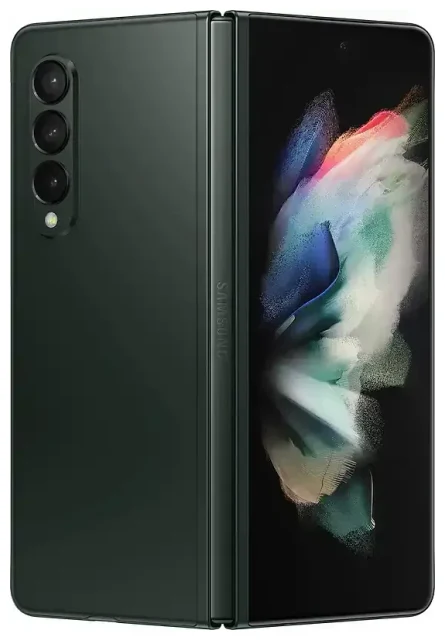
Does the Samsung Galaxy Z Fold 3 support eSIM?
Yes, the Samsung Galaxy Z Fold 3 supports eSIM on most models sold globally. Samsung included eSIM functionality in the majority of Galaxy Z Fold 3 variants, making it one of the company's first foldable devices to offer this feature.
Samsung Galaxy Z Fold 3 eSIM compatibility
The Galaxy Z Fold 3 was released in several variants, and eSIM support depends on your region. The SM-F926B (international unlocked), SM-F926U (U.S. unlocked), and SM-F926U1 models all support eSIM. Some carrier-locked versions in North America also include eSIM, though you may need to confirm with your carrier.
However, certain regional variants—particularly some sold in specific Asian markets—shipped with dual physical SIM trays instead of eSIM support. If you purchased your Z Fold 3 in China or Hong Kong, for example, your model likely uses two nano-SIM slots rather than eSIM. Check your device's model number in Settings > About phone, then verify the spec sheet on Samsung's regional website if you're uncertain about your specific variant.
Dual SIM on the Galaxy Z Fold 3
When your Galaxy Z Fold 3 includes eSIM, you can run dual SIM: one physical nano-SIM in the tray and one eSIM profile active simultaneously. This setup lets you keep your home number on the physical SIM while adding a travel eSIM for data abroad, or maintain separate work and personal lines. The Z Fold 3 does not support dual eSIM—you can store multiple eSIM profiles but only use one eSIM at a time alongside the physical SIM.
How to set up an eSIM on the Samsung Galaxy Z Fold 3
Activating an eSIM on your Galaxy Z Fold 3 takes about a minute once you have your QR code from your carrier or eSIM provider. You'll need a Wi-Fi or mobile data connection to download the eSIM profile.
Activate an eSIM profile step by step
- Open Settings on your Galaxy Z Fold 3.
- Tap Connections, then SIM card manager (or SIM manager on some software versions).
- Select Add mobile plan or Add eSIM.
- Tap Scan carrier QR code and point your camera at the QR code provided by your eSIM provider.
- Review the plan details and tap Add to confirm the download.
- Wait approximately 30–60 seconds while the eSIM profile installs.
- Once installed, give your eSIM line a label (for example, "Travel" or "Work") to distinguish it from your physical SIM.
- Choose which SIM to use for mobile data, calls, and texts in the SIM card manager screen.
If your eSIM provider sent an activation code instead of a QR code, select Enter activation code manually in step 4 and type in the SM-DP+ address and activation code exactly as provided.
Set up an eSIM in Settings
After activation, you control both SIM lines from the SIM card manager. You can toggle each line on or off, set your preferred SIM for data, and assign a default line for outgoing calls. The Z Fold 3 will display signal indicators for both SIMs in the status bar when dual SIM is active.
Using a travel eSIM on the Samsung Galaxy Z Fold 3
A travel eSIM is the easiest way to get mobile data when you're abroad without paying roaming charges from your home carrier. You install the eSIM profile before your flight, then switch on that line when you land. Your physical SIM stays in the phone, so you can still receive calls and text messages on your home number.
Why travel eSIMs work well on the Z Fold 3
The Galaxy Z Fold 3's dual-SIM capability means you don't have to swap physical SIM cards or lose access to your usual number. Install a regional or country-specific data plan as an eSIM, set it as your data line, and keep your home SIM active for voice and SMS. When you return, simply switch your data preference back to your home SIM—the travel eSIM stays stored on your device for your next trip, or you can delete it to free up space.
You can browse eSIM plans for your destination, purchase online, and receive the QR code by email within minutes. No need to hunt for a SIM vendor at the airport or deal with language barriers at a local mobile shop.
Tips & troubleshooting
Turn on data roaming for your eSIM line
After you activate a travel eSIM, remember to enable data roaming for that line. Go to Settings > Connections > Mobile networks, select your eSIM, and toggle Data roaming on. This step is essential—many users install the eSIM successfully but wonder why they have no data, only to discover roaming was off.
Keep your home SIM for calls and two-factor authentication
Leave your physical home SIM turned on while traveling. You'll still receive SMS verification codes and incoming calls on that number, even when the eSIM handles all your data traffic. Just make sure your home line isn't set as the active data SIM, or you may incur roaming fees.
Fix an eSIM that won't activate
If the QR code won't scan, check that your camera lens is clean and you have good lighting. You can also enter the activation details manually. If the profile downloads but won't activate, restart your Galaxy Z Fold 3 and try toggling the eSIM on again in SIM card manager. Confirm that your device software is up to date—Settings > Software update—since early firmware occasionally had eSIM bugs.
When you need more help with setup or compatibility questions for another device, visit our eSIM setup help center or check another device's eSIM compatibility.








