 WhatsApp +44 7367 063273
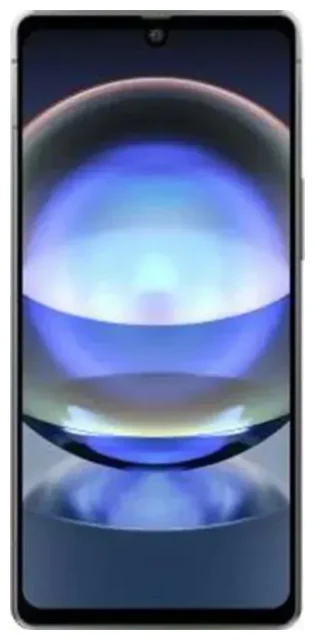
Does the Sharp Aquos R8 support eSIM?
Yes, the Sharp Aquos R8 supports eSIM, but only on models sold in the Japanese market. Sharp manufactured the Aquos R8 primarily for Japanese carriers including NTT Docomo, SoftBank, and au (KDDI), and these versions include eSIM functionality alongside a physical nano-SIM slot.
Sharp Aquos R8 eSIM compatibility
The Sharp Aquos R8 offers dual SIM capability through one physical nano-SIM slot and one eSIM. You can use both simultaneously, which makes it convenient for separating personal and work numbers or adding a travel data plan while keeping your primary line active. If you purchased your Sharp Aquos R8 outside Japan—particularly in other Asian markets or through grey-market importers—verify eSIM support in your device's settings before purchasing an eSIM plan, as regional variants may differ.
The standard configuration supports one active eSIM profile at a time alongside the physical SIM. You cannot use dual eSIMs simultaneously on this device; one line must be the physical card.
Regional availability and carrier support
Because the Sharp Aquos R8 was released exclusively for the Japanese domestic market in 2023, international availability is limited. If you're considering this device specifically for eSIM features, confirm that your unit is a Japanese model (SH-52D for Docomo, other carrier-specific model numbers for SoftBank and au). Sharp's international smartphone presence is minimal, so most Aquos R8 units outside Japan are imports.
How to set up an eSIM on the Sharp Aquos R8
Setting up your Sharp Aquos R8 eSIM takes about sixty seconds once you have your QR code from your eSIM provider. The device runs Android with Sharp's light customizations, so the process follows standard Android eSIM installation.
Set up an eSIM in Settings
- Connect your Sharp Aquos R8 to Wi-Fi before you begin—eSIM downloads require an internet connection.
- Open Settings and tap Network & internet.
- Tap SIMs or Mobile network, then select Add mobile plan or the plus icon.
- Choose Download a SIM instead? or Use QR code.
- Scan the QR code provided by your eSIM carrier using your camera, or tap Enter activation code manually if you received an SM-DP+ address and activation code.
- Wait for the eSIM profile to download and install—this typically takes 10–30 seconds.
- Once installed, label your eSIM line (e.g., "Travel" or "Data") to distinguish it from your physical SIM.
- Set your preferences for which SIM handles mobile data, calls, and SMS in the SIM settings menu.
Activate and label your lines
After installation, your Sharp Aquos R8 will show both SIM slots in the quick settings panel and network menu. You can toggle mobile data between lines, choose a default for calls, and specify which SIM to use for each contact. This flexibility makes the Sharp Aquos R8 eSIM setup particularly useful for travelers who want to keep their home number reachable while using local data.
Using a travel eSIM on the Sharp Aquos R8
A travel eSIM transforms how you stay connected abroad. Instead of paying roaming fees to your home carrier or hunting for a physical SIM card at the airport, you can install a data-only eSIM before your flight and have connectivity the moment you land.
Install before you fly
Purchase and install your travel eSIM while you're still at home on Wi-Fi. The eSIM profile sits dormant on your Sharp Aquos R8 until you reach your destination and turn on that line. When you arrive, simply enable mobile data for the eSIM line in your network settings, and you'll connect to local networks without touching your primary SIM. Your home number stays active for calls and text messages, while the eSIM handles data—no roaming charges, no SIM swaps.
You can browse eSIM plans for hundreds of destinations, comparing coverage and data allowances to find the right fit for your trip. Regional eSIMs cover multiple countries if you're traveling across Europe, Asia, or other regions, while single-country plans often offer better value for longer stays in one place.
Aquos R8 eSIM review for travelers
The dual-SIM capability on the Sharp Aquos R8 makes it a solid travel companion if you already own the Japanese model. The 6.39-inch display is large enough for maps and travel apps, and the Snapdragon 8 Gen 2 processor handles navigation and translation apps smoothly. Battery life is respectable for a full day of sightseeing with mobile data active. Just remember that band compatibility matters—Japanese phones are optimized for Japanese carriers, so verify LTE/5G band support for your destination to ensure strong connectivity.
Tips & troubleshooting
Most Sharp Aquos R8 eSIM installations work smoothly, but a few settings adjustments can prevent common issues.
Turn on data roaming for your eSIM line
Travel eSIMs require data roaming to be enabled for that specific line. Go to Settings > Network & internet > SIMs, select your eSIM, and toggle Roaming on. Don't worry—you won't incur roaming charges because the eSIM is a local plan in your destination country. Keep roaming off for your home physical SIM unless you need it.
Keep your home SIM for calls and 2FA
Leave your physical SIM active so you can receive calls, texts, and two-factor authentication codes on your regular number. In your SIM settings, set the eSIM as the default for mobile data and the physical SIM as the default for calls and SMS. This configuration lets you use affordable local data while staying reachable on your primary number.
Fix an eSIM that won't activate
If your QR code won't scan, check that your camera lens is clean and you have adequate lighting. Alternatively, choose the manual entry option and type the SM-DP+ address and activation code exactly as provided—watch for misread characters like O versus 0. If the eSIM downloads but shows "No service," restart your Sharp Aquos R8, verify that the eSIM line has data roaming enabled, and confirm you're in an area with network coverage. If problems persist, contact your eSIM provider's support team or visit our eSIM setup help page for detailed troubleshooting steps.
If you're evaluating devices and want to verify eSIM support on other models, you can check another device's eSIM compatibility before making a purchase.








