 WhatsApp +44 7367 063273
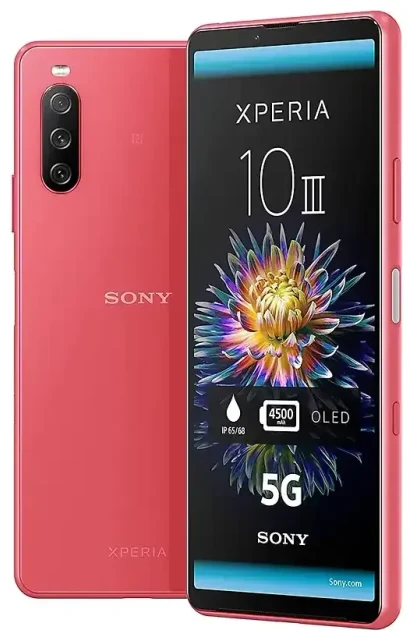
Does the Sony Xperia 10 III Lite support eSIM?
No, the Sony Xperia 10 III Lite does not support eSIM. This device relies exclusively on physical nano-SIM cards for cellular connectivity. Sony released the Xperia 10 III Lite in 2021 as a budget-friendly variant of the standard Xperia 10 III, and it includes a dual nano-SIM card slot but no embedded eSIM functionality.
Sony Xperia 10 III Lite eSIM compatibility
All regional variants of the Sony Xperia 10 III Lite—including models sold in Japan, Asia-Pacific, and other markets—lack eSIM support. You'll need to use traditional physical SIM cards to connect to your carrier's network. The device does offer dual-SIM capability, but both slots require nano-SIM cards. You cannot use an eSIM alongside a physical SIM on this model.
If you need eSIM functionality, you'll want to look at newer Sony devices or different manufacturers. Later Sony models introduced eSIM support, but the Xperia 10 III Lite is not among them.
Your options without eSIM on the Sony Xperia 10 III Lite
Since the Sony Xperia 10 III Lite doesn't support eSIM, you'll use physical nano-SIM cards for all connectivity. The dual-SIM tray gives you flexibility to run two phone numbers or carriers simultaneously—useful for separating work and personal lines, or using a local SIM when traveling.
Set up a physical SIM card
Here's how to install and activate a nano-SIM on your Sony Xperia 10 III Lite:
- Power off your device completely before handling the SIM tray.
- Locate the SIM card slot on the left edge of the phone.
- Use the included SIM ejector tool (or a paperclip) to gently push into the small hole and release the tray.
- Place your nano-SIM card(s) into the designated slots, aligning the cut corner correctly.
- Slide the tray back into the device until it clicks securely.
- Power on your phone and wait for it to detect the carrier network.
- If prompted, enter your SIM PIN and follow any carrier-specific activation steps.
- Go to Settings > Network & internet > SIM cards to label each line and set preferences for calls, texts, and mobile data.
Dual-SIM setup with physical cards
Both SIM slots on the Xperia 10 III Lite accept nano-SIM cards. You can keep one SIM active for data while the other handles voice calls, or switch between carriers based on coverage or cost. Configure your preferences in the SIM card settings menu to control which line handles each function.
Staying connected abroad on the Sony Xperia 10 III Lite
Without eSIM support, your international connectivity options on the Sony Xperia 10 III Lite involve physical SIM cards. You can purchase a local prepaid SIM at your destination airport or a mobile shop, then insert it into your second SIM slot while keeping your home SIM in place. This approach gives you local data rates without losing access to your primary number for calls and text messages.
Travel SIM alternatives to eSIM
International roaming on your home carrier often costs significantly more than a local SIM. Before your trip, research prepaid tourist SIM options for your destination country—many airports sell them with data packages designed for short visits. You can also order international travel SIM cards online before departure, though activation may require you to arrive in the destination country first.
If you frequently travel internationally and prefer the convenience of eSIM—where you can browse eSIM plans and activate data instantly without visiting a store or swapping physical cards—consider upgrading to an eSIM-compatible device. Newer Sony Xperia models and many other manufacturers now include eSIM support alongside physical SIM slots.
Tips & troubleshooting
Managing dual physical SIMs requires a few settings adjustments to get the most from your Sony Xperia 10 III Lite. Make sure you've assigned each SIM to the correct function—designate one for mobile data and specify which handles voice calls by default.
Configure data and roaming settings
When using a travel SIM for data, you'll need to enable data roaming on that specific line. Go to Settings > Network & internet > Mobile network, select the appropriate SIM, and toggle on "Roaming." Keep your home SIM active for incoming calls and two-factor authentication codes, but disable mobile data on that line to avoid unexpected roaming charges.
SIM card won't activate
If your physical SIM isn't recognized after insertion, first restart your device. Ensure the SIM card is properly seated in the tray with the gold contacts facing down and the cut corner aligned correctly. Check that the SIM is the right size (nano-SIM) and not damaged. If problems persist, contact your carrier to verify the SIM is activated on their network and compatible with your device's supported bands.
For questions about other devices, you can check another device's eSIM compatibility to see which phones and tablets offer eSIM functionality. If you upgrade to an eSIM-capable device in the future, our eSIM setup help guides walk through activation on hundreds of models.








