 WhatsApp +44 7367 063273
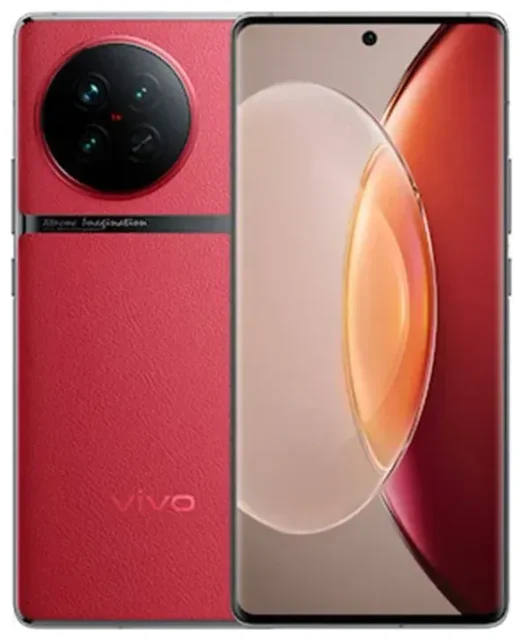
Does the vivo X90 Pro support eSIM?
vivo X90 Pro eSIM compatibility
The vivo X90 Pro eSIM support varies by regional variant. Some models sold in specific markets include eSIM functionality, while others rely exclusively on physical nano-SIM cards. The Chinese domestic version typically does not support eSIM, but certain international variants—particularly those distributed in Europe and select Asian markets—may offer eSIM capability alongside dual physical SIM slots.
Because vivo has released the X90 Pro with different specifications across regions, you need to verify your specific model before assuming eSIM compatibility. Check your device's original retail packaging, the specifications sheet from your carrier, or vivo's official regional website for your market. If you cannot confirm eSIM support through these channels, contact vivo customer service or your retailer with your model number to get a definitive answer—do not assume compatibility based on the phone's name alone.
Dual SIM configuration on compatible models
On vivo X90 Pro units that do support eSIM, the typical configuration allows dual SIM functionality using one eSIM and one physical nano-SIM card simultaneously. This setup lets you maintain two active phone numbers—useful for separating work and personal lines, or keeping your home number active while adding a local data plan when traveling. Some variants may support multiple eSIM profiles stored on the device, though only one eSIM and one physical SIM can be active at the same time.
How to set up an eSIM on the vivo X90 Pro
Set up an eSIM in Settings
If you have confirmed that your vivo X90 Pro model supports eSIM, the activation process typically takes about sixty seconds. You will need a QR code from your eSIM provider—this is usually sent by email or displayed in your account dashboard immediately after purchase.
- Connect your vivo X90 Pro to Wi-Fi before starting the installation process.
- Open Settings and tap Network & internet or SIM cards & mobile networks (the exact label depends on your Funtouch OS or OriginOS version).
- Tap Add SIM, Add eSIM, or the plus icon to begin adding a new line.
- Select Scan QR code and position your device camera over the QR code provided by your eSIM carrier.
- Wait while the eSIM profile downloads and installs—this usually completes within thirty to sixty seconds.
- Label the new eSIM line with a recognizable name like "Travel Data" or "Work" to help you distinguish it from your primary SIM.
- Choose which SIM to use for mobile data, calls, and SMS in the SIM settings menu.
Alternative activation methods
If the QR code scanner does not work or you receive an activation code instead of a QR code, look for a Manual entry or Enter details manually option in the same eSIM setup menu. You will need to input the SM-DP+ address and activation code exactly as provided by your carrier. Double-check for typos, as incorrect entry will prevent activation.
Using a travel eSIM on the vivo X90 Pro
Stay connected abroad without roaming charges
A travel eSIM makes it simple to get mobile data when you travel internationally without paying expensive roaming fees from your home carrier. You keep your primary physical SIM active for receiving calls and text messages—including two-factor authentication codes—while the eSIM provides affordable local data rates in your destination country.
Install your travel eSIM before you leave home, while you still have reliable Wi-Fi access. Most travel eSIM plans activate only when your device connects to the destination network, so you can load the profile days or weeks in advance without wasting any validity period. When you land, simply turn on the eSIM line in your settings, enable data roaming for that specific line, and you will have internet access as soon as you clear the airport. You can browse eSIM plans covering hundreds of countries and regions with data packages suited to different trip lengths.
Managing two active lines
With your home SIM and a travel eSIM both active, you control which line handles mobile data in the SIM settings menu. Set the travel eSIM as your data line to use its local rates, while leaving your home SIM available for incoming calls. Most apps and services will use whichever line you have designated for mobile data, making it straightforward to keep costs down while staying reachable on your regular number.
Tips & troubleshooting
Enable data roaming for your eSIM line
A common issue that stops eSIMs from working is forgetting to enable data roaming. Even though you are using a local or regional eSIM, the setting is still called "data roaming" on most devices. Go to Settings > Network & internet > SIM cards, tap your eSIM line, and turn on Roaming or Data roaming. Without this enabled, your eSIM will not connect to mobile networks even if it installed successfully.
What to do if the QR code won't scan
If your camera cannot read the QR code—due to screen glare, image quality, or lighting—try displaying the QR code on another device or printing it on paper. Alternatively, use the manual entry option and type in the activation details provided by your carrier. Restarting your vivo X90 Pro before attempting installation can also resolve temporary software glitches that interfere with eSIM activation.
Keep your primary SIM active for calls and verification
Leave your home physical SIM inserted and active even when using a travel eSIM for data. This ensures you can receive calls, SMS messages, and two-factor authentication codes without interruption. You will not incur data roaming charges on your home SIM as long as you have selected the travel eSIM as your active data line in settings. If you need help with setup or activation issues, you can find additional guidance at eSIM setup help.
Confirm compatibility before purchase
Because eSIM availability on the vivo X90 Pro depends on your specific regional model, always verify compatibility before buying an eSIM plan. If you are unsure whether your device supports eSIM, dial *#06# on your phone—if an EID (eSIM identifier) appears alongside your IMEI numbers, your device has eSIM capability. You can also check another device's eSIM compatibility if you are comparing models or planning to upgrade.








