 WhatsApp +44 7367 063273
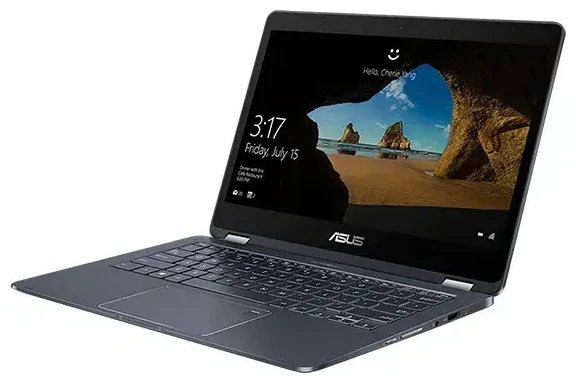
Does the ASUS Novago TP370QL support eSIM?
ASUS Novago TP370QL eSIM compatibility
Yes, the ASUS Novago TP370QL supports eSIM, but only on Wi-Fi + Cellular variants equipped with the Qualcomm Snapdragon 835 processor and integrated X16 LTE modem. This was one of the first Windows 10 laptops to ship with always-connected cellular capability, and ASUS included embedded SIM functionality in the cellular-enabled models.
The Wi-Fi-only version of the Novago TP370QL does not have cellular hardware and therefore cannot use eSIM. Check your device specifications in Settings > System > About to confirm whether you have the cellular-capable variant. Look for "Mobile broadband" or "Cellular" listed under device specifications.
Dual SIM configuration
The ASUS Novago TP370QL cellular model uses eSIM-only connectivity—there is no physical nano-SIM slot. You can store multiple eSIM profiles on the device and switch between them, but only one eSIM profile can be active at a time. This means you cannot maintain two active data connections simultaneously.
How to set up an eSIM on the ASUS Novago TP370QL
Set up an eSIM in Settings
Setting up an eSIM on your ASUS Novago TP370QL takes about 60 seconds once you have your QR code from your carrier or travel eSIM provider. You'll need an active Wi-Fi connection during setup to download the eSIM profile.
- Connect your ASUS Novago TP370QL to Wi-Fi.
- Open Settings and navigate to Network & Internet > Cellular.
- Click "Use a SIM from your mobile operator" or "Add a cellular plan."
- Choose "Use a QR code" when prompted.
- Hold the QR code from your eSIM provider in front of your laptop's camera, or enter the activation code manually if you don't have a camera handy.
- Wait while Windows downloads and installs the eSIM profile (typically 30–90 seconds).
- Label your cellular connection with a recognizable name like "Travel Data" or your carrier name.
- Set your preferences for whether this connection should be used for data when Wi-Fi is unavailable.
Activate your cellular connection
After installation completes, Windows will attempt to connect automatically. You may need to restart your laptop if the connection doesn't appear immediately. Once connected, you'll see signal bars in the taskbar notification area next to your Wi-Fi icon.
Using a travel eSIM on the ASUS Novago TP370QL
Stay connected abroad without roaming charges
A travel eSIM gives you local data rates when you're abroad, eliminating expensive roaming fees. Instead of hunting for a physical SIM card at the airport or activating international roaming through your home carrier, you can browse eSIM plans for your destination and install the profile before you leave.
Your ASUS Novago TP370QL can store multiple eSIM profiles, so you can keep travel eSIMs for different regions installed and simply activate the one you need when you arrive. This makes the laptop particularly useful for frequent travelers who need reliable internet access for work or navigation without depending on hotel or café Wi-Fi.
Install before departure
Install your travel eSIM while you're still at home on your regular Wi-Fi connection. The profile will sit dormant until you arrive in your destination country and enable it in Settings. Most travel eSIM plans activate when they first detect the destination country's network, so you don't need to worry about your data allowance starting before you board your flight.
Tips & troubleshooting
Enable data roaming for eSIM connectivity
Even though you're using a local travel eSIM, Windows treats the connection as roaming because the profile wasn't issued by your device's original region. Go to Settings > Network & Internet > Cellular > Data roaming options and turn on "Allow roaming for this cellular plan." Without this enabled, your eSIM won't connect to local networks.
Fix an eSIM that won't activate
If your QR code won't scan, check that your laptop camera is functioning properly and that you have adequate lighting. You can manually enter the activation code instead: look for the SM-DP+ address and activation code string on your eSIM provider's email or account page, then select "Enter activation code manually" during setup.
If the eSIM installs but won't connect, restart your ASUS Novago TP370QL and confirm that airplane mode is off. Check that the correct eSIM profile is set as active in Cellular settings—if you have multiple profiles stored, Windows may have selected the wrong one. You can also check another device's eSIM compatibility if you're considering a backup option for connectivity.
Some eSIM providers require you to activate the profile within a specific timeframe after purchase. If your eSIM was issued weeks ago and never activated, it may have expired. Contact your provider to request a new QR code.








