 WhatsApp +44 7367 063273
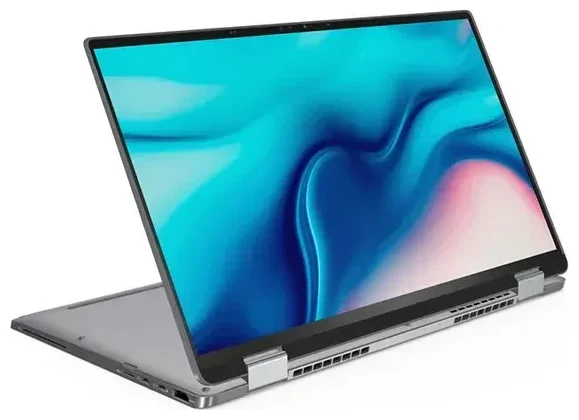
Does the Dell Latitude 9510 support eSIM?
Dell Latitude 9510 eSIM compatibility
The Dell Latitude 9510 supports eSIM, but only if you have the LTE-enabled configuration. Dell offered this business ultrabook in both Wi-Fi-only and Wi-Fi + LTE variants. The LTE models include an integrated Qualcomm Snapdragon X20 LTE-A modem with eSIM support, while Wi-Fi-only models have no cellular connectivity and cannot use eSIM.
To confirm which version you own, check your original purchase documentation or look in Windows Settings under Network & Internet → Cellular. If you see cellular options and a mobile network section, you have the LTE model with eSIM capability. If that menu doesn't exist, your Latitude 9510 is Wi-Fi-only and does not support eSIM.
Dual SIM support on the Dell Latitude 9510
The LTE-enabled Dell Latitude 9510 uses eSIM only—there is no physical nano-SIM slot. You cannot use a traditional SIM card alongside an eSIM on this device. However, Windows supports multiple eSIM profiles stored in memory, so you can switch between a work data plan and a travel eSIM without swapping physical cards. Only one eSIM profile can be active at a time.
How to set up an eSIM on the Dell Latitude 9510
Set up an eSIM in Windows Settings
If you have the LTE model, setting up an eSIM on the Dell Latitude 9510 takes about 60 seconds. You'll need a QR code from your eSIM provider—this is typically emailed to you after purchase or available in your account dashboard.
- Connect to Wi-Fi so your laptop can download the eSIM profile.
- Open Settings (press Windows key + I).
- Navigate to Network & Internet, then select Cellular in the left menu.
- Click Manage eSIM profiles or Add a cellular plan.
- Choose Add a new profile and select Use a QR code.
- Use your laptop's webcam or an external camera to scan the QR code provided by your eSIM carrier.
- Windows will download and install the eSIM profile—this typically completes within a minute.
- Once installed, assign a label to the eSIM (e.g., "Travel Data" or "US Work SIM") so you can identify it easily.
- Toggle the eSIM profile to On and ensure cellular data is enabled.
Activating your eSIM profile
After installation, the eSIM should connect automatically when you're in range of a supported network. You can switch between stored eSIM profiles in the same Cellular settings menu—useful if you maintain both a corporate data plan and a travel eSIM for international trips.
Using a travel eSIM on the Dell Latitude 9510
A travel eSIM is the simplest way to get mobile data abroad on your Dell Latitude 9510 LTE without paying roaming fees or hunting for local SIM cards. Because the Latitude 9510 is eSIM-only on cellular models, you install data plans digitally—no need to find a shop, swap tiny cards, or deal with PIN tools.
Install your travel eSIM while you're still at home and connected to Wi-Fi. That way, the profile is ready the moment you land. Once you arrive at your destination, toggle the travel eSIM on in Settings, and your laptop will connect to a local network. You can browse eSIM plans for over 200 countries and regions, comparing coverage and data allowances before you fly.
This is especially practical for business travelers who need reliable connectivity in airports, hotels, and co-working spaces without depending on often-slow public Wi-Fi. Your laptop stays online for email, video calls, and VPN access as soon as you clear customs.
Tips and troubleshooting
Turn on data roaming for your eSIM line
Even though you're using a local or regional eSIM, Windows may still require data roaming to be enabled. Go to Settings → Network & Internet → Cellular, select your eSIM profile, and toggle Roaming options to On. This won't trigger surprise charges on a prepaid travel eSIM—it simply allows the profile to connect to partner networks.
What to do if the QR code won't scan
If your laptop's webcam struggles to read the QR code, try these steps:
- Increase screen brightness on the device displaying the QR code, or print it on paper.
- Ensure good lighting—avoid glare and shadows.
- In the eSIM setup wizard, look for an option to Enter activation code manually. Your eSIM provider will supply an SM-DP+ address and activation code you can type instead of scanning.
Switching between eSIM profiles
Because the Dell Latitude 9510 supports only one active eSIM at a time, you'll switch profiles in the Cellular settings when you move between regions or carriers. Deactivate the current profile, then turn on the one you need. All installed profiles remain stored, so you don't reinstall QR codes each trip.
If you run into activation issues or need step-by-step guidance for a specific carrier, you can find additional eSIM setup help and troubleshooting resources. And if you're considering other devices or want to confirm compatibility for a phone or tablet, you can check another device's eSIM compatibility before you buy a plan.








