 WhatsApp +44 7367 063273
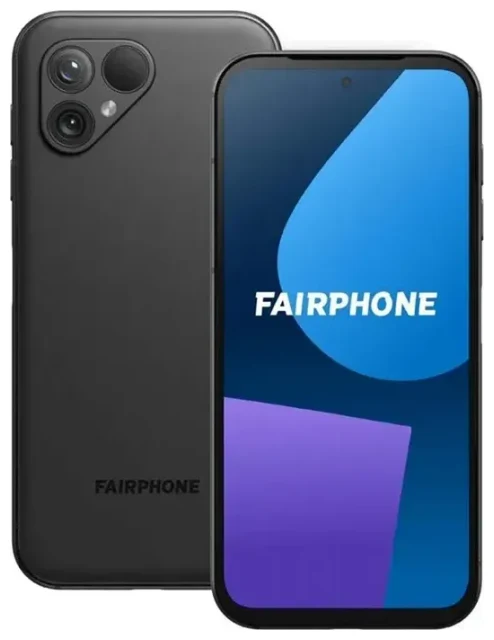
Does the Fairphone 5 support eSIM?
Fairphone 5 eSIM compatibility
Yes, the Fairphone 5 supports eSIM. All Fairphone 5 models sold globally include eSIM functionality, making it one of the more sustainable smartphones with built-in eSIM capability. You can run dual SIM on your Fairphone 5 by combining one eSIM profile with one physical nano-SIM card in the dedicated tray.
The Fairphone 5 does not support dual eSIM operation—you're limited to a single active eSIM at a time alongside your physical SIM. This configuration works well for travellers who want to keep their home number on the physical SIM while adding a data-only eSIM when abroad, or for anyone who prefers the flexibility of switching carriers without swapping physical cards.
eSIM vs physical SIM on the Fairphone 5
Your Fairphone 5 ships with a hybrid SIM tray that accepts one nano-SIM and supports one eSIM digitally. The eSIM is embedded in the device's hardware, so you don't need to handle tiny cards or worry about losing them. You can install, switch, or delete eSIM profiles entirely through software, which is especially convenient when you travel frequently or want to test a new carrier without waiting for a physical SIM to arrive.
How to set up an eSIM on the Fairphone 5
Set up an eSIM in Settings
Activating an eSIM on your Fairphone 5 takes about sixty seconds once you have a QR code from your carrier or eSIM provider. Make sure you're connected to Wi-Fi before you begin, because the device needs internet access to download the eSIM profile from the network.
- Open Settings on your Fairphone 5.
- Tap Network & internet, then select SIMs or Mobile network.
- Choose Add mobile plan or the "+" icon to add a new SIM.
- Tap Download a SIM instead? or Use a QR code.
- Point your camera at the QR code provided by your eSIM carrier. The Fairphone 5 will scan and validate the code automatically.
- Confirm the download when prompted. The profile installs in a few seconds.
- Label the new eSIM line with a nickname—"Travel," "Work," or the carrier name—so you can tell your lines apart.
- Choose which SIM to use for mobile data, calls, and SMS in the dual-SIM settings.
Labelling and managing your lines
After installation, you'll see both your physical SIM and your eSIM listed under SIMs in Settings. You can toggle either line on or off, set a default for data, and assign specific contacts to call or text from a particular number. This makes it simple to keep work and personal lines separate, or to use your home SIM for calls while routing all data through a cheaper travel eSIM when you're abroad.
Using a travel eSIM on the Fairphone 5
A travel eSIM is the easiest way to get mobile data abroad without paying roaming charges from your home carrier. You install the eSIM profile before you fly, then activate it when you land by turning on the eSIM line and enabling data roaming for that profile. Your Fairphone 5 connects to a local network, and you pay only for the data plan you chose—no surprises on your next bill.
Because the Fairphone 5 supports dual SIM, you can leave your primary physical SIM active for incoming calls and text messages (including two-factor authentication codes) while the eSIM handles all data. This setup means friends, family, and your bank can still reach you on your usual number, but you browse, navigate, and use apps over the local eSIM data connection.
Install your travel eSIM while you're still at home and connected to Wi-Fi. Most eSIM providers email you a QR code instantly, so you can scan and download the profile days or weeks before departure. The line stays dormant until you toggle it on, and many regional or country-specific plans begin their validity period only when you first connect to the destination network. When you're ready to explore data options, browse eSIM plans that cover your destination.
Tips & troubleshooting
Turn on data roaming for the eSIM line
Android disables data roaming by default to protect you from unexpected charges. When you're using a travel eSIM on the Fairphone 5, you need to enable roaming specifically for that eSIM line—not your home SIM. Go to Settings > Network & internet > SIMs, select your eSIM, and toggle Roaming on. Your home SIM can stay in roaming-off mode so you never accidentally use it for data abroad.
Set your eSIM as the active data line in the same menu. The Fairphone 5 will route all internet traffic through the eSIM, while your physical SIM remains available for calls and SMS. If data isn't working, restart the phone after toggling roaming on—this forces the device to re-register with the local network.
Fix an eSIM that won't activate
If the QR code won't scan, check that your camera lens is clean and you're holding the phone about fifteen centimetres from the screen or printed code. Dim any bright lights that cause glare on the QR image. If scanning still fails, look for a Enter activation code manually option in the add-SIM flow; your eSIM provider's email or app will list the long alphanumeric string you can type in by hand.
Occasionally an eSIM profile downloads but shows "No service" or won't connect. Confirm you've turned on the eSIM line and enabled roaming for it. Toggle Airplane mode on and off to prompt the Fairphone 5 to search for networks again. If you're travelling, make sure you've arrived in a country covered by your plan—some regional eSIMs are valid only in specific zones. For persistent issues, eSIM setup help is available, or contact your eSIM provider's support team with your activation code.
Remember that each QR code is usually single-use. If you scan a code, delete the eSIM profile, then try to scan the same code again, it may fail. Most providers let you request a new QR through their app or website. Before you delete an eSIM, note the carrier's reactivation policy—some profiles can be reinstalled, while others require a fresh purchase.
If you want to check eSIM support for a different device or compare Android eSIM options, you can check another device's eSIM compatibility to confirm before you buy or recommend a phone.








