 WhatsApp +44 7367 063273
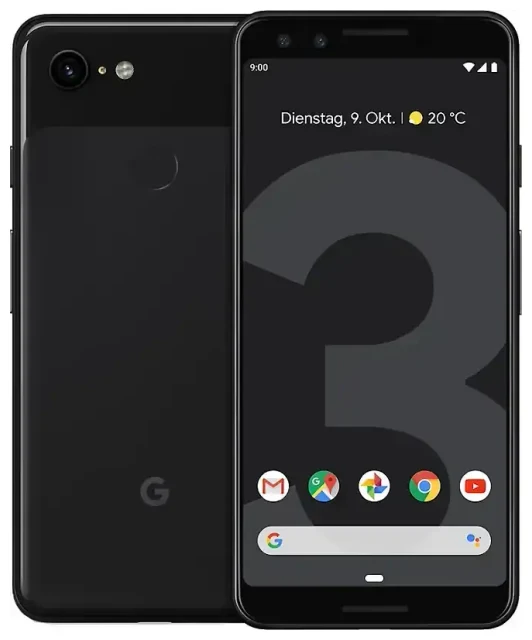
Does the Google Pixel 3 support eSIM?
Yes, the Google Pixel 3 supports eSIM. Google included eSIM capability in all Pixel 3 models sold in the United States, United Kingdom, Canada, Australia, and most other major markets. The device was one of the first Android phones to offer built-in eSIM support when it launched in 2018.
Google Pixel 3 eSIM compatibility
The Pixel 3 works with a single physical nano-SIM and one eSIM profile at the same time, giving you dual SIM functionality. You can keep your regular carrier on the physical SIM slot and add a second line via eSIM—useful for separating work and personal numbers or adding a local data plan when you travel. The phone does not support dual eSIM; you're limited to one physical SIM plus one eSIM active simultaneously.
A small number of carrier-locked or region-specific variants may have eSIM disabled in software. If you bought your Pixel 3 directly from Google or unlocked from a major retailer, eSIM will be available. Carrier-branded units from some networks may have restrictions, so check your Settings > Network & internet > Mobile network menu to confirm the "Add carrier" or "Download a SIM instead?" option appears.
How to set up an eSIM on the Google Pixel 3
Setting up an eSIM on the Google Pixel 3 takes about 60 seconds once you have your QR code from your carrier or eSIM provider. Make sure you're connected to Wi-Fi before you start—the phone needs internet to download the eSIM profile.
Google Pixel 3 eSIM setup steps
- Open Settings and tap Network & internet.
- Tap Mobile network, then tap the + icon or Add carrier.
- Choose Download a SIM instead? or Add a network (wording varies by Android build).
- Tap Next when prompted to scan a QR code.
- Point your camera at the QR code provided by your eSIM carrier. The Pixel 3 will scan it automatically.
- Tap Download to install the eSIM profile. This usually takes 10–30 seconds.
- Once downloaded, give your eSIM line a label—such as "Travel" or "Work"—so you can tell your SIMs apart.
- Choose which SIM to use for mobile data, calls, and SMS in the Mobile network menu.
If your eSIM provider sends an activation code as plain text or via email instead of a QR code, tap Enter it manually in step 4 and type in the SM-DP+ address and activation code. The Pixel 3 will fetch the profile the same way.
Set up an eSIM in Settings
After installation, both SIMs appear under Settings > Network & internet > Mobile network. You can toggle each SIM on or off, set a default for data, and control which line handles calls and messages. The Pixel 3 will prompt you every time you make a call or send an SMS if you haven't set a default, so it's worth choosing your preferences up front.
Using a travel eSIM on the Google Pixel 3
A travel eSIM is the easiest way to stay connected abroad without paying roaming fees. Instead of hunting for a local SIM card at the airport or relying on expensive roaming from your home carrier, you install an eSIM data plan before you fly. When you land, mobile data starts working immediately—no SIM-card swaps, no store visits, no language barriers.
Install before you fly
Download and install your travel eSIM while you're still at home and connected to Wi-Fi. The eSIM profile sits dormant on your Pixel 3 until you reach your destination and turn it on. Once you arrive, go to Settings > Network & internet > Mobile network, select your travel eSIM, and enable mobile data. Your home SIM stays in the physical slot, so you can still receive calls and text messages on your regular number.
You can browse eSIM plans by country or region, compare data allowances, and install the QR code in minutes. Most travel eSIMs activate automatically when your Pixel 3 registers on a local network, though some require you to toggle airplane mode on and off once to kickstart the connection.
Tips & troubleshooting
Most eSIM installs on the Pixel 3 go smoothly, but a few settings and common issues trip people up. Here's what to check if your eSIM won't activate or you're not seeing mobile data.
Turn on data roaming for the eSIM line
Travel eSIMs nearly always require data roaming to be enabled, even though you're not technically roaming on your home carrier. Go to Settings > Network & internet > Mobile network, select your eSIM, tap Roaming, and toggle Roaming on. If roaming is off, the Pixel 3 won't connect to the local network and you'll see no signal bars for data.
Keep the home SIM for calls and 2FA
Leave your physical SIM installed and active for voice calls and two-factor authentication codes. Set your eSIM as the default for mobile data only—this way, calls and SMS still route through your home number, and you avoid missing important messages. You can adjust these defaults under Settings > Network & internet > Mobile network > Calls & SMS and Mobile data.
Fix an eSIM that won't activate
If your QR code won't scan, increase the screen brightness on the device displaying the code and hold your Pixel 3 steady about 15–20 cm away. If the camera still won't focus, tap Enter it manually and type the activation code instead. If the eSIM downloads but shows no service, restart your phone, confirm data roaming is on, and check that the eSIM line is set as your mobile data source. A quick toggle of airplane mode often forces the Pixel 3 to re-register on the network. For persistent issues, you can get eSIM setup help or contact your eSIM provider to confirm the profile is active on their side.
Pixel 3 eSIM not working or no eSIM option
If you don't see an "Add carrier" or "Download a SIM" option in Settings, your Pixel 3 may be carrier-locked with eSIM disabled, or you may be running an outdated version of Android. Update to the latest available security patch (Settings > System > System update) and reboot. If the option still doesn't appear, contact your carrier to confirm eSIM is enabled on your account and that your device isn't restricted. You can also check another device's eSIM compatibility if you're considering an upgrade.








