 WhatsApp +44 7367 063273
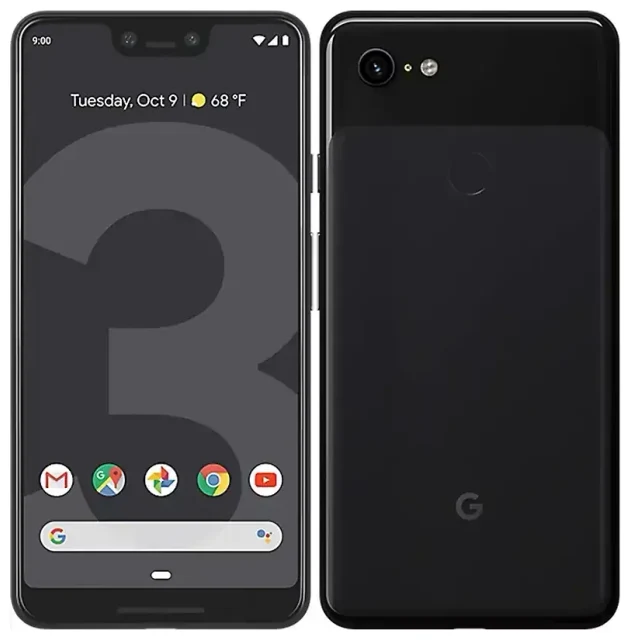
Does the Google Pixel 3 XL support eSIM?
Yes, the Google Pixel 3 XL supports eSIM. Google built eSIM capability into every Google Pixel 3 XL model sold worldwide, making it one of the first mainstream Android phones to offer the technology when it launched in 2018.
Google Pixel 3 XL eSIM compatibility across all variants
Every Google Pixel 3 XL—whether you bought it unlocked, through a carrier, or in any region—has a built-in eSIM. There are no Wi-Fi-only or region-locked variants to worry about. If you own a Pixel 3 XL, you have eSIM support.
Dual SIM: eSIM plus physical nano-SIM
The Google Pixel 3 XL offers dual SIM functionality by combining its eSIM with the physical nano-SIM slot. You can keep your home number on the physical SIM and add a travel eSIM for data abroad, or run two separate numbers simultaneously. The device does not support dual eSIM—you're limited to one eSIM profile active at a time alongside the physical SIM.
How to set up an eSIM on the Google Pixel 3 XL
Setting up a Google Pixel 3 XL eSIM takes about 60 seconds once you have your QR code from your eSIM provider. The process happens entirely in the Settings app, and your eSIM activates over Wi-Fi or mobile data.
Step-by-step Google Pixel 3 XL eSIM setup
- Connect your Pixel 3 XL to Wi-Fi or ensure you have mobile data on your physical SIM.
- Open Settings and tap Network & internet.
- Tap the + icon next to Mobile network (or tap Mobile network then Advanced and Add carrier).
- Select Download a SIM instead? at the bottom of the screen.
- Tap Next, then scan the QR code provided by your eSIM provider using your camera.
- Wait 30–60 seconds while the eSIM profile downloads and installs.
- When prompted, give the eSIM line a label (e.g., "Travel" or "Work") so you can distinguish it from your physical SIM.
- Choose which SIM to use for mobile data, calls, and SMS in the SIM settings.
If you don't see the eSIM download option in Settings, make sure your device is running Android 9 or later and that your carrier hasn't locked the feature. Some carrier-sold devices may require a software update or unlock before eSIM functionality appears.
Managing multiple SIM profiles
After setup, you can switch which SIM handles data, calls, and texts by going to Settings > Network & internet > Mobile network. Tap each SIM to toggle it on or off, or to change your preferences. Only one eSIM profile can be active at a time, but you can store multiple profiles and switch between them as needed.
Using a travel eSIM on the Google Pixel 3 XL
A travel eSIM transforms your Google Pixel 3 XL into a dual-SIM device that keeps you connected abroad without roaming charges. Install a regional or country-specific data plan before you fly, and you'll have internet access the moment you land—no hunting for SIM shops, no passport photocopies, no swapping tiny plastic cards.
Install your travel eSIM before departure
Download and install your travel eSIM while you're still at home on Wi-Fi. The profile sits dormant until you arrive in the destination country and turn on data roaming for that eSIM line. Your home SIM stays in the physical slot, so you can still receive calls and text messages (including two-factor authentication codes) on your regular number. You simply switch mobile data to the travel eSIM and avoid expensive roaming fees from your home carrier.
Browse and compare coverage, data allowances, and validity periods when you browse eSIM plans for your next trip. Most travel eSIMs activate automatically when they detect the local network, though some require you to manually enable data roaming in the SIM settings.
Tips and troubleshooting
Most Google Pixel 3 XL eSIM setups work smoothly, but a few common issues trip up first-time users. Here's how to avoid them and what to do if your eSIM won't activate.
Turn on data roaming for your eSIM line
This catches almost everyone the first time: your travel eSIM won't connect unless you enable data roaming for that specific SIM. Go to Settings > Network & internet > Mobile network, select your eSIM, and toggle Roaming on. Data roaming is safe here—you're using a prepaid data plan, not your home carrier's expensive roaming rates.
Keep your home SIM active for calls and two-factor authentication
Leave your physical SIM turned on so you can receive calls and SMS on your regular number. In dual SIM settings, set your home SIM for calls and texts, and your travel eSIM for mobile data. This way, you stay reachable without paying roaming fees for data usage.
Fix an eSIM that won't activate
If your eSIM profile downloads but won't connect, restart your Pixel 3 XL first—that resolves most activation issues. If the problem persists, check that you've selected the correct SIM for mobile data and that data roaming is on. If the QR code won't scan (poor lighting, damaged code), look for a manual entry option in the eSIM download screen; your provider should give you an activation code you can type in instead.
For persistent setup problems or if the eSIM option doesn't appear in your Settings, confirm your device is carrier-unlocked and running the latest software update. You can check another device's eSIM compatibility if you're considering upgrading, or reach out for eSIM setup help if you're stuck.
No eSIM option in Pixel 3 XL settings
If you don't see the "Download a SIM instead?" option when adding a mobile network, your device may be carrier-locked or running outdated software. Check for system updates in Settings > System > Advanced > System update. If your Pixel 3 XL was purchased through a carrier, contact them to confirm the device is unlocked for eSIM use.








