 WhatsApp +44 7367 063273
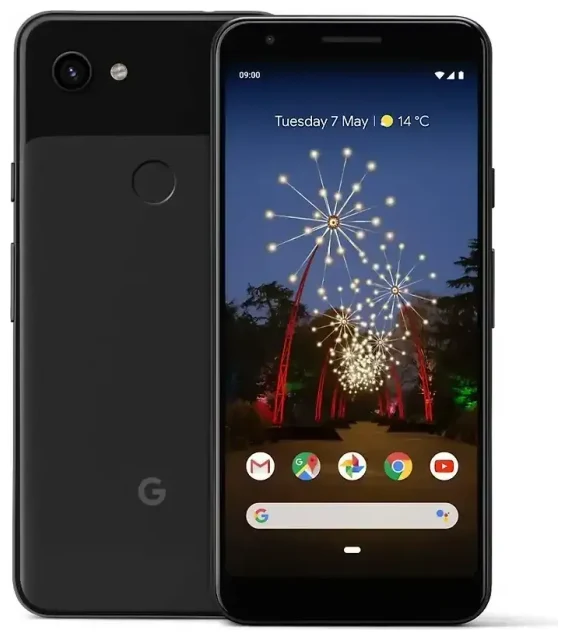
Does the Google Pixel 3a support eSIM?
Google Pixel 3a eSIM compatibility
No, the Google Pixel 3a does not support eSIM. Google did not include eSIM functionality in the Pixel 3a or Pixel 3a XL models, which were released in May 2019 as mid-range alternatives to the flagship Pixel 3 line. Both the standard Pixel 3a and the larger Pixel 3a XL rely exclusively on a physical nano-SIM card slot for cellular connectivity.
The Google Pixel 3a is a single-SIM device across all regions and carriers. You cannot use dual SIM functionality on this phone, whether with eSIM or two physical SIM cards. If you need eSIM capability or dual-SIM features, you'll need to look at newer Pixel models—the Pixel 3, Pixel 4 and later generations all include eSIM support.
Which Pixel models include eSIM
While the Pixel 3a doesn't support eSIM, Google's flagship Pixel 3 (released in 2018) was the first Pixel to introduce eSIM. Every mainline Pixel since then—including the Pixel 4, Pixel 5, Pixel 6, Pixel 7, Pixel 8, and Pixel 9 series—supports eSIM. The Pixel 8a and future Pixel 9a are also expected to include eSIM functionality. If you frequently travel or need dual-SIM capability, upgrading to any of these models will give you eSIM access.
Your options without eSIM on the Google Pixel 3a
Using a physical nano-SIM card
Since the Google Pixel 3a only supports a physical SIM, you'll use the nano-SIM card slot located on the left side of the device. This applies whether you're activating service with your home carrier or using a local SIM card while traveling abroad.
- Power off your Google Pixel 3a completely before removing the SIM tray.
- Locate the SIM tray on the left edge of the phone and insert the ejection tool (or a straightened paperclip) into the small hole.
- Gently pull out the tray and place your nano-SIM card in the tray, aligning the notched corner.
- Slide the tray back into the phone until it clicks into place.
- Power on your Pixel 3a. The phone should detect the SIM automatically and prompt you to configure cellular settings.
- If activation doesn't happen automatically, go to Settings > Network & internet > Mobile network and follow the prompts from your carrier.
Consider an eSIM-capable device
If you find yourself needing the flexibility of eSIM—especially for travel, work lines, or avoiding physical SIM swaps—it may be time to upgrade. The Pixel 3 (despite being older than the 3a) does support eSIM, as do all subsequent Pixel flagships. You can check another device's eSIM compatibility if you're comparing options beyond the Pixel lineup.
Using a travel SIM on the Google Pixel 3a
Stay connected abroad with a physical travel SIM
Without eSIM support, your best option for avoiding expensive roaming charges on the Google Pixel 3a is to purchase a physical travel SIM card when you reach your destination. Many airports, convenience stores, and mobile shops sell prepaid tourist SIM cards with data allowances. You'll need to physically swap out your home SIM card and insert the local one, which means you won't be able to receive calls or texts on your home number unless you forward them or use internet-based messaging apps.
Buy your travel SIM before you need mobile data, ideally right after you land. Keep your home SIM in a safe place—losing it means ordering a replacement from your carrier when you return. Some travelers use a small SIM card holder or store the removed SIM in their phone case.
Why eSIM makes travel easier
If you travel frequently, you'll quickly notice the limitations of physical SIM-only devices. With an eSIM-capable phone, you can browse eSIM plans and install a data plan digitally before you even board your flight. You keep your home SIM active for calls and texts while the eSIM handles data, and there's no risk of losing a tiny physical card during the swap. The Pixel 3a's lack of eSIM means you'll miss out on this convenience, but newer Pixel models offer full dual-SIM functionality with eSIM plus physical SIM.
Tips & troubleshooting
Getting the most from your physical SIM
Make sure your Google Pixel 3a is unlocked if you plan to use SIM cards from different carriers. Phones purchased directly from Google are typically unlocked, but carrier-locked models (especially those on payment plans) may need to be unlocked by your carrier before accepting other SIM cards. Contact your carrier to confirm unlock status before traveling.
When you insert a new SIM card, the Pixel 3a usually auto-configures the correct APN (Access Point Name) settings. If mobile data doesn't work after inserting a travel SIM, go to Settings > Network & internet > Mobile network > Advanced > Access Point Names and verify the APN matches your new carrier's requirements. Your SIM card packaging or the carrier's website will list the correct APN details.
SIM card won't activate or no signal
If your Google Pixel 3a doesn't detect a newly inserted SIM, try restarting the phone. Make sure the nano-SIM is properly seated in the tray with the gold contacts facing down and the notched corner aligned. A SIM inserted backward or at an angle won't make contact. If you still see "No SIM" or "Emergency calls only," the SIM itself may be inactive or incompatible—contact the issuing carrier to confirm the SIM is activated and your Pixel 3a supports the carrier's network bands (GSM/LTE).
For additional help with connectivity issues on any device, visit eSIM setup help for troubleshooting resources, though remember the Pixel 3a is limited to physical SIM solutions only.








