 WhatsApp +44 7367 063273
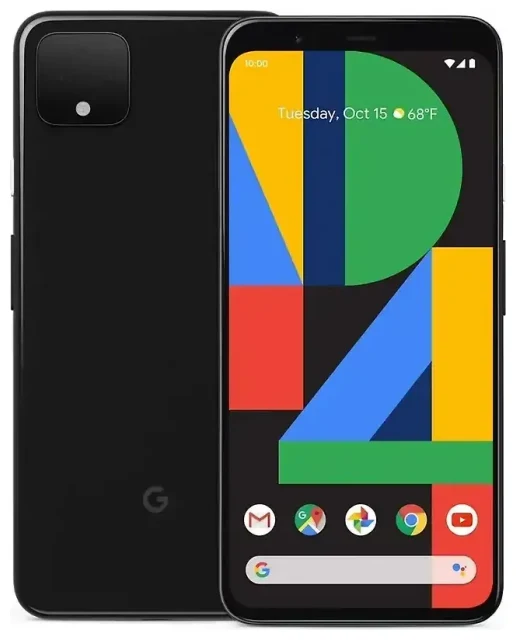
Does the Google Pixel 4 XL support eSIM?
Yes, the Google Pixel 4 XL supports eSIM. Every Google Pixel 4 XL model sold worldwide includes eSIM functionality built into the device, regardless of where you purchased it or which carrier you use.
Google Pixel 4 XL eSIM compatibility
All Google Pixel 4 XL variants support eSIM technology without any regional restrictions. Whether you bought your device unlocked, through a carrier in North America, Europe, Asia, or anywhere else, the eSIM capability is present and ready to activate.
Dual SIM functionality on the Pixel 4 XL
The Google Pixel 4 XL offers dual SIM capability by combining one physical nano-SIM card slot with the built-in eSIM. You can use both simultaneously, which means you can have two active phone numbers on one device—useful for separating work and personal lines, or keeping your home number active while using a local or travel data plan abroad. The Pixel 4 XL does not support dual eSIM; you must use one physical SIM and one eSIM if you want two active lines.
How to set up an eSIM on the Google Pixel 4 XL
Setting up an eSIM on your Google Pixel 4 XL takes about one minute once you have your eSIM QR code. Your carrier or eSIM provider will send you this QR code via email or display it in their app after purchase.
Install your eSIM profile in Settings
- Connect your Google Pixel 4 XL to Wi-Fi or ensure you have an active mobile data connection.
- Open Settings and tap Network & internet.
- Tap Mobile network, then select the + icon or Add carrier option.
- When prompted, tap Download a SIM instead? or look for the option to use an eSIM.
- Scan the QR code provided by your carrier or eSIM provider using your phone's camera. Hold your phone steady until the code is recognized.
- Tap Download or Activate to install the eSIM profile. The process typically completes in 30 to 60 seconds.
- Once installed, label your eSIM line with a recognizable name like "Travel Data" or "Work" to distinguish it from your physical SIM.
- Choose which SIM you want to use for mobile data, calls, and SMS in the SIM settings menu.
If your eSIM provider offers manual activation instead of a QR code, you can enter the activation details manually by selecting Enter it manually during step 5 and inputting the SM-DP+ address and activation code provided.
Using a travel eSIM on the Google Pixel 4 XL
A travel eSIM is the easiest way to get mobile data abroad without paying international roaming fees from your home carrier. Instead of hunting for a local SIM card shop when you land, you can browse eSIM plans before your trip, install the eSIM profile at home, and have data the moment you arrive at your destination.
Install your travel eSIM before departure
Purchase and install your travel eSIM while you're still at home and connected to Wi-Fi. The eSIM will remain dormant until you reach your destination country and turn on data roaming for that specific line. You can store multiple eSIM profiles on your Google Pixel 4 XL and switch between them as needed, though only one eSIM can be active at a time alongside your physical SIM.
Keep your home physical SIM installed so you can still receive calls and text messages for two-factor authentication. Set your travel eSIM as the data line in your mobile network settings, and your home SIM for calls and SMS. This configuration gives you affordable local data rates abroad while keeping your primary number reachable.
Tips and troubleshooting
Turn on data roaming for your eSIM line
After installing a travel eSIM on your Google Pixel 4 XL, you must enable data roaming specifically for that eSIM line to connect to local networks abroad. Go to Settings > Network & internet > Mobile network, select your eSIM, and toggle Roaming on. This won't trigger roaming charges from your travel eSIM provider—it simply allows the eSIM to connect to partner networks in the country you're visiting. Keep roaming off for your home SIM if you want to avoid unexpected charges.
What to do if the QR code won't scan
If your Google Pixel 4 XL camera won't recognize the eSIM QR code, increase your screen brightness if you're scanning from another device, or print the QR code on paper. Make sure the code isn't blurry or distorted. If scanning still fails, use the manual entry option: select Enter it manually during eSIM setup and type in the SM-DP+ address and activation code your provider sent. You can also eSIM setup help if you encounter persistent activation issues.
Keep your home SIM active for calls and authentication
When traveling with a dual SIM setup, designate your home physical SIM for calls and SMS so you don't miss verification codes or important calls. Set your travel eSIM as the data-only line. This keeps your primary number functional without incurring data roaming costs. You can adjust these preferences anytime in Settings > Network & internet > Mobile network by tapping each SIM and choosing its role.
If you want to verify eSIM support for a different device, you can check another device's eSIM compatibility using our compatibility database.








