 WhatsApp +44 7367 063273
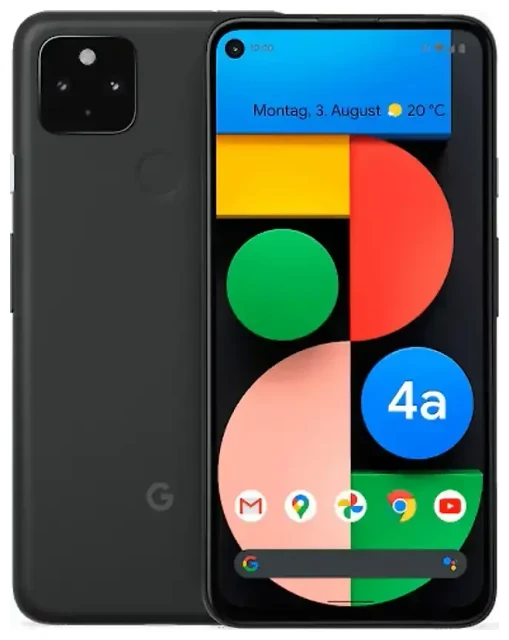
Does the Google Pixel 4a support eSIM?
Yes, the Google Pixel 4a supports eSIM. All Google Pixel 4a models sold worldwide include eSIM functionality built into the device, giving you flexible connectivity options without needing a second physical SIM card slot.
Google Pixel 4a eSIM compatibility
Every Google Pixel 4a variant—regardless of region or carrier—has eSIM capability. This applies to both unlocked and carrier-locked models. The Pixel 4a was released with eSIM support enabled from launch, so you don't need a software update to activate this feature.
Dual SIM capability on the Pixel 4a
The Google Pixel 4a supports dual SIM through one physical nano-SIM slot and one eSIM. You can have both active simultaneously, letting you maintain two phone numbers or separate work and personal lines. However, the Pixel 4a does not support multiple eSIMs active at once—you can store several eSIM profiles on the device, but only one eSIM can be active alongside your physical SIM at any time.
How to set up an eSIM on the Google Pixel 4a
Setting up an eSIM on your Google Pixel 4a takes about 60 seconds once you have your QR code from your carrier or eSIM provider. Make sure you're connected to Wi-Fi before starting the installation process.
Google Pixel 4a eSIM setup steps
- Open Settings on your Pixel 4a
- Tap Network & internet
- Tap the + icon next to "Mobile network" or select Add more
- Choose Download a SIM instead? at the bottom of the screen
- Tap Next when prompted
- Point your camera at the QR code provided by your eSIM provider
- Wait for the eSIM profile to download (usually 30–60 seconds)
- Tap Done when installation completes
- Label your eSIM line (e.g., "Travel" or "Work") to distinguish it from your physical SIM
- Choose which SIM to use for mobile data, calls, and texts in the SIM settings
Activating your Pixel 4a eSIM profile
After installation, your eSIM may activate immediately or require you to restart your phone. You can manage which SIM handles data by going to Settings > Network & internet > Mobile network, then tapping each SIM to set preferences. The Pixel 4a lets you choose a default line for data while keeping the other active for calls and texts.
Using a travel eSIM on the Google Pixel 4a
The Google Pixel 4a makes international travel connectivity simple. Instead of paying expensive roaming fees or hunting for local SIM cards at the airport, you can install a travel eSIM before your trip and have data ready when you land.
Install before you fly
Purchase and install your travel eSIM while you're still at home with reliable Wi-Fi. Most travel eSIM plans activate when they detect the destination country's network, so you won't waste data while still in your home country. You can browse eSIM plans covering over 200 countries and regions, with options ranging from single-country plans to global packages.
Keep your physical SIM active for incoming calls and text messages, including two-factor authentication codes. Set your travel eSIM as the default for mobile data in your Pixel 4a settings. This way, you'll use affordable local data rates while staying reachable on your regular number.
Managing dual SIM for travel
The Pixel 4a displays both SIM labels in your status bar, so you always know which line is active. You can toggle between SIMs quickly in Settings > Network & internet without removing any profiles. When you return home, simply switch your data preference back to your physical SIM—your travel eSIM profile stays stored on the device for your next trip.
Tips & troubleshooting
Most eSIM installations on the Google Pixel 4a work smoothly, but a few settings can prevent connectivity if overlooked.
Enable data roaming for your eSIM line
Even with a local travel eSIM, you need to enable data roaming for that specific line. Go to Settings > Network & internet > Mobile network, tap your eSIM profile, and toggle on Roaming. This is different from your physical SIM's roaming setting. Without roaming enabled, your eSIM won't connect to data networks abroad.
Fix an eSIM that won't activate
If your QR code won't scan, check that your camera lens is clean and you're in good lighting. Alternatively, tap Enter activation code manually during setup and type the SM-DP+ address and activation code provided by your carrier. If the eSIM downloads but shows no service, restart your Pixel 4a and wait up to five minutes for network registration. You can check another device's eSIM compatibility if you're setting up profiles on multiple phones.
Keep your home SIM active for calls and two-factor authentication codes during travel. The Pixel 4a handles both lines simultaneously, so you won't miss important messages while using your travel eSIM for data. If you experience connection issues, toggle airplane mode on and off to force the device to re-register with the network.
Switching between Pixel devices
eSIM profiles are tied to your device's hardware and can't be transferred by simply moving a SIM card. When upgrading from the Pixel 4a to a newer model, you'll need to delete the eSIM from your old phone and obtain a new QR code from your carrier to install on the new device. Some carriers offer transfer tools in their apps, but not all profiles are transferable—check with your provider before upgrading.








