 WhatsApp +44 7367 063273
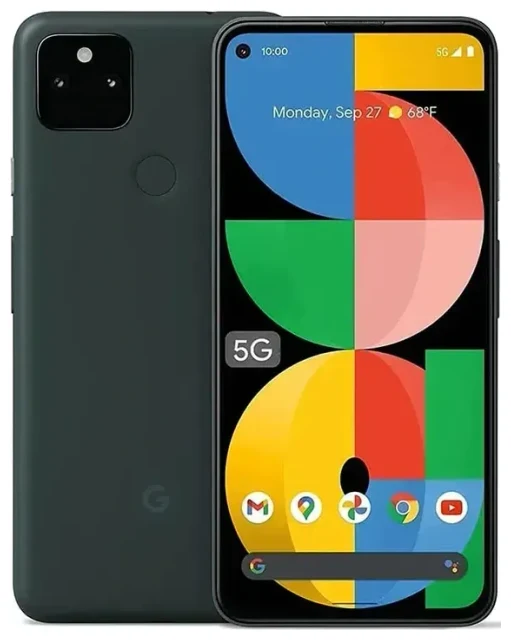
Does the Google Pixel 5a support eSIM?
Yes, the Google Pixel 5a supports eSIM. All models of the Pixel 5a—sold in the United States and Japan—include eSIM capability built into the device. You don't need a special variant or firmware update to use it.
Google Pixel 5a eSIM compatibility
The Pixel 5a offers dual-SIM functionality: one physical nano-SIM slot plus one eSIM profile active at the same time. This means you can run two separate phone numbers or data plans simultaneously—perfect for keeping a home line active while using a local or travel data plan abroad. The device does not support multiple active eSIM profiles at once; you can store several eSIM profiles in memory, but only one eSIM can be active alongside the physical SIM.
Google's eSIM implementation on the Pixel 5a is carrier-agnostic, so you can install eSIM profiles from any compatible carrier or eSIM data provider worldwide. Check with your carrier to confirm they provision eSIM for the Pixel 5a before switching from a physical SIM.
How to set up an eSIM on the Google Pixel 5a
Installing an eSIM profile on your Pixel 5a typically takes about 60 seconds once you have the QR code or activation details from your carrier or eSIM provider. You'll need an active Wi-Fi connection during setup.
Set up an eSIM in Settings
- Open Settings on your Pixel 5a.
- Tap Network & internet.
- Tap the + icon next to SIMs or select Mobile network, then Add carrier.
- Choose Download a SIM instead? (or a similar prompt depending on your Android version).
- Tap Next, then use your camera to scan the QR code provided by your carrier or eSIM provider.
- Follow the on-screen prompts to confirm the download. Your Pixel 5a will connect briefly to verify the profile.
- Once installed, you'll be asked to label the new line—choose a name like "Travel" or "Work" to distinguish it from your physical SIM.
- Set your preferences for calls, SMS, and mobile data (which SIM to use by default).
If your provider offers an activation code or manual entry instead of a QR code, select Need help? or Enter it manually during step 5 and input the SM-DP+ address and activation code. The setup process is otherwise identical.
Labelling and managing SIM lines
After installation, return to Settings > Network & internet > SIMs to rename your lines, toggle mobile data on or off for each SIM, and adjust which line handles calls and texts. You can switch your default data SIM anytime without reinstalling profiles.
Using a travel eSIM on the Google Pixel 5a
A travel eSIM is the simplest way to get mobile data abroad without paying roaming fees on your home plan. Instead of hunting for a local SIM card shop at the airport, you install a regional or country-specific data plan as an eSIM profile before you leave, then activate it when you land.
Install before you fly
Purchase and install your travel eSIM while you still have Wi-Fi at home. The profile will sit dormant on your Pixel 5a until you enable mobile data for that line in your destination country. Your home SIM remains in the phone and active for calls and texts (or you can leave it on for two-factor authentication codes), while the eSIM handles data. This setup means you keep your usual number reachable without racking up data roaming charges.
You can browse eSIM plans covering over 200 countries and regions, compare data allowances, and install the QR code in minutes. Most travel eSIM plans activate automatically when your Pixel 5a connects to a supported network abroad, though some require you to manually turn on the eSIM line in Settings.
Tips & troubleshooting
Turn on data roaming for the eSIM line
Even though your eSIM is a local or regional data plan, your Pixel 5a still classifies it as "roaming" because it's not your primary carrier. Go to Settings > Network & internet > SIMs, select your eSIM line, and toggle Roaming on. Without this setting enabled, your eSIM won't connect to mobile data. Your physical SIM's roaming can stay off to avoid surprise charges from your home carrier.
Keep the home SIM for calls and two-factor authentication
Leave your original physical SIM in the slot and set it as your default for calls and SMS in Settings > Network & internet > SIMs > Calls preference and SMS preference. Set the eSIM as your default for mobile data. This way, you receive calls and texts on your home number while using the eSIM's data plan for internet, maps, and apps.
Fix an eSIM that won't activate
If the QR code won't scan, ensure your camera lens is clean and the code is well-lit. Try increasing screen brightness on the device displaying the QR code, or print it on paper. If scanning still fails, select Enter it manually and type the activation details provided by your eSIM supplier.
If the eSIM profile installs but won't connect to a network, restart your Pixel 5a, confirm data roaming is on for the eSIM line, and check that the eSIM is set as your default for mobile data. Some eSIM plans require you to wait until you're physically in the coverage area before the profile activates. If problems persist, you can get eSIM setup help or contact your eSIM provider's support team.
You can store multiple eSIM profiles on the Pixel 5a—useful if you travel frequently to different regions—but remember that only one eSIM can be active at a time. Switch between stored profiles in Settings > Network & internet > SIMs by toggling the line you want to use and disabling the others.
If you're unsure whether another device in your household supports eSIM, you can check another device's eSIM compatibility to confirm before purchasing a plan.








