 WhatsApp +44 7367 063273
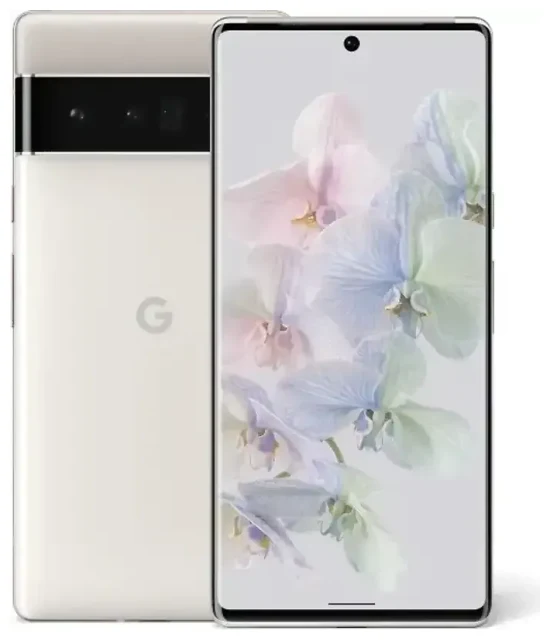
Does the Google Pixel 6 Pro support eSIM?
Yes, the Google Pixel 6 Pro supports eSIM. All models of the Pixel 6 Pro—regardless of where you bought it—include eSIM functionality built into the device. This applies to units sold in North America, Europe, Asia, and every other region.
Google Pixel 6 Pro eSIM compatibility
The Pixel 6 Pro offers genuine dual-SIM capability: you can use one physical nano-SIM card in the SIM tray and one eSIM at the same time. This setup is useful if you want to keep your home number active while adding a second line for work, travel, or local calls. You cannot run two eSIMs simultaneously on the Pixel 6 Pro—the device supports only one active eSIM alongside the physical slot.
Google's official spec sheet confirms eSIM support for the Pixel 6 Pro across all variants, so you won't encounter regional lockouts or carrier-specific models that lack the feature. However, your carrier must also support eSIM provisioning; check with your mobile operator if you're unsure whether they offer eSIM activation.
Dual SIM: eSIM and physical SIM together
When you activate an eSIM on your Pixel 6 Pro, both the physical SIM and the eSIM remain visible in your phone's settings. You choose which line handles mobile data, and which line makes calls or sends texts. This flexibility makes the Google Pixel 6 Pro eSIM setup particularly helpful for travellers who want data abroad without swapping the physical card that holds their primary number.
How to set up an eSIM on the Google Pixel 6 Pro
Google Pixel 6 Pro eSIM activation takes about a minute once you have a QR code from your carrier or eSIM provider. The process happens entirely in Settings—no special app required.
Set up an eSIM in Settings
- Open Settings and tap Network & internet.
- Tap the + icon next to SIMs (or tap Add more if you see that option).
- Select Download a SIM instead?
- Tap Next, then point your camera at the QR code provided by your carrier or eSIM vendor. The Pixel 6 Pro scans the code automatically.
- Wait while the profile downloads—usually 30 to 60 seconds. You'll see a confirmation message when the eSIM is installed.
- Give the new line a label (for example, "Travel" or "Work") so you can tell your SIMs apart.
- Choose which SIM you want to use for mobile data, calls, and texts. You can change these assignments anytime in Settings > Network & internet > SIMs.
If your eSIM provider sends an activation code as text instead of a QR image, tap Need help? on the scan screen and select Enter it manually to type the code.
Google Pixel eSIM activation tips
Make sure you have a stable Wi-Fi or mobile-data connection before you start—downloading the eSIM profile requires internet access. If the QR code won't scan because the image is too small or blurry, screenshot it on another device, zoom in, and hold that screen steady in front of your Pixel 6 Pro's camera. Alternatively, use the manual-entry option to avoid scanning altogether.
Using a travel eSIM on the Google Pixel 6 Pro
A travel eSIM is the easiest way to get mobile data when you land in another country. Instead of hunting for a local SIM card at the airport or paying roaming fees to your home carrier, you install a data-only eSIM before your flight and activate it the moment you arrive.
Install before you fly
Most travel eSIM providers let you purchase and download a plan days or weeks in advance. Once the eSIM profile is on your Pixel 6 Pro, it stays dormant until you turn it on. When you reach your destination, open Settings > Network & internet > SIMs, select the travel eSIM, toggle Use SIM to on, and set it as your mobile-data line. Your home SIM remains in place for calls and two-factor-authentication texts, and you avoid surprise roaming charges because all data flows through the prepaid travel eSIM.
You can browse eSIM plans that cover single countries or entire regions—useful if your trip spans multiple destinations. Plans typically include a fixed amount of data valid for a set number of days, and you'll see exactly what you're buying before you pay.
Pixel 6 Pro dual SIM for roaming-free travel
Because the Pixel 6 Pro runs a physical SIM and an eSIM side by side, you stay reachable on your regular number while the travel eSIM handles internet, maps, and messaging apps. This dual-SIM setup is why many Reddit discussions about Pixel 6 Pro eSIM focus on travel: the phone makes it simple to separate voice and data across two networks without carrying a second device.
Tips & troubleshooting
Even though Google Pixel 6 Pro eSIM compatibility is straightforward, a few settings can trip you up if you've never used an eSIM before.
Turn on data roaming for the eSIM line
If your travel eSIM isn't connecting, check that data roaming is enabled for that specific line. Go to Settings > Network & internet > SIMs, tap the eSIM, and toggle Roaming on. Data roaming sounds expensive, but it's safe here—your travel eSIM is prepaid, so you won't see extra charges. Your home SIM can keep roaming turned off to prevent accidental use.
Keep the home SIM active for calls and two-factor authentication
Set your home physical SIM as the default for calls and SMS in the SIM settings. This way, you'll receive verification codes and phone calls on your usual number while the eSIM handles data. You can switch the data line back and forth anytime, so if you need to use your home carrier briefly, just tap a toggle—no need to delete the travel eSIM.
Fix an eSIM that won't activate
If the profile downloads but won't connect, restart your Pixel 6 Pro and wait a few minutes for the network to register. Confirm that the eSIM line is turned on and selected for mobile data. If you still see no signal, contact your eSIM provider—they can check whether the profile activated on their end or resend the QR code if necessary. For general help with setup steps, visit eSIM setup help.
If you're comparing devices or checking whether another phone works with eSIM, you can check another device's eSIM compatibility to confirm support before you buy a plan.
How many eSIMs can the Pixel 6 Pro store?
The Pixel 6 Pro can store multiple eSIM profiles—Google doesn't publish an exact limit, but user reports suggest at least five to eight profiles remain saved in the phone. Only one eSIM can be active at a time, but you can switch between stored profiles in seconds without re-downloading. This is handy if you travel frequently to the same countries: leave each regional eSIM installed and toggle the one you need when you land.








