 WhatsApp +44 7367 063273
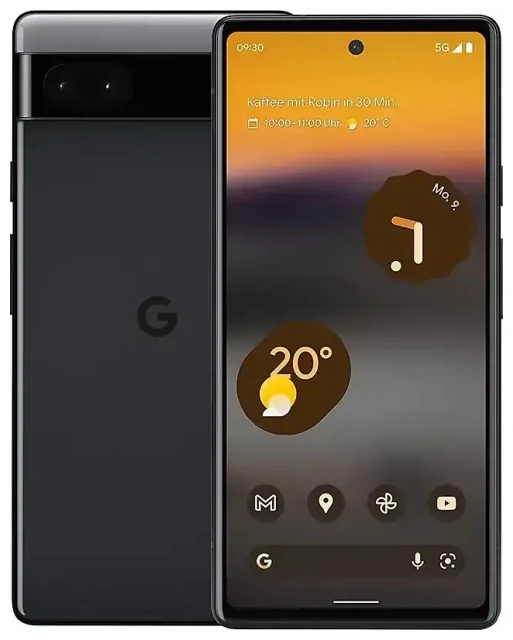
Does the Google Pixel 6a support eSIM?
Yes, the Google Pixel 6a supports eSIM. Every Google Pixel 6a sold worldwide—regardless of region or carrier—includes eSIM functionality built in. This applies to unlocked models and carrier-locked versions alike.
Google Pixel 6a eSIM compatibility
The Pixel 6a supports one active eSIM at a time alongside its physical nano-SIM slot. You can store multiple eSIM profiles on the device (typically up to eight), but only one eSIM can be active simultaneously. This gives you dual SIM capability: one physical SIM and one eSIM running at the same time. You can use both lines for calls, texts, and data, switching your default data line in Settings whenever needed.
Dual SIM with eSIM and physical SIM
The Pixel 6a does not support dual eSIM—you cannot run two eSIMs at once. The configuration is always one eSIM plus one physical SIM (or just one of either type). This setup works well for keeping your home number on the physical SIM while adding a local or travel data plan via eSIM when you're abroad.
How to set up an eSIM on the Google Pixel 6a
Setting up an eSIM on your Google Pixel 6a typically takes about 60 seconds. You'll need a QR code or activation details from your carrier or eSIM provider, and an active internet connection (Wi-Fi or mobile data) to download the profile.
Step-by-step Google Pixel 6a eSIM setup
- Open the Settings app on your Pixel 6a.
- Tap Network & internet.
- Tap the + icon next to "SIMs" or select Add more.
- Choose Download a SIM instead? (or a similar prompt for eSIM activation).
- Tap Next, then scan the QR code provided by your eSIM provider using your camera.
- Confirm the download. The eSIM profile will install in a few seconds.
- Label your new line (e.g., "Travel Data" or "Work") to distinguish it from your physical SIM.
- Select which SIM to use for mobile data, calls, and texts. You can change these defaults anytime in Settings.
If you don't have a QR code, you can enter activation details manually: tap Need help? or Enter it manually and input the SM-DP+ address and activation code your provider gave you.
Labelling and managing your lines
After installation, go back to Settings > Network & internet > SIMs to rename each line, toggle them on or off, and choose which SIM handles data by default. This is especially useful for Pixel 6a dual SIM scenarios where you want calls on one line and data on another.
Using a travel eSIM on the Google Pixel 6a
A travel eSIM is the easiest way to get mobile data abroad without paying roaming fees or hunting for a local SIM card shop. You buy a data plan online, install the eSIM before you leave, and activate it when you land. Your Pixel 6a stays connected instantly, and you avoid swapping physical SIMs or dealing with carrier stores in a foreign language.
Install before you fly
Download and install your travel eSIM profile while you're still at home on Wi-Fi. The eSIM sits dormant on your Pixel 6a until you turn it on at your destination. Once you arrive, enable the eSIM line in Settings, turn on data roaming for that line, and you're online. Keep your home physical SIM active for calls and two-factor authentication texts—just disable data roaming on the home line to avoid surprise charges.
You can browse eSIM plans for over 200 countries and regions, compare data allowances, and install a profile in minutes. Many travelers install their travel eSIM during the flight or in the airport lounge, so data is ready the moment they clear customs.
Tips & troubleshooting
Most Google Pixel 6a eSIM installations go smoothly, but a few settings and common issues are worth knowing about.
Turn on data roaming for the eSIM line
After you activate a travel eSIM, you must enable data roaming for that specific line. Go to Settings > Network & internet > SIMs, tap your eSIM line, and toggle Roaming on. Without this, your Pixel 6a won't connect to foreign networks even though the eSIM is active. Your home physical SIM can have roaming turned off to prevent accidental charges.
Fix an eSIM that won't activate
If the QR code won't scan, check that your camera lens is clean and the lighting is adequate. You can also enter the activation code manually if scanning fails repeatedly. If the eSIM downloads but won't connect, restart your Pixel 6a and confirm the APN settings are correct (most eSIM providers configure this automatically, but you can check under Settings > Network & internet > SIMs > [eSIM line] > Access Point Names).
Make sure your Pixel 6a is running the latest Android update, as older firmware can sometimes cause profile download errors. If you're still stuck, you can get eSIM setup help or contact your provider for a replacement QR code.
Keep your home SIM for calls and two-factor authentication
Leave your physical home SIM installed and active for voice calls and SMS. Many banking apps and services send one-time codes via text, and you'll want to receive those even when you're using the eSIM for data. In your SIM settings, set the eSIM as the default for mobile data and the physical SIM as the default for calls and texts. This way, your Pixel 6a routes traffic intelligently without manual switching.
If you want to check another device's eSIM compatibility for a family member or backup phone, you can confirm support before purchasing a plan.








