 WhatsApp +44 7367 063273
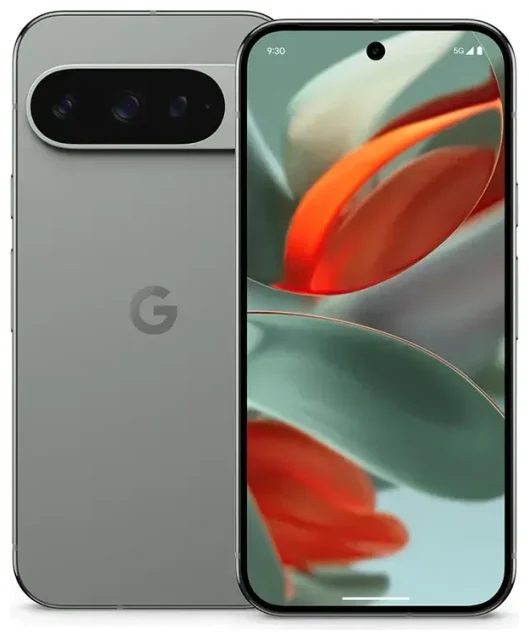
Does the Google Pixel 9 Pro support eSIM?
Yes. The Google Pixel 9 Pro supports eSIM on all models sold worldwide. Every variant—whether purchased in North America, Europe, Asia-Pacific, or other regions—includes eSIM functionality built into the hardware.
Google Pixel 9 Pro eSIM compatibility
The Pixel 9 Pro works with a single nano-SIM card plus one active eSIM, or you can run dual eSIM profiles if you prefer not to use the physical SIM card slot. Google's implementation lets you store multiple eSIM profiles on the device and switch between them in Settings, though only one eSIM (or one eSIM plus the physical SIM) can be active for cellular service at the same time. This makes the Pixel 9 Pro a solid choice if you need to juggle a work line, a personal number, and a travel data plan without swapping physical cards.
Dual SIM on the Pixel 9 Pro
The Pixel 9 Pro offers dual-SIM functionality in two configurations: you can use the physical nano-SIM slot alongside one eSIM, or activate two eSIM profiles simultaneously if you leave the SIM tray empty. Both lines can receive calls and texts, and you choose which line handles mobile data in the Settings menu. This flexibility is particularly useful when you travel—keep your home number active for calls and two-factor authentication codes while a second eSIM provides local data.
How to set up an eSIM on the Google Pixel 9 Pro
Activating an eSIM on the Pixel 9 Pro takes about sixty seconds once you have your QR code or activation details from your carrier or eSIM provider. The process is identical whether you're adding a second line from your home carrier or installing a travel eSIM before a trip.
Set up an eSIM in Settings
- Open Settings and tap Network & internet.
- Tap the + icon next to SIMs (or tap Add eSIM if you see that option).
- Choose Download a SIM instead? when prompted.
- Scan the QR code provided by your carrier or eSIM vendor, or tap Need help? and select Enter it manually to type in the activation code.
- Wait while the Pixel 9 Pro downloads the eSIM profile—usually ten to thirty seconds.
- Label the new line with a recognizable name (for example, "Travel Data" or "Work").
- Choose which SIM to use for mobile data, calls, and SMS in the confirmation screens.
The eSIM activates immediately in most cases, and you'll see signal bars for the new line in your status bar. If you're setting up a travel eSIM, you can complete this process at home before your flight; the data plan typically becomes active once you land and your phone registers on the destination network.
Google Pixel eSIM activation tips
If you're managing multiple eSIM profiles, remember that the Pixel 9 Pro can store several but only use one or two at a time (depending on whether you also have a physical SIM installed). You can switch active eSIMs in Settings > Network & internet > SIMs by toggling lines on or off. This means you don't need to delete a travel eSIM after your trip—just turn it off until you need it again, assuming your plan allows reactivation.
Using a travel eSIM on the Google Pixel 9 Pro
A travel eSIM is the simplest way to get mobile data abroad without paying international roaming fees from your home carrier. You purchase a data plan for your destination country or region, install the eSIM profile on your Pixel 9 Pro before you leave, and the plan activates automatically when you arrive. No need to hunt for a SIM vendor at the airport, and no risk of losing the tiny physical card.
Install a travel eSIM before you fly
Most travel eSIM providers email you a QR code within seconds of purchase. Install it on your Pixel 9 Pro while you're still at home—follow the setup steps above—and label it clearly (for example, "Japan Data"). Leave your home SIM active so you can still receive calls and texts on your regular number. Once you land, open Settings > Network & internet > SIMs, tap your travel eSIM, and make sure Mobile data is turned on and that this line is selected for data. Your home line stays available for voice and SMS, and you'll see which network each SIM is using in the status bar.
Ready to connect abroad? Browse eSIM plans for over 190 countries and regions, with data-only packages that work the moment you touch down.
Tips & troubleshooting
Most eSIM activations on the Pixel 9 Pro go smoothly, but a few common issues trip up first-time users. The biggest mistake is forgetting to turn on data roaming for the eSIM line—your phone won't connect to a foreign network without it.
Turn on data roaming for your eSIM
Go to Settings > Network & internet > SIMs, tap your travel eSIM, and toggle Roaming on. Despite the name, this switch simply allows the eSIM to connect to any compatible network, which is exactly what a travel eSIM needs to do. Your home SIM can stay set to roaming off if you want to avoid accidental charges on that line.
Pixel 9 Pro eSIM not working
If your eSIM won't activate or shows no service, restart your Pixel 9 Pro first—a simple reboot often forces the device to re-register on the network. Check that you've selected the correct SIM for mobile data in Settings > Network & internet > SIMs and that the eSIM line itself is toggled on. If the QR code won't scan—common in dim lighting or if the code is printed poorly—tap Enter it manually during setup and type the activation string your provider sent. Still stuck? You can always get eSIM setup help or contact your eSIM provider directly; most offer live chat support.
Keep your home SIM for calls and two-factor authentication
When you travel with dual SIM active, set your home line to handle voice calls and SMS in Settings > Network & internet > SIMs. This ensures you receive verification codes and calls on your regular number without paying data-roaming rates, because the travel eSIM handles all internet traffic. You'll avoid the frustration of missing a login code because you disabled the wrong SIM.
Curious whether another phone or tablet works with eSIM? Check another device's eSIM compatibility to confirm before you buy a travel plan.








