 WhatsApp +44 7367 063273
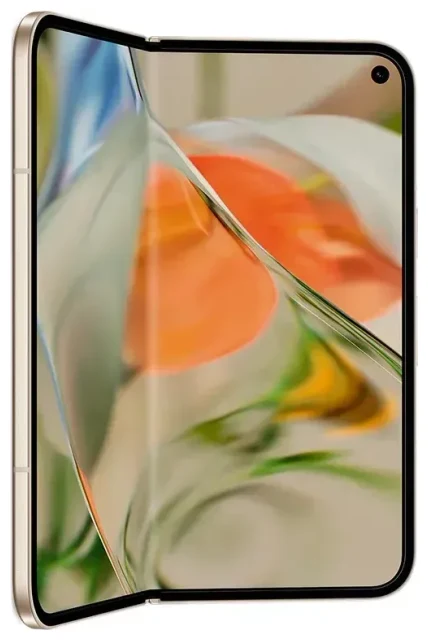
Does the Google Pixel 9 Pro Fold support eSIM?
Google Pixel 9 Pro Fold eSIM compatibility
Yes, the Google Pixel 9 Pro Fold supports eSIM. Every variant sold worldwide—across all regions and carriers—includes eSIM functionality built into the device. You don't need a special model or firmware version to use eSIM on this foldable phone.
The Google Pixel 9 Pro Fold also includes a physical nano-SIM tray, giving you flexible dual-SIM options. You can run one eSIM and one physical SIM simultaneously, or you can activate two eSIMs at the same time without using the physical slot. This makes the device particularly versatile for travelers who want to keep their home number active while adding a local data plan abroad.
Dual eSIM and physical SIM options
The phone supports multiple eSIM profiles stored in memory—typically up to eight saved profiles—though only two SIM connections (eSIM, physical, or a combination) can be active simultaneously. You can switch between saved eSIM profiles in Settings without needing to scan a new QR code each time, which is convenient if you travel frequently to the same destinations.
How to set up an eSIM on the Google Pixel 9 Pro Fold
Set up an eSIM in Settings
Setting up an eSIM on your Google Pixel 9 Pro Fold takes about a minute once you have your QR code or activation details from your carrier or eSIM provider. Make sure you're connected to Wi-Fi before you start, since the phone needs to download your eSIM profile during activation.
- Open the Settings app on your Pixel 9 Pro Fold.
- Tap Network & internet.
- Tap the + icon next to SIMs, or tap Add more if you see that option.
- Select Download a SIM instead? (or Add a network depending on your Android version).
- Tap Next, then use your camera to scan the QR code provided by your eSIM provider.
- Confirm the carrier name and plan details, then tap Download.
- Wait 30–90 seconds while the eSIM profile installs.
- Once installed, you'll be prompted to label the line (e.g., "Travel," "Work," "Home"). Choose a name that helps you identify it easily.
- Select which SIM to use for mobile data, calls, and SMS in the dual-SIM settings that appear.
Labelling and managing multiple SIMs
After activation, both your eSIM and any physical SIM will appear under Network & internet > SIMs. You can toggle each line on or off, set a default for data, and assign specific contacts to ring through a particular number—useful if you want work calls on one line and personal on another.
Using a travel eSIM on the Google Pixel 9 Pro Fold
A travel eSIM is one of the easiest ways to get mobile data abroad without paying roaming fees from your home carrier. Instead of hunting for a physical SIM card at the airport or dealing with unpredictable roaming charges, you install a data-only eSIM before your flight and arrive with connectivity already active.
To use a travel eSIM on the Google Pixel 9 Pro Fold, purchase a plan that covers your destination, install the eSIM profile using the steps above, and make sure the travel eSIM is set as your default for mobile data. Your original SIM—whether eSIM or physical—stays active for calls and texts, so you can still receive two-factor authentication codes and important calls on your home number. You can browse eSIM plans for over 200 countries and regions, filtering by data allowance and coverage duration.
Install your travel eSIM before departure
Install your travel eSIM while you're still at home on Wi-Fi. Most travel eSIMs activate automatically when you land and connect to a local network, but installing in advance means you can troubleshoot any issues before you're at the gate. Once installed, the profile sits dormant until you reach your destination, so there's no risk of burning through data early.
Tips & troubleshooting
Turn on data roaming for your eSIM line
Even though you're using a local or regional eSIM, Android still treats it as a separate line, and data roaming must be enabled for that specific SIM. Go to Settings > Network & internet > SIMs, tap your travel eSIM, and toggle Roaming on. This doesn't trigger roaming fees from your home carrier—it simply allows the eSIM to connect to its designated network.
Keep your home SIM active but set it to calls and SMS only (disable mobile data for that line). This way, you receive verification texts and calls without accidentally routing data through an expensive roaming connection.
Fix an eSIM that won't activate
If your eSIM profile won't download, confirm you're on a stable Wi-Fi connection—cellular data won't work for the initial install. Restart your Pixel 9 Pro Fold and try scanning the QR code again. If the QR code won't scan due to glare or a cracked screen protector over the camera, most providers let you enter the activation code manually: tap Need help? or Enter it manually during setup and type in the SM-DP+ address and activation code.
Some users on Reddit and device forums report that a pending carrier unlock or an outdated Android build can block eSIM activation. Make sure your phone is fully updated under Settings > System > System update. If the eSIM still won't work, you can get eSIM setup help or contact your eSIM provider's support team with your device model and error message.
Check compatibility for other devices
If you're comparing foldables or want to confirm eSIM support on a secondary device, you can check another device's eSIM compatibility to see model-specific setup instructions and dual-SIM configurations.








