 WhatsApp +44 7367 063273
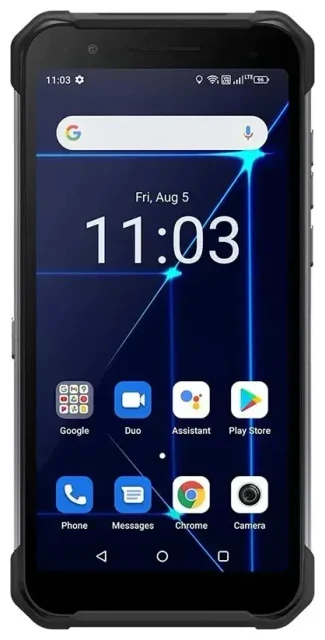
Does the HAMMER Myphone Hammer Construction support eSIM?
No, the HAMMER Myphone Hammer Construction does not support eSIM. This rugged device relies exclusively on physical nano-SIM cards for cellular connectivity. The phone features a dual-SIM configuration, but both slots require traditional plastic SIM cards—there is no embedded eSIM chip in any variant of this model.
HAMMER Myphone Hammer Construction eSIM compatibility
HAMMER (also marketed as myPhone in some regions) designed the Construction series as affordable, durable handsets for demanding environments. The focus was on physical toughness, water resistance, and battery life rather than cutting-edge connectivity features. Across all regional variants and software versions of the HAMMER Myphone Hammer Construction, eSIM functionality is absent. If you need eSIM capability in a rugged phone, you'll need to consider alternative models from manufacturers that have integrated this technology into their hardened devices.
Dual physical SIM support
While the HAMMER Myphone Hammer Construction doesn't offer eSIM, it does give you dual nano-SIM slots. You can run two physical SIM cards simultaneously—useful if you want to separate work and personal numbers, or use a local SIM when traveling while keeping your home number active for calls and texts.
Your options without eSIM on the HAMMER Myphone Hammer Construction
Since the HAMMER Myphone Hammer Construction lacks eSIM support, you'll use physical SIM cards for all connectivity. Here's how to manage cellular service on this device, whether at home or traveling.
Using physical SIM cards
The Construction uses standard nano-SIM cards in both slots. To set up cellular service:
- Power off the HAMMER Myphone Hammer Construction completely.
- Locate the SIM tray on the side of the device (you may need the included ejector tool or a paperclip).
- Insert your nano-SIM card into the tray, ensuring the gold contacts face down and the notched corner aligns correctly.
- If using a second SIM, insert it into the second slot in the same tray.
- Slide the tray back into the phone until it clicks securely.
- Power on the device and wait for the network connection to establish (usually 30–60 seconds).
- Go to Settings > Network & Internet > SIM cards to label each SIM and choose which one handles mobile data, calls, and SMS by default.
Travel SIM cards for the HAMMER Myphone Hammer Construction
When you travel internationally, purchase a local physical SIM card at your destination or buy a prepaid travel SIM before departure. Insert the travel SIM into the second slot so you can keep your home SIM active for incoming calls and two-factor authentication codes. Remember to enable data roaming in Settings for whichever SIM you designate for mobile data abroad—your home carrier or the new travel SIM.
If you frequently travel and want the convenience of instant activation without hunting for SIM cards at airports, you might consider a future upgrade to an eSIM-capable device. You can check another device's eSIM compatibility to compare rugged phones that support embedded SIM technology.
Staying connected abroad on the HAMMER Myphone Hammer Construction
Without eSIM, your international connectivity relies on physical SIM solutions. Plan ahead to avoid expensive roaming charges from your home carrier.
Physical travel SIM strategy
Order a multi-country travel SIM online before your trip, or purchase a local SIM card when you land. Local SIMs typically offer better rates than international roaming, but require you to visit a store or kiosk and provide identification in some countries. Multi-country travel SIMs work across several destinations and can be delivered to your home address, saving time at the airport.
Considering eSIM-capable rugged phones
If you value the HAMMER Construction's durability but want eSIM flexibility for future trips, investigate rugged models from manufacturers like CAT, Ulefone, or Samsung's Galaxy XCover series. Some newer rugged phones combine military-grade protection with eSIM support, letting you browse eSIM plans and activate data instantly when you arrive in a new country. While the HAMMER Myphone Hammer Construction serves well for users who prefer physical SIMs, eSIM-equipped alternatives eliminate the need to carry spare SIM cards or search for local providers abroad.
Tips & troubleshooting
Even without eSIM, you can optimize your HAMMER Myphone Hammer Construction for reliable connectivity and smooth international travel.
Managing dual physical SIMs
In Settings > Network & Internet > SIM cards, assign clear labels like "Home" and "Travel" to each SIM slot. This prevents confusion when switching between them for data, calls, or messages. If you're traveling, set your travel SIM as the default for mobile data but keep your home SIM enabled for calls—family, banks, and services will still reach you on your regular number, and you'll receive SMS verification codes without extra roaming fees for texts.
Enable data roaming carefully
Before you leave, turn off data roaming for your home SIM (Settings > Network & Internet > Mobile network > [Your home SIM] > Roaming > toggle off). When you insert a travel SIM, turn data roaming ON for that line only. This prevents accidental data usage on your expensive home plan while ensuring your local or travel SIM can access the internet.
SIM tray and recognition issues
If the HAMMER Myphone Hammer Construction doesn't detect a SIM card, remove the tray and confirm the SIM is seated properly with contacts facing down. Dust or moisture in the tray can block the connection—wipe gently with a dry cloth. Restart the phone after reinserting the SIM. If you still see no signal, test the SIM in another unlocked device to rule out a carrier or SIM card fault. For persistent problems, contact eSIM setup help or your mobile carrier for SIM replacement.
Confirming your phone is unlocked
To use travel SIMs or switch carriers, your HAMMER Myphone Hammer Construction must be carrier-unlocked. Insert a SIM from a different network and see if you get signal. If the phone displays "SIM not supported" or asks for an unlock code, contact the original carrier to request an unlock (usually free if your contract is complete). An unlocked device accepts any compatible nano-SIM worldwide.








