 WhatsApp +44 7367 063273
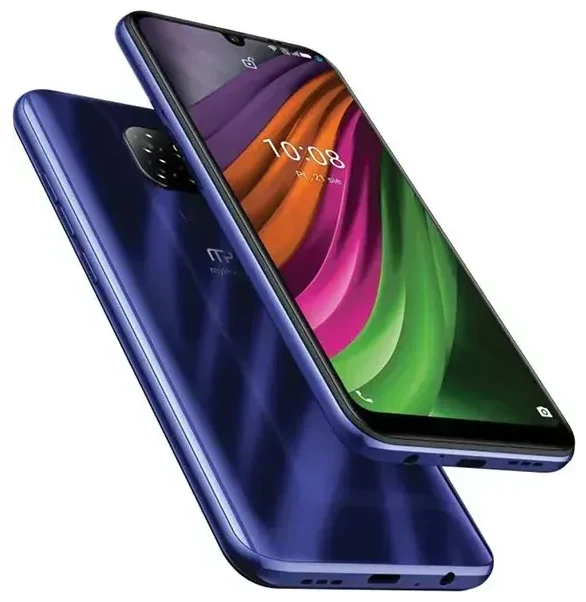
Does the HAMMER Myphone Now Esim support eSIM?
Yes, the HAMMER Myphone Now Esim supports eSIM. As the name suggests, this rugged device from HAMMER includes built-in eSIM functionality across all variants. The phone is designed for users who need a durable handset with modern connectivity options.
HAMMER Myphone Now Esim eSIM compatibility
The HAMMER Myphone Now Esim offers dual-SIM capability through a combination of one physical nano-SIM slot and one eSIM. This means you can use a traditional SIM card alongside an eSIM profile simultaneously. The dual-SIM setup makes it practical for keeping your home number active while adding a local or travel data plan on the eSIM when you're abroad.
All regional variants of the HAMMER Myphone Now Esim include eSIM support as standard. You don't need to purchase a specific model or check for special editions—the feature is available out of the box on every unit.
How to set up an eSIM on the HAMMER Myphone Now Esim
Setting up an eSIM on your HAMMER Myphone Now Esim takes about 60 seconds once you have your QR code from your carrier or travel eSIM provider. The device runs Android, so the process follows the standard Android eSIM activation path.
Set up an eSIM in Settings
- Connect your HAMMER Myphone Now Esim to Wi-Fi before you begin.
- Open Settings and tap Network & internet.
- Tap SIMs or Mobile network.
- Select Add eSIM or the plus icon to add a new carrier.
- Choose Scan QR code when prompted.
- Position your phone's camera over the QR code provided by your eSIM carrier until it scans automatically.
- Follow the on-screen prompts to download and activate the eSIM profile—this usually takes 30–60 seconds.
- Label your eSIM line (for example, "Travel Data" or "Work") to distinguish it from your physical SIM.
- Choose which SIM to use for mobile data, calls, and SMS in the SIM settings menu.
Once activated, your eSIM profile appears alongside your physical SIM in the SIM management section of Settings. You can switch between them or set one as your default data line at any time.
Manual activation codes
If your eSIM provider sends an activation code instead of a QR code, select Enter code manually during step 6. Copy and paste the SM-DP+ address and activation code exactly as provided, then proceed with the download.
Using a travel eSIM on the HAMMER Myphone Now Esim
A travel eSIM is the simplest way to get mobile data abroad without paying roaming fees on your home plan. You can install an eSIM from a travel provider before you fly, and it will activate automatically when you land in your destination country.
Install before you travel
Because the HAMMER Myphone Now Esim supports dual-SIM operation, you can keep your home physical SIM active for calls and texts while the eSIM handles data. This setup means you won't miss important messages or two-factor authentication codes while you're away. Install your travel eSIM while you're still at home and connected to Wi-Fi—most profiles download in under a minute. Once installed, disable data roaming on your physical SIM to avoid accidental charges, then enable mobile data on the eSIM line when you arrive.
You can browse eSIM plans for your destination and compare coverage, data allowances, and validity periods before you buy.
Tips & troubleshooting
Most eSIM activations on the HAMMER Myphone Now Esim work smoothly, but a few settings adjustments can prevent common issues.
Turn on data roaming for the eSIM line
Even though you're using a local or regional eSIM, your HAMMER Myphone Now Esim may treat it as "roaming" because the profile isn't from your device's home country. Go to Settings > Network & internet > SIMs, select your eSIM, and toggle Roaming on. This won't trigger roaming charges—you're using the eSIM provider's local network.
Keep the home SIM for calls and two-factor authentication
Set your physical SIM as the default for voice calls and SMS in the SIM settings. This way, you'll continue to receive verification codes and calls on your regular number while the eSIM provides data. Disable mobile data on the physical SIM to ensure you're only using the travel eSIM for internet access.
Fix an eSIM that won't activate
If the QR code won't scan, check that your camera lens is clean and the code is displayed at full brightness on another screen—avoid scanning from printed paper if possible. If scanning still fails, request a manual activation code from your provider. If the eSIM downloads but shows "No service," restart your HAMMER Myphone Now Esim and wait a few minutes for the profile to register with the network. Make sure airplane mode is off and that you've enabled mobile data for the eSIM line.
If you continue to experience issues, eSIM setup help can guide you through advanced troubleshooting steps specific to your carrier.
Check compatibility before switching devices
Because the HAMMER Myphone Now Esim supports eSIM doesn't mean every phone does. If you're planning to upgrade or switch devices, check another device's eSIM compatibility before you buy to confirm it can transfer your existing eSIM profiles or accept new ones.








