 WhatsApp +44 7367 063273
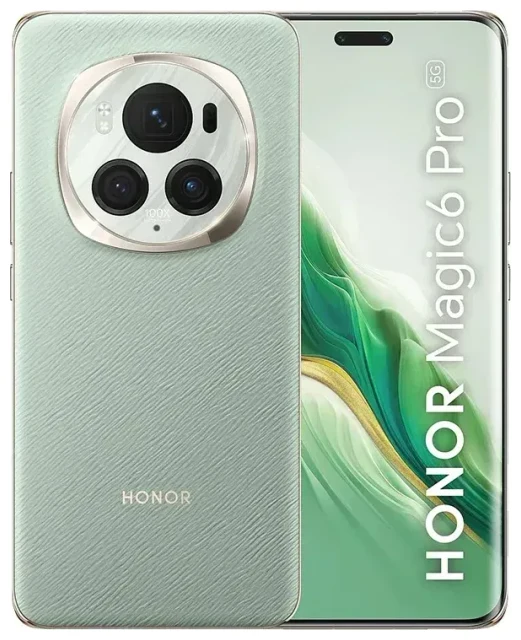
Does the Honor Magic6 Pro support eSIM?
Yes, the Honor Magic6 Pro supports eSIM in most global variants. The device offers dual-SIM functionality, allowing you to use one physical nano-SIM alongside one eSIM simultaneously. This gives you flexibility to keep your home number active while adding a second line for travel or work.
Honor Magic6 Pro eSIM compatibility by region
The Honor Magic6 Pro eSIM support varies by market. Most international models sold in Europe, the Middle East, and Asia-Pacific regions include eSIM capability. However, some regional variants may be limited to dual physical SIM slots only. If you purchased your Honor Magic6 Pro from a carrier or in a specific market, verify eSIM support in your device settings before purchasing an eSIM plan. Look for "SIM card manager" or "Mobile network" settings—if you see an option to add an eSIM or download a mobile plan, your variant supports it.
The Honor Magic 6 Lite does not support eSIM and relies on physical SIM cards only. Similarly, other Honor models like the Honor X9b, Honor X9c, and Honor X9d do not currently offer eSIM support, nor does the Honor 400 Pro or Honor 400 Lite. If eSIM capability is essential for your needs, confirm the specification on Honor's official product page for your region or check another device's eSIM compatibility before purchasing.
How to set up an eSIM on the Honor Magic6 Pro
Setting up an eSIM on your Honor Magic6 Pro takes about sixty seconds once you have your QR code from your eSIM provider. The process happens entirely in your device settings, with no physical SIM card to insert or swap.
Step-by-step eSIM activation on the Honor Magic6 Pro
- Open Settings on your Honor Magic6 Pro.
- Tap Mobile network or SIM card manager (the exact label depends on your MagicOS version).
- Select Add eSIM or Download mobile plan.
- Tap Scan QR code and point your camera at the QR code provided by your eSIM carrier.
- Confirm the plan details and tap Add or Download.
- Wait while the eSIM profile installs—this usually takes 30–60 seconds and requires an internet connection via Wi-Fi or your physical SIM's data.
- Label your eSIM line (for example, "Travel" or "Work") so you can easily identify it.
- Choose which SIM to use for mobile data, calls, and messages in the SIM settings.
Manual eSIM activation if the QR code won't scan
If your camera struggles to read the QR code, your eSIM provider will also send manual activation details. In the Add eSIM screen, look for Enter details manually or Use activation code. You'll need to input the SM-DP+ address and activation code exactly as provided. This method works identically to QR scanning but requires careful typing.
Using a travel eSIM on the Honor Magic6 Pro
A travel eSIM is the simplest way to get mobile data abroad on your Honor Magic6 Pro without paying roaming fees or hunting for a local SIM shop. You buy a data plan for your destination, install the eSIM before you leave, and activate it when you land. Your physical SIM stays in place for calls and texts on your regular number.
Install your travel eSIM before departure
Download and install your travel eSIM while you're still at home and connected to Wi-Fi. The eSIM sits dormant on your device until you turn it on. Once you arrive at your destination, go to your SIM settings, select the travel eSIM line, and enable mobile data. You'll connect to a local network immediately, often faster than the time it takes to clear customs. Keep your home SIM active for incoming calls and two-factor authentication codes—the Honor Magic6 Pro lets both lines run simultaneously.
You can browse eSIM plans by country or region, compare data allowances, and install the profile in minutes. This approach saves you from physical SIM swaps, language barriers at airport kiosks, and surprise roaming bills when you return home.
Tips and troubleshooting
Most eSIM activations on the Honor Magic6 Pro work smoothly, but a few settings adjustments ensure the best experience. If your eSIM won't activate or you see no data connection, these steps usually resolve the issue.
Turn on data roaming for your eSIM line
Your Honor Magic6 Pro treats an eSIM as a separate line, so you must enable data roaming for the eSIM profile even if you're using a local data plan. Go to Settings > Mobile network, select your eSIM line, and toggle Data roaming on. Without this, the eSIM won't connect to any network. This setting does not trigger roaming charges on a prepaid travel eSIM—it simply allows the eSIM to access the network it was designed for.
Keep your home SIM active for calls and verification codes
Leave your primary physical SIM turned on so you can receive calls, SMS, and two-factor authentication codes on your usual number. In your SIM settings, assign Mobile data to the travel eSIM and Calls to your home SIM. This dual-SIM setup means you stay reachable without paying data roaming fees.
What to do if the QR code won't scan
Poor lighting, screen glare, or a low-resolution printout can prevent the camera from reading the QR code. Try increasing screen brightness if scanning from another device, or request the manual activation code from your eSIM provider. You can also take a clear photo of the QR code and view it full-screen on a second device, then scan that. If problems persist, contact eSIM setup help for alternative activation methods.
Verify your variant's eSIM capability
If you don't see an "Add eSIM" option in your mobile network settings, your specific Honor Magic6 Pro variant may not support eSIM. Regional differences mean some models ship with dual physical SIM slots only. Check your device's packaging, the manufacturer's specification sheet, or Honor's regional website to confirm. If eSIM is missing, you'll need to use traditional SIM cards or consider a different device for eSIM functionality.








