 WhatsApp +44 7367 063273
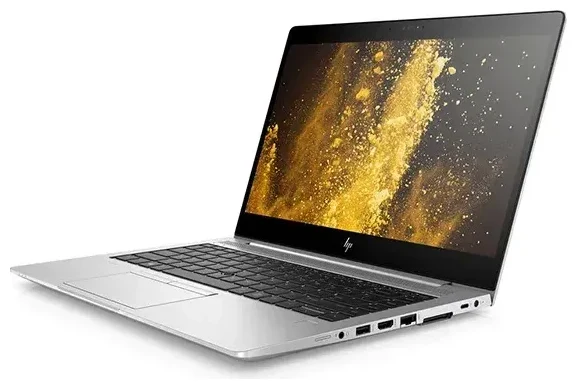
Does the HP Elitebook G5 support eSIM?
No, the HP Elitebook G5 does not support eSIM. This business laptop series, released in 2018, was not equipped with embedded SIM technology. The HP Elitebook G5 line includes models like the 830 G5, 840 G5, and 850 G5, and none of these variants offer eSIM functionality regardless of region or configuration.
HP Elitebook G5 eSIM compatibility
While some HP Elitebook G5 models do include optional WWAN (mobile broadband) modules, these use traditional nano-SIM card slots rather than eSIM profiles. If you purchased a configuration with 4G LTE connectivity, you'll find a physical SIM card tray—typically located on the side or under the battery compartment, depending on your specific model. The device does not support dual SIM in any form, as it lacks eSIM capability entirely.
HP introduced eSIM support in later generations of business laptops, but the G5 generation predates this feature. If eSIM compatibility is essential for your workflow, you'll need to consider newer HP models or alternative connectivity solutions.
Your connectivity options without eSIM on the HP Elitebook G5
Since the HP Elitebook G5 doesn't support eSIM, you have two main paths for mobile connectivity: using the physical SIM slot (if your model includes WWAN) or relying on your phone's hotspot or portable Wi-Fi device.
Using a physical SIM card on WWAN-enabled models
If your HP Elitebook G5 came with the optional 4G LTE module, you can insert a nano-SIM card for mobile data. Here's how to set it up:
- Locate the SIM card slot on your laptop—check the side edges or consult your user manual if you need help finding it.
- Power off your laptop completely before inserting or removing the SIM card to avoid hardware issues.
- Insert your nano-SIM card into the tray with the gold contacts facing down, following the diagram usually printed near the slot.
- Power on your laptop and open Windows Settings, then navigate to Network & Internet > Cellular.
- Windows should detect your SIM card automatically; select your carrier's APN settings if prompted, or enter them manually.
- Toggle the cellular connection on and choose whether to allow roaming under the cellular settings panel.
For international travel, you can purchase a local nano-SIM card at your destination or order a travel SIM card before departure. This gives you data without the need for eSIM profile downloads.
Alternative connectivity solutions
If your HP Elitebook G5 is Wi-Fi only (no WWAN module), you can still stay connected on the go by tethering to your smartphone's mobile hotspot or carrying a portable Wi-Fi router with a SIM card slot. Many travelers find that using an eSIM-capable phone for hotspot connectivity offers flexibility without requiring laptop hardware upgrades.
Staying connected abroad on the HP Elitebook G5
When you travel internationally with your HP Elitebook G5, your connectivity strategy depends on whether your laptop has a physical SIM slot. For WWAN-enabled models, purchasing a local nano-SIM card at your destination often provides the most cost-effective data rates compared to international roaming plans.
Travel SIM cards and data plans
Before you fly, research which carriers operate in your destination country and whether they offer prepaid tourist SIM cards. Many airports have kiosks selling these immediately after customs. Alternatively, you can order international travel SIM cards online that work across multiple countries—useful if you're visiting several destinations on one trip.
If you prefer to keep your laptop online without swapping SIM cards, consider using your eSIM-capable smartphone as a hotspot. You can browse eSIM plans for your phone and share that connection with your HP Elitebook G5 via Wi-Fi tethering. This approach works for any laptop model, regardless of built-in connectivity.
Which HP laptops do support eSIM?
If you're planning a future laptop purchase and eSIM compatibility matters to you, look at newer HP business models. The HP Elite Dragonfly G2 and later, HP Elite Folio, and recent EliteBook 800 series G9 and newer often include eSIM alongside physical SIM slots. Always verify the specific configuration you're ordering, as eSIM may be part of an optional WWAN upgrade package rather than standard equipment.
Tips and troubleshooting
Even without eSIM capability, you can optimize your HP Elitebook G5 for reliable mobile connectivity using physical SIM cards. Here are practical tips for getting the best experience.
Check your laptop's WWAN configuration
Not all HP Elitebook G5 units shipped with mobile broadband hardware. To confirm whether yours has a WWAN module, open Device Manager in Windows and look under "Network adapters" for entries like "HP LTE Module" or brand names such as "Intel XMM" or "Sierra Wireless." If you only see Wi-Fi and Ethernet adapters, your laptop is Wi-Fi only and cannot use any SIM card—physical or embedded.
You can also check the underside of your laptop for an FCC ID label or open Windows Settings > Network & Internet and see whether a "Cellular" option appears. If cellular settings are absent, your model doesn't have the required hardware.
Ensure the correct APN settings
When using a physical SIM card, connection problems often stem from incorrect or missing APN (Access Point Name) settings. Your carrier's website usually lists these details, or you can call their support line. In Windows, go to Network & Internet > Cellular > Advanced options > Add an APN to enter the correct information manually. Save the settings and restart your laptop to apply changes.
Managing connectivity across devices
If you need frequent mobile access and your HP Elitebook G5 lacks WWAN, using your smartphone as a hotspot remains the most practical solution. To conserve your phone's battery, keep it plugged into a power bank while tethering, and disable the hotspot when not actively needed. For compatibility questions about your phone, you can check another device's eSIM compatibility to see if it supports travel eSIM plans.
When physical SIM cards won't activate
If your nano-SIM card isn't recognized, remove it and inspect for dust or damage on the gold contacts. Try the SIM in an unlocked phone to verify it's active and provisioned correctly. Some carrier SIMs require activation before first use or need account setup online. If the SIM works in a phone but not your laptop, the WWAN module may need a driver update—check HP's support website for your specific Elitebook G5 model number.








