 WhatsApp +44 7367 063273
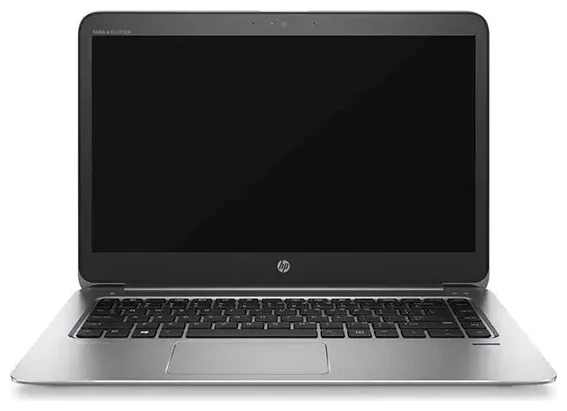
Does the HP Spectre Folio 13 support eSIM?
HP Spectre Folio 13 eSIM compatibility
Yes, the HP Spectre Folio 13 supports eSIM, but only on models equipped with LTE mobile broadband. The Spectre Folio 13 was released with optional always-connected LTE variants featuring the Intel XMM 7360 LTE-Advanced modem. If your model includes built-in cellular connectivity, it has eSIM capability. Wi-Fi-only configurations do not support eSIM because they lack the necessary cellular hardware.
To confirm your specific model has eSIM, check your original purchase configuration or look in Windows Settings under Network & Internet > Cellular. If you see cellular options, your HP Spectre Folio 13 has the LTE modem and supports eSIM. The device does not have a physical nano-SIM slot, so eSIM is the only way to activate cellular data on LTE-equipped models.
Single eSIM support
The HP Spectre Folio 13 supports one active eSIM profile at a time. You can store multiple eSIM profiles on the device and switch between them in Settings, but only one can be active for data connectivity at any given moment. This setup works well for travel if you want to install a local data eSIM while keeping your home carrier profile stored for later reactivation.
How to set up an eSIM on the HP Spectre Folio 13
Set up an eSIM in Settings
Setting up an eSIM on your HP Spectre Folio 13 takes about a minute once you have your QR code from your carrier or eSIM provider. The process happens entirely in Windows Settings and requires an internet connection during installation—connect to Wi-Fi before you begin.
- Connect your HP Spectre Folio 13 to a Wi-Fi network.
- Open Settings by pressing Windows key + I, then select Network & Internet.
- Click Cellular in the left sidebar.
- Select "Use a QR code from my mobile operator" or "Add a cellular plan" depending on your Windows version.
- When prompted, scan the QR code provided by your eSIM provider using your phone's camera, or enter the activation code manually if you have the SM-DP+ address and activation code string.
- Windows will download and install the eSIM profile automatically, which typically takes 30 to 60 seconds.
- Once installed, label your eSIM plan with a recognizable name like "Travel Data" or your carrier name to identify it easily.
- Toggle the cellular connection on, and your HP Spectre Folio 13 will connect to the mobile network.
Installing your eSIM profile
After installation completes, you can manage your eSIM in the Cellular settings page. If you install multiple eSIM profiles for different trips or carriers, you'll switch between them by selecting the profile you want active and toggling it on while disabling the others. The HP Spectre Folio 13 remembers your stored profiles, so you won't need to reinstall them each time you switch.
Using a travel eSIM on the HP Spectre Folio 13
Stay connected abroad without roaming fees
A travel eSIM turns your HP Spectre Folio 13 into a truly mobile workstation when you're abroad. Instead of paying high roaming charges or hunting for Wi-Fi hotspots, you can browse eSIM plans for your destination and install a local data plan directly on your laptop. You'll get local data rates without needing to visit a store or swap physical SIM cards.
Install your travel eSIM before you depart. Most eSIM plans activate when you arrive in the destination country and connect to a local network, but you need an internet connection to complete the initial installation. Download the eSIM profile while you're still on your home Wi-Fi or hotel network, then it will be ready to connect the moment you land.
Work anywhere with laptop connectivity
The HP Spectre Folio 13 was designed for mobile professionals who need connectivity beyond coffee shops and airport lounges. With an active travel eSIM, you can work from trains, rideshares, parks, or remote locations without tethering to your phone. Your laptop connects directly to the cellular network, preserving your phone's battery and data allowance for calls and messaging.
Many travelers install a travel eSIM specifically for their laptop and keep their phone on a separate plan. This separation means you can use your HP Spectre Folio 13 for heavy data tasks like video calls, cloud uploads, and file transfers while keeping your phone available for navigation and communication on a different network if needed.
Tips & troubleshooting
Enable data roaming for your eSIM line
After installing your eSIM, verify that data roaming is enabled in Windows Settings under Cellular. Even with a local travel eSIM, Windows sometimes requires the roaming toggle to be on for the connection to work. Go to Network & Internet > Cellular, select your eSIM profile, click Properties, and confirm "Roaming options" allows data roaming. This won't trigger roaming charges on a local eSIM plan—it simply allows the cellular radio to function.
If your HP Spectre Folio 13 won't connect after installing the eSIM, restart the device. Windows occasionally needs a reboot to fully recognize a new cellular profile. You can also toggle Airplane mode on and off to reset the cellular radio connection.
Fix an eSIM that won't activate
If the QR code won't scan properly during setup, make sure your phone's camera is steady and well-lit when scanning the code from your screen or printed sheet. Alternatively, most eSIM providers include a manual activation code (the SM-DP+ address and activation code string) in your confirmation email. You can enter this manually in the Windows Cellular settings by selecting "Enter activation code" instead of scanning.
If you're comparing devices or want to verify compatibility before purchasing, you can check another device's eSIM compatibility on our database. For step-by-step activation assistance with your specific eSIM plan, eSIM setup help is available to walk you through any installation issues.
Windows versus other laptop platforms
The HP Spectre Folio 13 runs Windows 10 or Windows 11, which handles eSIM differently than cellular-equipped Chromebooks or iPads. Windows stores eSIM profiles directly in the device's eUICC chip and lets you manage them through the Settings app. If you've used eSIM on an HP EliteBook or similar Windows laptop with cellular, the process on the Spectre Folio 13 is identical.
Other HP models with eSIM support include certain configurations of the HP EliteBook 865 G11, select HP EliteBook 830 variants, and the HP OmniBook X. Not all HP laptops offer cellular connectivity—most HP Envy notebook models, for example, are Wi-Fi only. The HP EliteBook Folio 1040 G3, an older business convertible, predates widespread eSIM adoption and typically uses physical nano-SIM on LTE-equipped variants if cellular is available at all.








