 WhatsApp +44 7367 063273
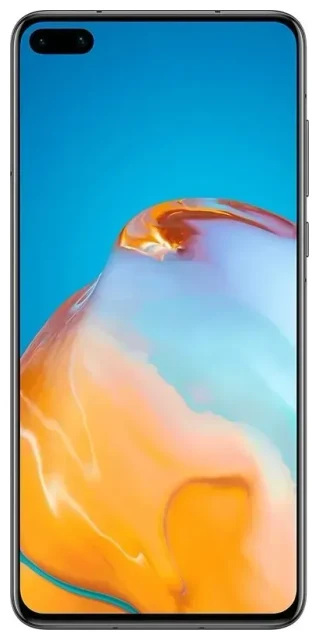
Does the Huawei P40 support eSIM?
No, the Huawei P40 does not support eSIM technology. Huawei did not include eSIM functionality in any variant of the P40 series, including the standard P40, P40 Pro, and P40 Pro+. All models rely exclusively on physical nano-SIM cards for cellular connectivity.
Huawei P40 eSIM compatibility across variants
This limitation applies globally — no regional variant of the Huawei P40 supports eSIM. Whether you purchased your device in Europe, Asia, the Philippines, or elsewhere, the hardware does not include an embedded SIM chip. The P40 series launched in 2020 without this feature, and no software update can add eSIM support to hardware that lacks the necessary components.
Dual SIM capability on the Huawei P40
While the Huawei P40 doesn't offer eSIM, it does support dual SIM functionality through two physical nano-SIM card slots. You can use two mobile networks simultaneously — helpful for separating work and personal lines, or keeping a local SIM and your home SIM active when traveling. Both slots accept standard nano-SIM cards, and you can configure which line handles calls, texts, and mobile data through the settings menu.
Your options without eSIM on the Huawei P40
Since the Huawei P40 doesn't support eSIM, you'll need to use physical SIM cards for all connectivity. Here's how to manage your mobile service on this device:
Using physical SIM cards on the Huawei P40
- Power off your Huawei P40 completely before handling the SIM tray.
- Locate the SIM tray on the left edge of the device and use the ejection tool (or a paperclip) to gently push into the small hole.
- Remove the tray and place your nano-SIM card(s) in the designated slot(s), ensuring the gold contacts face down and the notched corner aligns correctly.
- Reinsert the tray firmly until it sits flush with the device edge.
- Power on the device and wait for it to detect the network — this typically takes 30–60 seconds.
- Go to Settings > Mobile network > SIM management to label your SIM cards and choose which one handles data, calls, and messages by default.
Choosing an eSIM-capable alternative
If eSIM functionality matters for your needs — particularly for frequent travel or managing multiple profiles — you'll need to consider a different device. Many recent smartphones from Apple, Samsung, Google, and other manufacturers include eSIM support. You can check another device's eSIM compatibility to find a model that fits your requirements before making a purchase decision.
Staying connected abroad with the Huawei P40
Traveling internationally with the Huawei P40 requires a physical SIM card approach. You have two main options: accept international roaming charges from your home carrier, or purchase a local travel SIM card at your destination.
Travel SIM cards for the P40
Local prepaid SIM cards offer better value than roaming for extended trips. You can buy them at airports, convenience stores, or mobile shops in most countries. Remove one of your existing SIMs (or use the second slot if you're only using one), insert the local SIM, and configure it as your data line. Keep your home SIM in the other slot if you need to receive calls or text messages for two-factor authentication.
Why travelers prefer eSIM-capable devices
Many travelers now choose eSIM-enabled phones because they can install a data plan digitally before departure, avoiding the hunt for a local SIM card upon arrival. If you travel frequently and find physical SIM swapping inconvenient, a device with eSIM support might be worth considering for your next upgrade. You can browse eSIM plans to see the coverage and flexibility that eSIM-capable devices offer.
Tips & troubleshooting
Optimize your dual SIM setup on the Huawei P40
To make the most of the P40's dual physical SIM capability, go to Settings > Mobile network > SIM management and clearly label each SIM (like "Home" and "Travel" or "Work" and "Personal"). Set your preferred SIM for mobile data — this is especially important when using a local SIM for cheaper data rates abroad while keeping your home number active for incoming calls.
Enable data roaming when traveling
When you insert a travel SIM card, you'll need to enable data roaming for that line. Navigate to Settings > Mobile network > Mobile data, tap the SIM you want to use for data, then toggle on "Data roaming." Your home carrier SIM can remain in the device with data roaming turned off to avoid unexpected charges while still receiving calls and SMS.
SIM card not detected
If your Huawei P40 doesn't recognize a newly inserted SIM, power off the device and reseat the card, ensuring it's properly aligned in the tray. Check that you're using a nano-SIM (not micro or standard size) and that the card isn't damaged. If the SIM works in another phone but not the P40, contact your carrier to verify the SIM is activated and compatible with your device's network bands. For persistent issues, you can find eSIM setup help and general connectivity troubleshooting resources.
Managing the P40's limitations
The Huawei P40 faces additional challenges beyond the lack of eSIM support — it ships without Google Mobile Services due to trade restrictions. This means no Google Play Store, Gmail, Maps, or YouTube apps by default. If you're considering a P40 now, factor in both the missing eSIM functionality and the app ecosystem limitations. For many users, especially those who rely on Google services or want the convenience of digital eSIM profiles, alternative devices may prove more practical.








