 WhatsApp +44 7367 063273
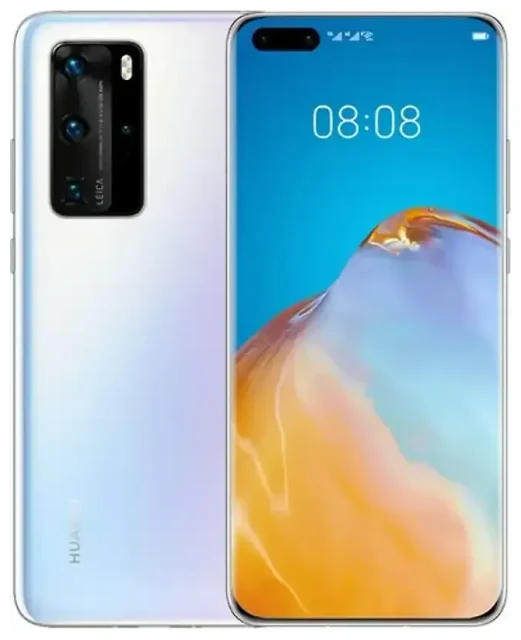
Does the Huawei P40 Pro support eSIM?
No, the Huawei P40 Pro does not support eSIM technology. This flagship device, released in 2020, relies exclusively on physical nano-SIM cards for cellular connectivity across all global variants and regions.
Huawei P40 Pro eSIM compatibility
The Huawei P40 Pro hardware does not include an embedded SIM chip, so you cannot activate or use an eSIM profile on this device. This applies to all regional models, including those sold in Europe, Asia, and other markets. If you've searched for "P40 pro esim huawei" or "P40 pro esim 2021" hoping to find a workaround, the hardware limitation means eSIM functionality simply isn't available.
Dual SIM capabilities on the Huawei P40 Pro
While the Huawei P40 Pro doesn't offer eSIM support, it does provide dual SIM functionality through two physical nano-SIM card slots. You can use two mobile networks simultaneously—ideal for separating work and personal lines, or for keeping your home number active while using a local SIM abroad. Both SIM slots support 4G and 5G connectivity (on 5G-enabled variants), and you can choose which line handles calls, texts, and mobile data in your device settings.
Other devices in the P40 series, including the Huawei P40 Lite, also lack eSIM support and rely on physical SIM cards only. If you're specifically looking for Huawei phones with eSIM capability, you'll need to explore newer flagship models—though availability varies significantly by region due to Huawei's limited access to certain technologies and markets.
Your options without eSIM on the Huawei P40 Pro
Since the Huawei P40 Pro doesn't support eSIM, you'll work with physical nano-SIM cards for all cellular connections. Here's how to make the most of your dual SIM setup.
Set up dual SIM on your Huawei P40 Pro
- Power off your Huawei P40 Pro completely before inserting SIM cards.
- Locate the SIM tray on the left edge of the device and use the included ejector tool to remove it.
- Place your nano-SIM cards in the two slots on the tray, ensuring they sit flush and aligned correctly.
- Reinsert the tray carefully until it clicks into place.
- Power on your device and wait for both networks to register—this typically takes 30 to 60 seconds.
- Navigate to Settings > Mobile network > SIM management to label your SIM cards (for example, "Personal" and "Work" or "Home" and "Travel").
- Choose which SIM handles mobile data by default, and set preferences for calls and messaging.
Consider eSIM-capable alternatives
If eSIM functionality is important for your needs—especially for frequent international travel—you might want to check another device's eSIM compatibility before your next phone purchase. Many current smartphones from Apple, Samsung, Google, and other manufacturers include eSIM support alongside physical SIM slots, giving you more flexibility for managing multiple mobile plans.
Using a travel SIM on the Huawei P40 Pro
When you travel internationally with your Huawei P40 Pro, you can avoid expensive roaming charges by using a physical travel SIM card in your second SIM slot. This approach lets you access affordable local data rates while keeping your primary number active for calls and text verification.
How physical travel SIMs work on dual SIM devices
Purchase a prepaid travel SIM card for your destination country—available at airports, convenience stores, or ordered online before departure. Insert it into your second SIM slot while keeping your home SIM in the first slot. In your SIM management settings, switch mobile data to the travel SIM while leaving your primary line active for incoming calls and two-factor authentication codes. This setup gives you local data rates without losing access to your regular phone number.
While this requires a physical SIM card rather than the instant digital activation you'd get with browse eSIM plans on compatible devices, it's still an effective way to stay connected abroad. You'll just need to plan ahead to obtain the physical SIM, whereas eSIM-capable phones let you purchase and activate data plans digitally within minutes.
Tips and troubleshooting
Optimize your dual SIM setup
When using two physical SIM cards on your Huawei P40 Pro, clearly label each line in your settings to avoid confusion about which network you're using. If you're using a travel SIM for data, remember to enable data roaming specifically for that SIM—go to Settings > Mobile network > Mobile data, select your travel SIM, and toggle data roaming on. Keep data roaming off for your home SIM to prevent unexpected charges.
Battery life can decrease when actively using two SIM cards, especially if both are searching for signals in areas with weak coverage. If you're not using one of your SIM cards temporarily, consider disabling it in SIM management settings to conserve battery.
When SIM cards won't register
If your Huawei P40 Pro doesn't recognize a newly inserted SIM card, first verify that it's properly seated in the tray and that you've inserted a nano-SIM (not a micro-SIM or standard SIM). Restart your device after inserting new cards. If a specific SIM still won't register, test it in the other SIM slot—occasionally one slot may have better connectivity or compatibility with certain carriers.
For persistent connection issues or questions about device compatibility with specific networks, you can find additional guidance through eSIM setup help resources, though note that these primarily address eSIM-capable devices.
Understanding the P40 Pro's limitations
Beyond the lack of eSIM support, be aware that the Huawei P40 Pro ships without Google Mobile Services due to trade restrictions. This affects app availability and may impact how you install carrier apps for SIM activation in some regions. You'll rely on Huawei's AppGallery and alternative app sources. This doesn't affect basic cellular connectivity, but it may influence your overall experience compared to devices with full Google service access.








