 WhatsApp +44 7367 063273
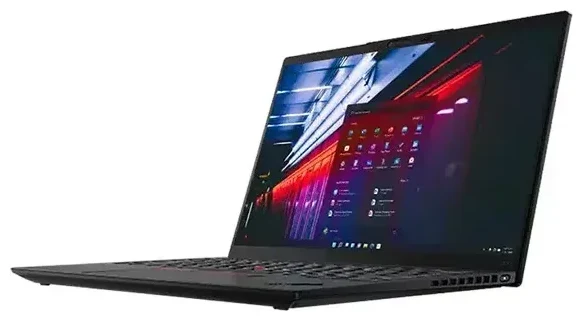
Does the Lenovo ThinkPad X1 Nano support eSIM?
Some models of the Lenovo ThinkPad X1 Nano support eSIM, but not all configurations come with this feature. Specifically, the ThinkPad X1 Nano Gen 2 and Gen 3 models equipped with an optional WWAN (cellular) module include embedded SIM capability. The Gen 1 version does not support eSIM. When you configure your ThinkPad X1 Nano, you must select the WWAN upgrade at purchase—the base Wi-Fi-only models lack the necessary hardware entirely.
Lenovo ThinkPad X1 Nano eSIM compatibility by generation
The Gen 2 (released in 2022) and Gen 3 (released in 2023) both offer Fibocom or Quectel WWAN modules that include eSIM support, typically paired with CAT16 or 5G connectivity. You'll see SKU options that mention "WWAN" or "4G LTE" / "5G" in the configuration—those are the models with eSIM. The Wi-Fi-only configurations do not have the cellular radio or eSIM chip, so verify your exact SKU before assuming compatibility. If you're shopping on Amazon or other third-party retailers, check the full specification sheet to confirm WWAN is included.
The ThinkPad X1 Nano supports only one eSIM profile at a time—there is no physical nano-SIM slot and no dual-SIM capability. You can store multiple eSIM profiles in Windows and switch between them, but only one can be active for data at any given moment.
How to set up an eSIM on the Lenovo ThinkPad X1 Nano
Setting up an eSIM profile on your ThinkPad X1 Nano takes about a minute once you have your QR code or activation details from your carrier or travel eSIM provider. Windows 11 (and Windows 10 version 1903 or later) includes native eSIM management, so you won't need third-party software.
Set up an eSIM in Windows Settings
- Open Settings and navigate to Network & Internet, then select Cellular.
- Click Add a cellular plan or Use a QR code from my mobile operator.
- Hold your QR code up to your laptop's webcam, or manually enter the activation code (SM-DP+ address and activation code) if your provider supplies those details.
- Windows will download and install the eSIM profile—this usually takes 30 to 60 seconds.
- Once installed, assign a label to the profile (for example, "Travel Data" or "Work SIM") so you can identify it later.
- Toggle Let Windows keep me connected if you want automatic switching between Wi-Fi and cellular data.
Your ThinkPad X1 Nano will now show signal bars in the system tray when the eSIM is active. You can manage, rename, or delete eSIM profiles at any time under the Cellular settings page.
Using a travel eSIM on the Lenovo ThinkPad X1 Nano
A travel eSIM is the simplest way to get mobile data abroad without paying roaming charges on your home carrier. You purchase a data plan for your destination country or region, install the eSIM profile before you depart, and activate it when you land. Your laptop connects to a local network immediately—no hunting for airport SIM kiosks or swapping physical cards.
Install your travel eSIM before you fly
Most eSIM providers email you a QR code as soon as you complete your order. Install the profile while you still have Wi-Fi at home or in the airport lounge, then keep it inactive until you arrive. When you're ready to use it, simply toggle the profile on in Settings and enable data roaming for that line. You can browse eSIM plans that cover over 200 countries and choose the data allowance that fits your trip length.
Because the ThinkPad X1 Nano holds only one active eSIM at a time, you'll switch between profiles if you have both a home and travel eSIM installed. Windows makes this straightforward: open Cellular settings, select the profile you want, and click Connect. The inactive profile remains stored and ready whenever you need it again.
Tips & troubleshooting
Most eSIM activations on the ThinkPad X1 Nano work on the first try, but a few settings adjustments can save you frustration if something goes wrong.
Turn on data roaming for your eSIM line
Even though you're using a local eSIM, Windows sometimes requires the Data roaming toggle to be on for the profile to connect. Go to Settings > Network & Internet > Cellular, select your eSIM, and flip the roaming switch to On. This won't trigger roaming fees on a prepaid travel eSIM—it simply tells Windows to allow the connection.
If your ThinkPad isn't recognizing the QR code, make sure your webcam has enough light and the code is flat and in focus. Alternatively, ask your provider for the manual activation string (SM-DP+ address and activation code) and type it into the Enter activation code field. If you continue to have trouble, eSIM setup help can walk you through advanced diagnostics.
Keep your home SIM available elsewhere
Because the X1 Nano doesn't have a physical SIM slot, you can't keep a home SIM active on the laptop itself. If you need to receive two-factor authentication codes or calls on your home number while traveling, keep that SIM in your phone. Your laptop handles data via the travel eSIM, and your phone handles voice and SMS on the home line—this setup covers most travelers' needs without juggling multiple profiles on a single device.
If you're unsure whether your specific ThinkPad configuration includes WWAN and eSIM, check the product label on the bottom of the laptop or run Device Manager > Network adapters in Windows and look for a WWAN or LTE/5G modem entry. You can also check another device's eSIM compatibility if you're comparing laptops or considering a different model.








