 WhatsApp +44 7367 063273
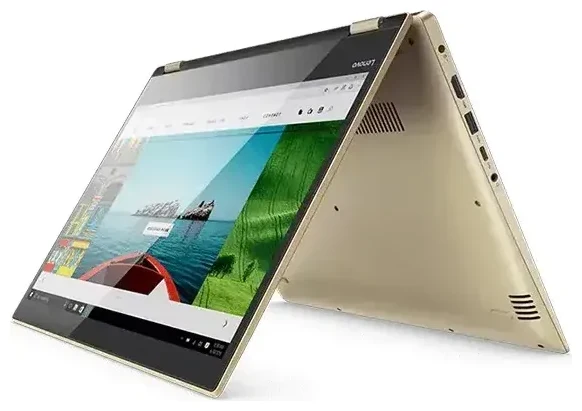
Does the Lenovo Yoga 520 support eSIM?
No, the Lenovo Yoga 520 does not support eSIM. This 2-in-1 convertible laptop was designed as a Wi-Fi-only device and does not include cellular connectivity hardware of any kind—no eSIM, no physical SIM slot, and no LTE/5G modem.
Lenovo Yoga 520 eSIM compatibility
The Lenovo Yoga 520 is a consumer laptop built for home, office, and school use with Wi-Fi 802.11ac as its only wireless data option. Lenovo did not produce any cellular variants of the Yoga 520 for any region or market. All configurations—whether you have the 14-inch or 15-inch version, with an Intel Core i3, i5, or i7 processor—lack the necessary modem and antenna systems required for mobile network connectivity.
If you've seen references to "Yoga 520 eSIM" on forums like Reddit, those discussions likely involve confusion with other Lenovo models or wishful thinking about adding cellular capability to this machine. The hardware simply isn't present, so software updates or drivers cannot enable eSIM functionality on the Lenovo Yoga 520.
Which Lenovo devices do support eSIM?
Lenovo does manufacture tablets and some ThinkPad business laptops with cellular connectivity and eSIM support, but the consumer Yoga 520 line is not among them. If you need a Lenovo device with built-in mobile data, consider models specifically marketed with "LTE" or "5G" in their specifications, or check another device's eSIM compatibility before purchasing.
Your options without eSIM on the Lenovo Yoga 520
Since the Lenovo Yoga 520 cannot connect directly to cellular networks, you'll need alternative methods to get online when Wi-Fi isn't available. Here are your practical options for staying connected on this laptop.
Connect through your smartphone hotspot
- Enable the mobile hotspot feature on your smartphone (found in Settings under Network, Connections, or Personal Hotspot depending on your phone).
- Set a secure password for your hotspot if you haven't already.
- On your Lenovo Yoga 520, open Wi-Fi settings and look for your phone's hotspot name in the available networks list.
- Connect using the password you created, and your laptop will use your phone's cellular data connection.
- Monitor your data usage, especially when streaming or downloading large files, to avoid exceeding your mobile plan limits.
Use a portable Wi-Fi hotspot device
A dedicated mobile hotspot (sometimes called a MiFi device) provides internet access for your Lenovo Yoga 520 wherever cellular coverage exists. These pocket-sized devices accept either a physical SIM card or, increasingly, support eSIM themselves. This solution works particularly well for travel, as you can use the same hotspot with multiple devices—your laptop, tablet, and phone—simultaneously.
Many travelers find portable hotspots more reliable than phone tethering because the battery drain happens on a separate device, leaving your phone available for calls, navigation, and two-factor authentication.
Staying connected abroad with the Lenovo Yoga 520
When you travel internationally with your Lenovo Yoga 520, you have several ways to get online without facing expensive hotel Wi-Fi charges or sketchy public networks.
Travel with a smartphone eSIM and tethering
If your smartphone supports eSIM, you can install a travel data plan before departure and share that connection with your Lenovo Yoga 520 through a hotspot. This approach lets you browse eSIM plans for your destination, install one on your phone in minutes, and immediately have affordable data to share with your laptop when you land. Your phone becomes the cellular gateway, and your Yoga 520 simply connects to it like any Wi-Fi network.
Install your travel eSIM on your phone while you still have Wi-Fi at home or at the airport before boarding. Once activated in your destination country, enable hotspot sharing and connect your laptop. This method works well for moderate data needs like email, web browsing, and video calls.
Consider eSIM-capable alternatives for frequent travel
If you regularly need internet access on the go and find phone tethering inconvenient, you might want to consider a laptop or tablet with built-in cellular support for your next device upgrade. Models with eSIM capability let you switch between data plans without physical SIM cards, making international travel much simpler. Many modern business laptops and premium tablets now include this feature as standard or optional equipment.
Tips and troubleshooting
Getting the most out of your Lenovo Yoga 520's connectivity requires understanding its limitations and optimizing your workarounds.
Maximize battery life when tethering
Using your smartphone as a hotspot drains both devices faster than normal. Keep your phone plugged into a power bank when providing internet to your Lenovo Yoga 520 for extended periods. On your laptop, reduce screen brightness, close unnecessary applications, and disable automatic cloud syncing to conserve battery while working on tethered cellular data.
Manage data usage carefully
Laptops typically consume more data than phones because they run desktop websites, sync larger files, and perform background updates. Disable automatic Windows updates, pause cloud storage sync services like OneDrive or Google Drive, and avoid streaming video when using a metered cellular connection through your phone's hotspot. Windows 10 and 11 let you mark a Wi-Fi connection as "metered" to restrict background data usage automatically.
Security considerations for public Wi-Fi
When your Lenovo Yoga 520 must rely on public Wi-Fi at airports, cafes, or hotels, use a VPN service to encrypt your connection. Public networks pose security risks that cellular connections typically avoid, so protecting your data becomes essential. Never access banking or enter passwords on unsecured public Wi-Fi without VPN protection.
Check compatibility before buying cellular solutions
If you're shopping for a portable hotspot or considering a new device with built-in connectivity, verify eSIM support and network compatibility for the countries you visit. Not all devices work on all carriers' frequency bands. You can find detailed compatibility information and eSIM setup help for specific devices to make informed decisions before purchasing.








