 WhatsApp +44 7367 063273
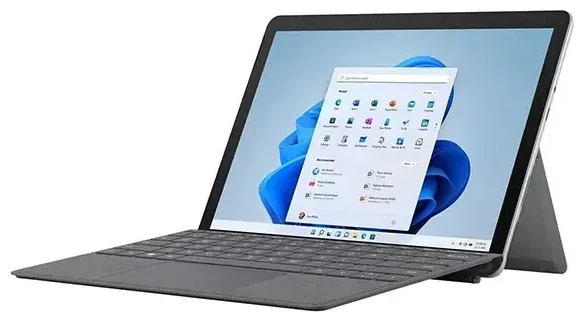
Does the Microsoft Surface Go 3 support eSIM?
Microsoft Surface Go 3 eSIM compatibility
Yes, the Microsoft Surface Go 3 supports eSIM, but only if you have the Wi-Fi + Cellular (LTE Advanced) model. The standard Wi-Fi-only variant does not include cellular connectivity or eSIM capability. Microsoft released the Surface Go 3 in late 2021 with Intel Pentium Gold or Core i3 processors, and the cellular model features a nano-SIM card slot plus an integrated eSIM.
You can use either the physical nano-SIM slot or the eSIM, but not both simultaneously. The Microsoft Surface Go 3 does not support dual SIM; you must choose one or the other. This is typical for Windows tablets and laptops with cellular radios. If you need to switch between carriers or plans, you will need to manually change your active line in Windows Settings.
Which Surface Go 3 models have eSIM
Check your purchase documentation or device specifications to confirm you have the LTE Advanced model. The Wi-Fi+Cellular version is usually distinguishable by a slightly higher price and the presence of a SIM card tray on the device edge. If your Surface Go 3 has no SIM slot, it does not support cellular data or eSIM.
How to set up an eSIM on the Microsoft Surface Go 3
Set up an eSIM in Settings
Activating an eSIM on your Microsoft Surface Go 3 takes about sixty seconds once you have your QR code from your carrier or travel eSIM provider. Windows 11 (and Windows 10 with recent updates) includes native eSIM support, so you do not need to download separate eSIM software or drivers. The operating system handles eSIM profiles through the built-in cellular settings.
- Open Settings and go to Network & internet.
- Select Cellular in the left sidebar.
- Click Manage eSIM profiles or Add a cellular plan.
- Choose Add a new plan and select Use a QR code.
- Hold your phone or printed QR code in front of the Surface Go 3's camera, or manually enter the activation code if provided.
- Windows will download and install the eSIM profile. This usually takes thirty to ninety seconds.
- Label your eSIM plan with a recognizable name, such as "Travel Data" or the country you're visiting.
- Set your data preferences: choose which line to use for mobile data if you also have a physical SIM installed (though the Surface Go 3 does not support both at once).
- Toggle Data roaming on for the eSIM line if you are using a travel eSIM abroad.
Install your eSIM before departure
Most travel eSIM plans activate only when you connect to the destination network, so you can install the profile at home before you fly. This avoids hunting for Wi-Fi at the airport or dealing with connectivity issues on arrival.
Using a travel eSIM on the Microsoft Surface Go 3
A travel eSIM is the simplest way to get mobile data on your Microsoft Surface Go 3 when you travel internationally. Instead of paying roaming fees or searching for a local SIM card shop, you can browse eSIM plans by destination, purchase a data package, and install the eSIM at home before your trip. Your tablet will connect to a local network as soon as you land, giving you instant access to maps, email, video calls, and productivity tools without Wi-Fi hunting.
Because the Surface Go 3 runs full Windows, you can use your tablet exactly as you do at home: access cloud files, run desktop applications, and stay productive on the go. A travel eSIM with generous data allowances makes the Surface Go 3 a genuinely portable work device, not just a Wi-Fi-dependent tablet. Many travelers install an eSIM profile for each destination and keep the profiles stored in Windows, ready to reactivate on the next visit.
Remember that the Surface Go 3 does not support dual SIM, so if you have a physical SIM installed for your home carrier, you will need to remove it or switch your active line to the eSIM in Windows Settings. Most users remove the physical SIM entirely when traveling and rely on the eSIM for data, using VoIP apps or their phone for voice calls and two-factor authentication.
Tips & troubleshooting
Turn on data roaming for the eSIM line
Even though you have purchased a local or regional travel eSIM, Windows still treats it as a "roaming" connection if the profile originates from a different country. Go to Settings > Network & internet > Cellular and toggle Data roaming on for your eSIM profile. Without this setting enabled, your Surface Go 3 will not connect to mobile data.
Fix an eSIM that won't activate
If your QR code will not scan, check that your Surface Go 3's camera has permission to access the camera in Windows Settings. Alternatively, most eSIM providers include a manual activation code you can type in. If the eSIM profile installs but shows "No internet," restart your tablet and confirm that the correct APN settings are configured—most travel eSIM providers set this automatically, but you can find the APN details in your purchase confirmation email.
If you continue to have trouble, eSIM setup help is available. Make sure your Windows installation is up to date, as early builds of Windows 10 had limited eSIM functionality. Windows 11 offers the most reliable eSIM experience on Surface devices.
If you are researching eSIM compatibility for other devices, you can check another device's eSIM compatibility to compare options before your next purchase. Some laptop and tablet models support dual eSIM or eSIM plus physical SIM simultaneously, which the Surface Go 3 does not.








