 WhatsApp +44 7367 063273
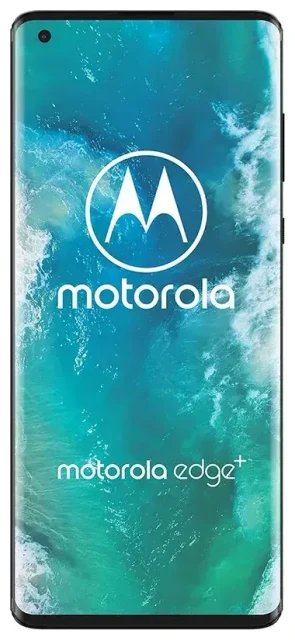
Does the Motorola Edge support eSIM?
The answer depends on which Motorola Edge model you own. Motorola has released several devices under the "Edge" name since 2020, and eSIM support varies by model and region. Some Motorola Edge devices support eSIM, while others rely exclusively on physical nano-SIM cards.
Motorola Edge eSIM compatibility by model
The original Motorola Edge (2020) does not support eSIM in most markets. However, the Motorola Edge+ (2022) and later flagship Edge models typically include eSIM capability, particularly in North American variants sold through carriers like T-Mobile and Verizon. The Motorola Edge (2021), Motorola Edge 20, and Motorola Edge 20 Lite generally do not support eSIM.
Because Motorola Edge eSIM compatibility depends heavily on your specific model number and the region where your device was sold, you should verify support before purchasing an eSIM plan. Check your device's specifications in Settings > About phone > Model, then confirm eSIM capability on Motorola's official spec sheet or with your carrier. If you're uncertain about an obscure regional variant, contact Motorola support directly rather than assuming compatibility.
Dual SIM capabilities on compatible models
Motorola Edge models that do support eSIM typically offer dual SIM functionality: one physical nano-SIM slot plus one eSIM profile. This lets you maintain two active numbers simultaneously—useful for separating work and personal lines, or keeping your home number active while using a travel data plan abroad. Most eSIM-capable Edge devices do not support dual eSIM (two eSIMs active at once); you'll use the physical slot and the eSIM together.
How to set up an eSIM on the Motorola Edge
If your Motorola Edge model supports eSIM, activation takes about 60 seconds. You'll receive a QR code from your eSIM provider—either by email or in your account dashboard—and scan it through your phone's settings. Make sure you have a stable Wi-Fi connection before you begin.
Step-by-step eSIM activation on Motorola Edge
- Open Settings and tap Network & internet.
- Tap the + icon next to SIMs or select Mobile network, then choose Add carrier or Download a SIM instead?
- When prompted, tap Next and allow camera access to scan the QR code provided by your eSIM carrier.
- Position your phone's camera over the QR code until it's recognized, then tap Add to download the eSIM profile.
- Wait for the eSIM to activate—this usually takes 30–60 seconds.
- Label your eSIM line (e.g., "Travel" or "Work") and your physical SIM (e.g., "Personal") so you can easily manage which line handles calls, texts, and data.
- Choose which SIM to use for mobile data by tapping Mobile data under SIMs and selecting your preferred line.
Manual activation codes
If the QR code won't scan, most eSIM providers also offer a manual activation code. In the same menu, select Enter it manually or Need help?, then input the SM-DP+ address and activation code exactly as provided. This method works just as reliably as scanning.
Using a travel eSIM on the Motorola Edge
A travel eSIM is the easiest way to get mobile data abroad without paying roaming fees on your home carrier. Instead of hunting for a local SIM card at the airport or dealing with unexpected charges, you install an eSIM plan before you fly and land with data already active.
Why install your travel eSIM before departure
Download and install your travel eSIM while you're still connected to Wi-Fi at home or in your departure airport. The profile will sit dormant on your Motorola Edge until you reach your destination and turn on data roaming for that line. Once you land, simply toggle mobile data to the eSIM, and you'll connect to a local network immediately—no physical SIM swap, no kiosk queues, no language barriers.
You can keep your home SIM active simultaneously to receive calls and text messages (including two-factor authentication codes), while the eSIM handles all your data. This dual-line setup means you stay reachable on your usual number without incurring data roaming charges. Browse eSIM plans for your destination to compare coverage and data allowances.
Tips & troubleshooting
Even on eSIM-compatible Motorola Edge models, a few settings adjustments will ensure smooth operation, especially when traveling.
Enable data roaming for your eSIM line
Your eSIM won't work abroad unless data roaming is turned on for that specific line. Go to Settings > Network & internet > SIMs, tap your eSIM, and toggle Roaming on. Don't worry—you won't incur surprise charges because the eSIM plan you purchased already includes the data; roaming simply allows the eSIM to connect to local networks outside your home country.
Keep your physical SIM active for calls and texts
Set your physical SIM as the default for voice calls and SMS in Settings > Network & internet > SIMs > Calls and SMS. This way, your contacts can still reach you on your regular number, and you'll receive two-factor authentication codes without interruption, while the eSIM quietly handles data in the background.
What to do if the QR code won't scan
Poor lighting, screen glare, or a smudged camera lens can prevent QR code recognition. Clean your camera, increase screen brightness on the device displaying the QR code, and try again. If scanning still fails, switch to manual entry using the SM-DP+ address and activation code your provider supplies. You can also print the QR code or display it on a tablet for easier scanning.
Verify your device variant before buying an eSIM
Because Motorola Edge eSIM support is inconsistent across models and regions, double-check compatibility before purchasing a plan. In Settings > About phone, note your exact model number, then cross-reference it on Motorola's website or check another device's eSIM compatibility if you're comparing phones. If you discover your Motorola Edge does not support eSIM, you'll need to use a physical travel SIM card or consider upgrading to an eSIM-capable device.








