 WhatsApp +44 7367 063273
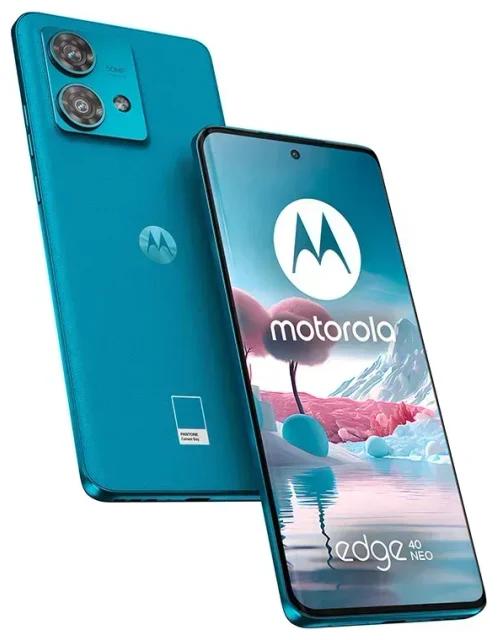
Does the Motorola Edge 40 Neo support eSIM?
Yes, the Motorola Edge 40 Neo supports eSIM functionality. This capability is built into all Motorola Edge 40 Neo models sold globally, regardless of region or carrier. You can use eSIM alongside the physical nano-SIM slot to run two phone numbers simultaneously on your device.
Motorola Edge 40 Neo eSIM compatibility
The device supports dual SIM operation through one physical nano-SIM slot and one eSIM profile. You can have one active eSIM and one physical SIM card working together, allowing you to maintain your primary number while adding a second line for work, travel, or local data plans. The Motorola Edge 40 Neo does not support multiple concurrent eSIM profiles—you can store several eSIM profiles on the device, but only one can be active at a time alongside your physical SIM.
This dual SIM capability makes the Motorola Edge 40 Neo particularly practical for international travelers who want to keep their home number accessible for calls and texts while using a local data plan through eSIM.
How to set up an eSIM on the Motorola Edge 40 Neo
Setting up an eSIM on your Motorola Edge 40 Neo takes about a minute once you have your QR code from your carrier or eSIM provider. You'll need a stable Wi-Fi connection during the installation process.
Set up an eSIM in Settings
- Open Settings on your Motorola Edge 40 Neo and tap Network & internet.
- Tap the + icon next to SIMs or select Add mobile network.
- Choose Download a SIM instead? at the bottom of the screen.
- When prompted, tap Next and then scan the QR code provided by your eSIM carrier using your device camera.
- Wait approximately 60 seconds while the eSIM profile downloads and activates on your device.
- Once installed, give your eSIM line a label (like "Travel" or "Work") to distinguish it from your physical SIM.
- Choose which SIM to use for mobile data, calls, and texts in the SIM settings menu.
If you receive your eSIM details as a manual entry (SM-DP+ address and activation code) instead of a QR code, select Enter it manually in step 4 and input the details your provider sent you.
Label your SIM lines for easy management
After installation, you can customize which line handles data, calls, and SMS. Go to Settings > Network & internet > SIMs and tap each SIM to set preferences. This is especially useful when using a travel eSIM for data while keeping your home SIM active for incoming calls and two-factor authentication codes.
Using a travel eSIM on the Motorola Edge 40 Neo
A travel eSIM is the easiest way to get mobile data abroad on your Motorola Edge 40 Neo without facing expensive roaming charges from your home carrier. Instead of hunting for a local SIM card at the airport or switching out your physical SIM, you can install a regional or country-specific data plan directly on your device before departure.
Install your travel eSIM before you fly
Purchase and install your travel eSIM while still at home and connected to Wi-Fi. The eSIM will remain dormant until you arrive at your destination and turn on data roaming for that line. Your home SIM stays in the physical slot, so you can still receive calls and texts on your regular number. You can browse eSIM plans for over 200 countries and regions, with options ranging from single-country plans to multi-region packages covering entire continents.
When you land, simply enable mobile data for your travel eSIM line in your SIM settings, and you'll have instant connectivity without needing to find a store or swap physical cards. This approach works particularly well for short trips, business travel, or multi-country itineraries where buying local SIM cards in each destination would be impractical.
Tips & troubleshooting
Getting the most from your Motorola Edge 40 Neo eSIM setup requires a few specific settings adjustments, especially when using travel eSIMs.
Turn on data roaming for the eSIM line
This catches many users off guard: even though your eSIM is a local or regional data plan, you must enable data roaming for that SIM line in your device settings. Go to Settings > Network & internet > SIMs, select your eSIM, and toggle Roaming on. Without this setting enabled, your eSIM won't connect to mobile networks even though the profile is installed and active.
Keep your home physical SIM enabled but set to calls and SMS only. This way you'll receive verification codes and important calls on your regular number while your eSIM handles all data traffic. Turn off data roaming on your home SIM to avoid accidental charges.
Fix an eSIM that won't activate
If your QR code won't scan, check that your camera lens is clean and you have adequate lighting. Alternatively, request manual activation details from your provider and enter them directly instead of scanning. If the eSIM downloads but won't connect to a network, restart your Motorola Edge 40 Neo and verify that data roaming is enabled for the eSIM line.
Some eSIMs require up to 10 minutes after installation before they connect to the network, particularly when first arriving in your destination country. If you continue experiencing issues, you can check another device's eSIM compatibility or delete the eSIM profile and reinstall it. To remove an eSIM, go to Settings > Network & internet > SIMs, select the eSIM, and choose Erase SIM.
The Motorola Edge 40 Neo display is bright enough to easily scan QR codes even in varied lighting conditions, and the device's waterproof IP68 rating means you can confidently use it in different weather conditions while traveling.








