 WhatsApp +44 7367 063273
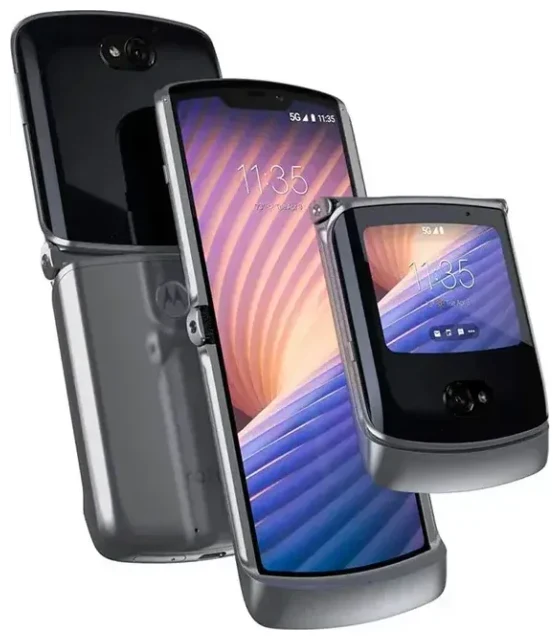
Does the Motorola Razr 5G support eSIM?
Motorola Razr 5G eSIM compatibility
Yes, the Motorola Razr 5G supports eSIM, but only in certain regional variants. The feature is not available on all models worldwide. Your Razr 5G's eSIM capability depends on where and when your device was manufactured and sold. Some units sold in North America and select European markets include eSIM functionality, while others do not.
To verify whether your specific Motorola Razr 5G has eSIM support, check the device's specifications on the original retail packaging or consult Motorola's official spec sheet for your region. If you purchased your device through a carrier, contact them directly to confirm eSIM availability on your model.
Dual SIM capabilities on the Razr 5G
When your Motorola Razr 5G does support eSIM, you can use it alongside the physical nano-SIM slot for dual SIM functionality. This means you can maintain one line on the physical SIM card (typically your primary number) and add a second line via eSIM. The device does not support dual eSIM—you cannot run two eSIM profiles simultaneously without a physical SIM.
This dual SIM setup lets you separate work and personal numbers, or keep your home carrier active while adding a local data plan when traveling.
How to set up an eSIM on the Motorola Razr 5G
Activating your eSIM profile
Before you begin, you'll need an eSIM QR code from your carrier or eSIM provider. Make sure your Razr 5G is connected to Wi-Fi and has adequate battery charge. The activation process typically takes about 60 seconds once you start.
- Open Settings on your Motorola Razr 5G.
- Tap Network & internet.
- Select Mobile network or SIMs.
- Tap the + icon or Add carrier to add a new line.
- Choose Download a SIM instead? or the option to use a QR code.
- Scan the QR code provided by your eSIM carrier using your device's camera.
- Confirm the download and wait while the eSIM profile installs.
- Label your new eSIM line (for example, "Travel" or "Work") to distinguish it from your physical SIM.
- Choose which line to use for mobile data, calls, and SMS in the SIM settings menu.
Set up an eSIM in Settings
Once the eSIM profile downloads, you'll need to enable it and configure how your Razr 5G uses both SIM lines. Navigate back to Network & internet > SIMs to toggle each line on or off, set your preferred line for mobile data, and assign default lines for calls and messages. You can switch between lines at any time without restarting the device.
Using a travel eSIM on the Motorola Razr 5G
A travel eSIM gives you local data rates abroad without the expense of international roaming or the hassle of finding a physical SIM card at your destination. Install your travel eSIM before your flight while you still have Wi-Fi access at home or at the airport.
Your existing physical SIM stays in the device, so you can still receive calls and text messages on your primary number. Meanwhile, the eSIM handles mobile data using an affordable local or regional plan. This setup eliminates bill shock and keeps you connected the moment you land.
You can browse eSIM plans for your destination, compare data allowances, and purchase a plan that fits your trip duration. Most travel eSIMs activate automatically when you arrive in the coverage area, though some require manual activation in your device settings.
Remember to turn on data roaming specifically for your eSIM line (covered in the next section) and set the eSIM as your default data line before takeoff.
Tips & troubleshooting
Enable data roaming for your eSIM line
Your Motorola Razr 5G treats the eSIM as a separate line, so you must enable data roaming for that specific profile when traveling. Go to Settings > Network & internet > SIMs, select your eSIM line, and toggle Roaming to on. Your physical SIM can remain off roaming to avoid accidental charges from your home carrier.
Keep your home SIM active for incoming calls and two-factor authentication codes. Many banking apps and services send verification texts to your primary number, so you'll want that line available even if it's not handling data.
Fix an eSIM that won't activate
If the QR code won't scan, check that your camera lens is clean and you're holding the code steady in good lighting. Alternatively, most eSIM providers offer manual entry: you'll input an activation code string instead of scanning. Look for the manual activation option in the same Add carrier menu.
If the eSIM downloads but won't connect to the network, restart your Razr 5G and confirm that the eSIM line is enabled and set as the preferred data line. Verify that mobile data is turned on globally in your quick settings.
For persistent issues or if you're unsure whether your variant supports eSIM, eSIM setup help can guide you through device-specific troubleshooting. You can also check another device's eSIM compatibility if you're considering a different phone.








