 WhatsApp +44 7367 063273
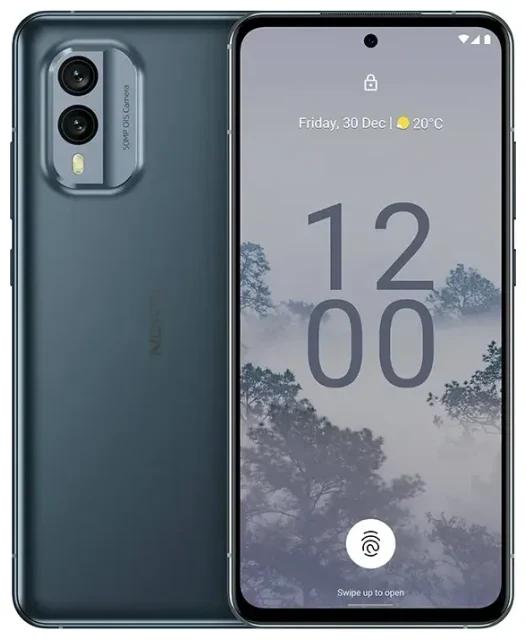
Does the Nokia X30 support eSIM?
Yes, the Nokia X30 supports eSIM. All variants of the Nokia X30 sold globally include eSIM capability, giving you the flexibility to activate a mobile plan digitally without a physical SIM card.
Nokia X30 eSIM compatibility
The Nokia X30 offers dual SIM functionality: one physical nano-SIM slot and one eSIM. You can use both simultaneously, which means you can keep your home number on the physical SIM while adding a second line via eSIM — perfect for separating work and personal calls, or adding a local data plan when you travel.
This dual SIM setup applies to all regional variants of the Nokia X30, whether purchased in Europe, Asia, or other markets. You won't find Wi-Fi-only or eSIM-free versions of this device.
eSIM vs physical SIM on the Nokia X30
The Nokia X30 does not support dual eSIM. You can have one eSIM and one physical nano-SIM active at the same time, but you cannot run two eSIMs simultaneously. If you want to switch between multiple eSIM profiles, you'll need to activate and deactivate them through your device settings.
How to set up an eSIM on the Nokia X30
Setting up an eSIM on your Nokia X30 takes about a minute. You'll receive a QR code from your carrier or eSIM provider — have it ready before you start.
Nokia X30 eSIM activation steps
- Open Settings on your Nokia X30.
- Tap Network & internet.
- Select SIMs or Mobile network.
- Tap Add or the + icon to add a new SIM.
- Choose Download a SIM instead? or Add eSIM.
- Scan the QR code provided by your carrier using your phone's camera.
- Confirm the download and wait while the eSIM profile installs (usually 30–60 seconds).
- Label your new eSIM line (e.g., "Travel" or "Work") so you can identify it easily.
- Choose which SIM to use for mobile data, calls, and texts in the SIM settings.
Set up an eSIM in Settings
After installation, you can manage your eSIM alongside your physical SIM. Go to Settings > Network & internet > SIMs to toggle each line on or off, assign default preferences for data and calls, and rename your SIM labels for clarity.
If your eSIM provider sends an activation code instead of a QR code, you can enter it manually during step 6 by selecting Enter activation code or Enter it manually.
Using a travel eSIM on the Nokia X30
A travel eSIM is the easiest way to get mobile data abroad without paying expensive roaming fees. Instead of hunting for a local SIM card at the airport or dealing with your home carrier's roaming rates, you install a travel eSIM before you fly and land with data ready to go.
Install before you fly
Download and install your travel eSIM while you're still connected to Wi-Fi at home or at the airport. The eSIM will remain dormant until you reach your destination and turn on data roaming for that line. This means you can take your time with setup, label the eSIM clearly (like "Japan data" or "Europe trip"), and avoid any last-minute scrambling when you land.
Your Nokia X30's physical SIM can stay active for calls and texts on your home number, while the eSIM handles data. You control which line is used for what in your SIM settings. When you're ready to connect, browse eSIM plans for your destination and pick a data package that fits your trip.
Keep both lines active
Because the Nokia X30 supports dual SIM, you don't have to choose between your home number and travel data. Keep your physical SIM on for incoming calls and two-factor authentication codes, and route all mobile data through the travel eSIM. This setup keeps you reachable on your usual number while avoiding roaming charges on data.
Tips & troubleshooting
Most eSIM setups on the Nokia X30 go smoothly, but a few common questions come up. Here's what to check if something doesn't work as expected.
Turn on data roaming for the eSIM line
If your eSIM won't connect to mobile data, make sure data roaming is enabled for that specific line. Go to Settings > Network & internet > SIMs, select your eSIM, and toggle Roaming on. Travel eSIMs require roaming to be active because you're technically using a foreign network.
Also confirm that the eSIM line is set as your default for mobile data. In the same SIM settings menu, check which line is assigned to Mobile data and switch it to your eSIM if needed.
What to do if the QR code won't scan
If your camera won't focus on the QR code, try increasing screen brightness on the device displaying the code, or print it out if you're scanning from another phone. You can also enter the activation details manually: during eSIM setup, choose Enter activation code and type in the SM-DP+ address and activation code your provider sent.
If the eSIM download stalls or fails, restart your Nokia X30 and try again. Make sure you have a stable Wi-Fi or mobile data connection during installation.
Check your Nokia X30 eSIM compatibility
To confirm eSIM support on your specific device, dial *#06# on your Nokia X30. If an EID (a 32-digit number starting with 89) appears, your device has an eSIM chip. You can also check under Settings > About phone > SIM status to view your EID.
If you're unsure whether another device supports eSIM, you can check another device's eSIM compatibility before you buy a plan. For additional setup questions, visit eSIM setup help for step-by-step troubleshooting.








