 WhatsApp +44 7367 063273
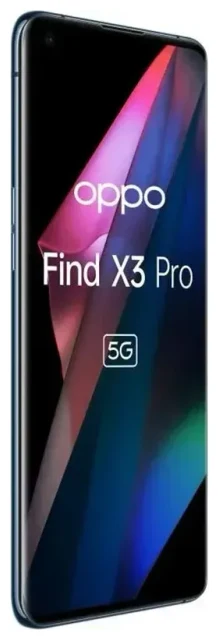
Does the OPPO Find X3 Pro support eSIM?
No, the OPPO Find X3 Pro does not support eSIM technology. Despite being a flagship device released in 2021, OPPO did not include eSIM capability in any regional variant of the Find X3 Pro. This applies to all models sold worldwide, including those distributed in Europe, Asia, and other markets.
OPPO Find X3 Pro eSIM compatibility
The OPPO Find X3 Pro relies exclusively on physical nano-SIM cards for cellular connectivity. You won't find an eSIM option in the device settings, and attempting to activate an eSIM profile will not work on this model. If you're searching for "does the OPPO Find X3 Pro have eSIM" or checking compatibility lists, the answer is definitively no.
Dual SIM support on the Find X3 Pro
While the OPPO Find X3 Pro doesn't support eSIM, it does offer dual physical SIM capabilities. The device includes two nano-SIM card slots, allowing you to use two separate phone numbers or carriers simultaneously. You can configure one SIM for calls and texts while using the other for data, or keep one line active for your home carrier and another for local service when traveling.
Your connectivity options without eSIM on the OPPO Find X3 Pro
Since the OPPO Find X3 Pro doesn't support eSIM profiles, you'll need to use physical SIM cards for all cellular connectivity. Here's how to set up and manage your mobile service on this device.
Installing a physical SIM card
- Power off your OPPO Find X3 Pro completely before handling the SIM tray.
- Locate the SIM tray on the left edge of the device and use the included ejector tool to gently pop it out.
- Place your nano-SIM card(s) into the tray, ensuring the gold contacts face downward and the cut corner aligns with the tray shape.
- Carefully reinsert the tray until it sits flush with the device frame.
- Power on the device and wait for it to detect the SIM card(s), which typically takes 30–60 seconds.
- Navigate to Settings > SIM card & mobile data to configure which SIM you want to use for calls, texts, and mobile data.
- If prompted, enter your SIM PIN and follow any carrier-specific activation instructions.
Managing dual physical SIMs
You can customize which SIM handles which function in the Settings menu. Go to Settings > SIM card & mobile data to assign one line as your primary data connection and choose default SIMs for voice calls and messaging. This flexibility makes the Find X3 Pro practical for separating work and personal numbers or managing two carriers without eSIM functionality.
Staying connected abroad without eSIM on the OPPO Find X3 Pro
Traveling with the OPPO Find X3 Pro means relying on physical SIM solutions for international connectivity. You have several practical options to avoid expensive roaming charges from your home carrier.
Travel SIM cards for the Find X3 Pro
Purchase a local physical SIM card when you arrive at your destination, or buy an international travel SIM before departure. Because your device has two SIM slots, you can keep your home SIM installed for incoming calls and two-factor authentication while using the second slot for a local data SIM. This setup gives you affordable local rates without losing access to your primary number.
Consider eSIM-capable alternatives
If you frequently travel and want the convenience of instant connectivity without hunting for SIM vendors at airports, you might consider future devices with eSIM support. Models like the Samsung Galaxy S21 and later, iPhone 13 and newer, or Google Pixel 6 series all offer eSIM alongside physical SIM slots. You can browse eSIM plans to understand what these devices enable—immediate activation of data plans for 190+ countries without handling physical cards. The OPPO Find X3 Lite and Find X3 Neo also lack eSIM, so if this feature matters to you, check OPPO's newer flagship releases or check another device's eSIM compatibility before purchasing.
Tips & troubleshooting for the OPPO Find X3 Pro
Enabling data roaming for travel SIMs
When you insert a new travel SIM into your OPPO Find X3 Pro, you'll need to enable data roaming for that line. Go to Settings > SIM card & mobile data, tap the SIM you want to use for data, and toggle on "Data roaming." Without this setting enabled, your phone won't connect to foreign networks even with a valid local SIM installed.
SIM card not detected
If your Find X3 Pro doesn't recognize a newly inserted SIM card, power off the device, remove the tray, and verify the SIM is seated correctly with contacts facing down. Ensure you're using a nano-SIM (not micro or standard size). If the SIM works in another device but not your Find X3 Pro, contact your carrier—the card may need activation or your account may have restrictions. Restart the phone after reinserting the tray to trigger network detection.
Checking which OPPO phones support eSIM
As of now, OPPO's eSIM phone list remains limited compared to competitors. The Find X3 Pro, Find X3 Lite, and Find X3 Neo all lack eSIM functionality. Always verify eSIM support on the manufacturer's official specification page for any OPPO model you're considering. Network compatibility and eSIM availability can vary by region, so confirm with your local retailer or carrier before assuming a device supports this feature.








