 WhatsApp +44 7367 063273
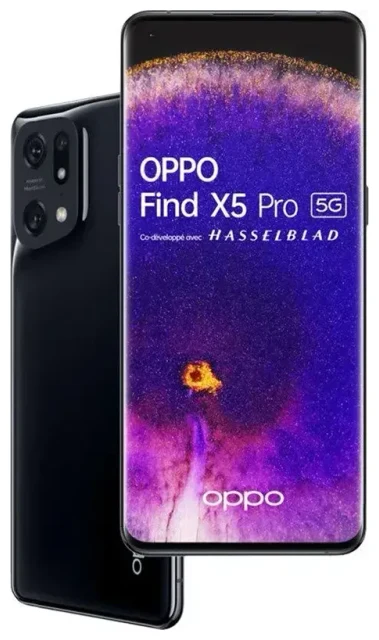
Does the OPPO Find X5 Pro support eSIM?
Yes, the OPPO Find X5 Pro supports eSIM in most global variants. OPPO equipped this flagship with eSIM capability, making it one of the first OPPO devices to offer this feature. However, eSIM availability depends on your specific model and the region where it was sold.
OPPO Find X5 Pro eSIM compatibility by variant
The international version of the OPPO Find X5 Pro (model CPH2305) typically includes eSIM support. If your device was purchased in Europe, the UK, Australia, or most other markets where OPPO officially sells this model, eSIM should be enabled. The China-specific variant may not support eSIM, as network infrastructure and regulatory requirements differ there.
To confirm your specific unit supports eSIM, check the retail box specifications or OPPO's official spec sheet for your region. If you're unsure about an obscure regional variant, verify with OPPO customer support before purchasing an eSIM plan.
Dual SIM setup on the OPPO Find X5 Pro
The OPPO Find X5 Pro offers dual SIM functionality: one physical nano-SIM slot plus eSIM. You can use both simultaneously, assigning one line for calls and another for data. This flexibility makes it ideal for travelers who want to keep their home number active while adding a local data plan. The device does not support dual eSIM—you'll always need at least one physical SIM if you want two active lines without eSIM.
How to set up an eSIM on the OPPO Find X5 Pro
Setting up an eSIM on your OPPO Find X5 Pro takes about 60 seconds once you have your QR code from your carrier or travel eSIM provider. Make sure you're connected to Wi-Fi before you begin, as the device needs internet access to download the eSIM profile.
Step-by-step eSIM installation
- Open Settings on your OPPO Find X5 Pro.
- Tap Mobile network or SIM card & mobile data (wording varies slightly by ColorOS version).
- Select Add eSIM or Add a data plan.
- Tap Scan QR code and point your camera at the QR code provided by your eSIM carrier.
- Confirm the download when prompted. The eSIM profile installs in 30–60 seconds.
- Label your eSIM line (e.g., "Travel Data" or "Work") to distinguish it from your physical SIM.
- Choose which SIM to use for mobile data, calls, and SMS in the SIM settings menu.
Activating your eSIM line
After installation, your OPPO Find X5 Pro lists both SIMs. Toggle the eSIM on in the SIM management screen, then select it as your data line if you want to use it for internet. You can switch between lines anytime, and both remain installed until you manually delete the eSIM profile.
Using a travel eSIM on the OPPO Find X5 Pro
Travel eSIMs give you mobile data abroad without paying roaming fees to your home carrier. Instead of hunting for a physical SIM card at the airport or dealing with poor hotel Wi-Fi, you install a data plan before you fly and land with connectivity already active.
Why install your eSIM before departure
Download your travel eSIM while you're still at home on Wi-Fi. The profile sits dormant until you reach your destination and turn on data roaming for that line. This means you'll have data the moment you step off the plane—useful for rideshares, maps, and messaging family. You can browse eSIM plans by destination and install the QR code in under a minute.
Keep your home SIM active in the physical slot for calls and text messages. Set your OPPO Find X5 Pro to use the travel eSIM for mobile data only. This setup lets you receive two-factor authentication codes and phone calls on your regular number while the eSIM handles all data traffic at local rates.
Tips and troubleshooting
Most eSIM setups on the OPPO Find X5 Pro complete without issues, but a few settings can trip you up if they're not configured correctly.
Turn on data roaming for your eSIM line
Your OPPO Find X5 Pro treats the eSIM as a separate line, so you must enable data roaming specifically for that profile. Go to Settings > Mobile network, tap the eSIM line, and toggle Data roaming on. Without this step, the eSIM won't connect even though it's installed and active.
Keep your home SIM for calls and 2FA
Leave your physical SIM enabled for voice and SMS. In the SIM settings, assign "Calls" and "Messages" to your home SIM and "Mobile data" to the travel eSIM. This way, banks and apps can still send verification codes to your regular number, and you won't miss important calls.
Fix an eSIM that won't activate
If the QR code won't scan, check that your camera lens is clean and the code is well-lit. You can also enter the activation details manually: tap Enter activation code manually during setup and type the SM-DP+ address and activation code provided by your carrier. If the eSIM still won't download, restart your OPPO Find X5 Pro and confirm you're connected to Wi-Fi. For persistent problems, eSIM setup help can walk you through carrier-specific fixes.
If you're not certain your OPPO Find X5 Pro variant supports eSIM, you can check another device's eSIM compatibility or verify the spec sheet from OPPO before purchasing a plan.








