 WhatsApp +44 7367 063273
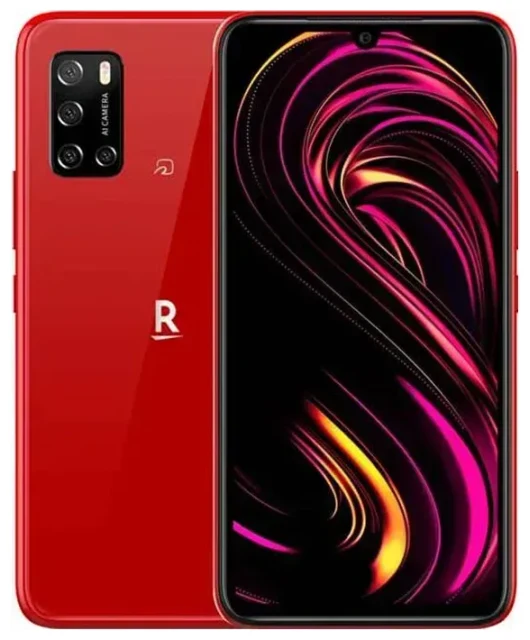
Does the Rakuten Big s support eSIM?
Yes, the Rakuten Big s supports eSIM. In fact, this device is eSIM-only — it has no physical SIM card slot at all. Every Rakuten Big s model relies exclusively on embedded SIM technology, so you'll activate and manage all your mobile plans digitally through eSIM profiles.
Rakuten Big s eSIM compatibility
All Rakuten Big s units support eSIM across every regional variant. The device was designed specifically for Rakuten Mobile's network in Japan and ships without a physical SIM tray. Because it's eSIM-only, you won't insert a nano-SIM card; instead, you'll download carrier profiles directly to the device.
Dual eSIM capability
The Rakuten Big s supports dual eSIM, meaning you can store multiple eSIM profiles on the device and switch between them as needed. You can have one active for calls and texts (such as your home carrier) and a second active for data (like a travel eSIM). This flexibility makes the Rakuten Big s ideal for travellers who want to avoid roaming fees while keeping their primary number accessible for voice and SMS.
How to set up an eSIM on the Rakuten Big s
Setting up an eSIM profile on your Rakuten Big s takes about 60 seconds once you have your QR code or activation details from your carrier. The device runs Android, so the process follows the standard Android eSIM installation path.
Install an eSIM profile step by step
- Connect your Rakuten Big s to Wi-Fi and ensure you have your eSIM QR code or activation code ready.
- Open Settings, then tap Network & internet.
- Tap the + icon next to SIMs or select Add mobile network.
- Choose Download a SIM instead? or Use QR code.
- Scan the QR code provided by your eSIM provider. The device will download and install the profile automatically.
- Once installed, you'll be prompted to label the new line (for example, "Travel Data" or "Work").
- Enable the eSIM profile and select it for mobile data if you want it to handle your data connection.
- Restart your Rakuten Big s if the profile doesn't activate immediately.
Managing multiple eSIM profiles
Because the Rakuten Big s holds multiple eSIM profiles, you can toggle between them without deleting anything. Go back to Settings > Network & internet > SIMs to enable or disable each profile, choose which one handles mobile data, and assign defaults for calls and messages.
Using a travel eSIM on the Rakuten Big s
A travel eSIM is the easiest way to stay connected abroad without paying roaming charges. Instead of hunting for a local SIM card at the airport or dealing with your home carrier's international rates, you install a data-only eSIM before you fly and land with connectivity already live.
Why a travel eSIM works perfectly on the Rakuten Big s
Because the Rakuten Big s is eSIM-only and supports dual eSIM, you can keep your primary Rakuten Mobile line active for calls and two-factor authentication while a second eSIM profile handles data. Install the travel plan a day before departure, switch mobile data to the new profile once you land, and you're online immediately. Browse browse eSIM plans to compare coverage and data allowances for your destination.
Install before you travel
Download and install your travel eSIM while you're still at home on Wi-Fi. Most providers send the QR code by email as soon as you purchase. Once installed, the profile sits dormant until you reach your destination and enable it. This way you avoid scrambling for connectivity at the airport or relying on expensive airport Wi-Fi to complete setup.
Tips & troubleshooting
Most eSIM installations on the Rakuten Big s work smoothly, but a few settings and common hiccups are worth knowing about before you travel.
Turn on data roaming for your eSIM line
Even though you're using a local or regional eSIM, you often need to enable Data roaming for that profile. Go to Settings > Network & internet > SIMs, select your travel eSIM, and toggle Roaming on. This is standard for data-only eSIMs and won't trigger surprise charges because the eSIM plan itself defines your allowance.
Keep your home line for calls and two-factor authentication
Because the Rakuten Big s supports dual eSIM, leave your primary Rakuten Mobile profile enabled but set mobile data to the travel eSIM. That way you'll still receive SMS messages for banking authentication and calls to your usual number, while the travel eSIM handles all your data traffic.
QR code won't scan or eSIM not activating
If the camera won't read the QR code, tap Enter activation code manually in the eSIM setup screen and type in the details your provider sent. Make sure you're connected to Wi-Fi during installation. If the profile installs but shows no signal, restart the device and confirm that the eSIM is enabled and selected for mobile data in Settings > Network & internet > SIMs. If you need more help, visit eSIM setup help for detailed troubleshooting.
Check compatibility for other devices
If you're planning to share eSIM plans across devices or wondering whether your tablet or secondary phone supports eSIM, you can check another device's eSIM compatibility to confirm before you buy a plan.








